 Auraz Tech
How to Use NFC Payments on Android in Pakistan (2026): Tap-to-Pay Setup, Cards & Troubleshooting
You are standing at the counter, your wallet is sitting on the table at home, and the cashier is waiting. You unlock your phone, tap it against the payment terminal, and walk out — paid, in under two seconds. That is NFC: the same tap technology built into your contactless debit card, except it lives inside your phone. Since Google Wallet launched in Pakistan, tap-to-pay with an Android phone has gone from a novelty to something you can actually use at malls, restaurants, fuel stations and supermarkets across the country — anywhere you see the little wave symbol on a payment terminal. But most people never finish the setup: they are not sure their phone even has NFC, they add a card that their bank never approved for wallets, or they tap the wrong end of the phone and nothing happens. This guide fixes all of that: what NFC is and how tap-to-pay works, how to check your phone for NFC in 30 seconds, turning it on and setting your default payment app, adding cards in Google Wallet and your bank's app, the exact steps to pay at any store, smart uses of NFC beyond payments, the truth about NFC safety, and fixes for every common tap-to-pay failure.
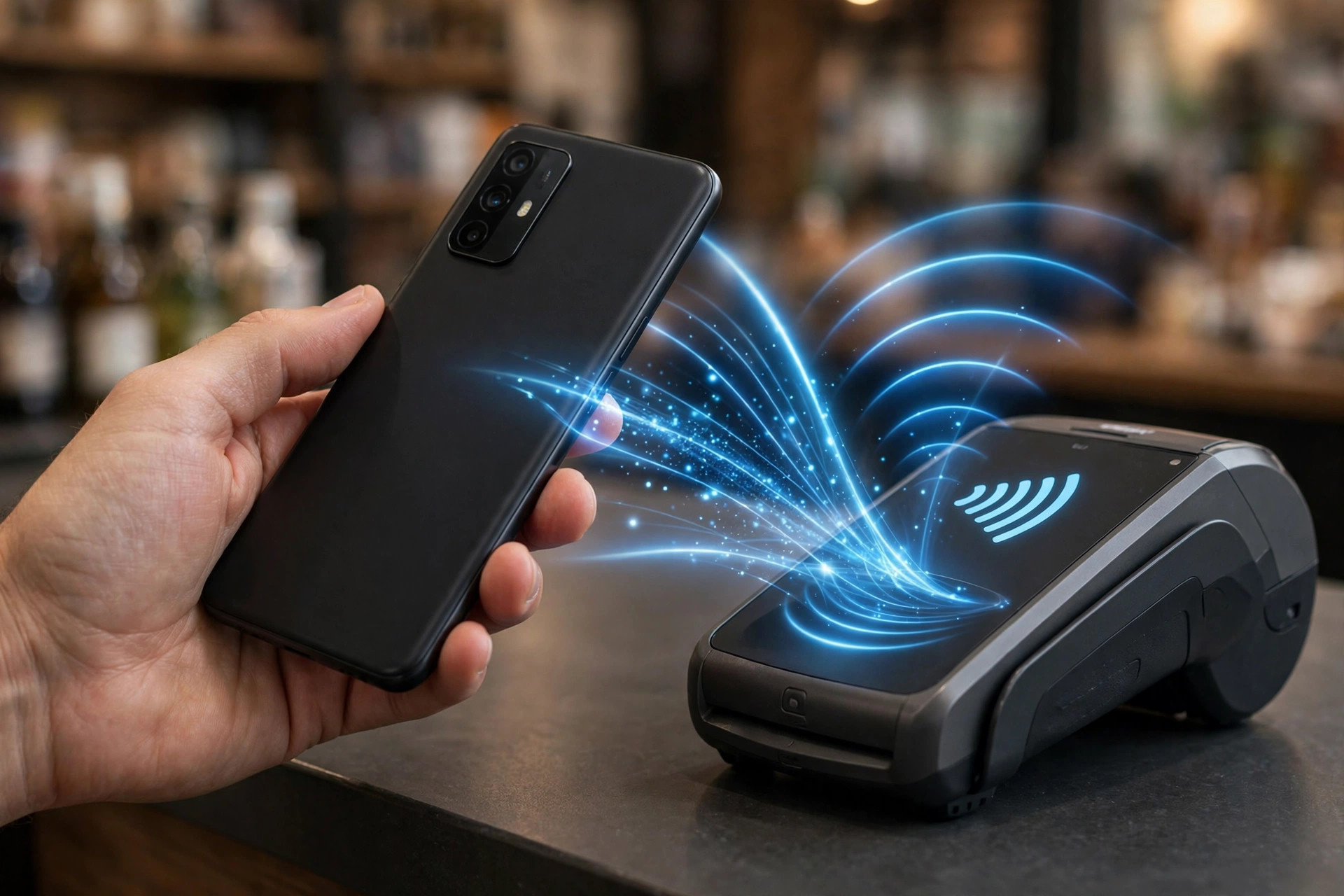
What Is NFC and How Tap-to-Pay Works
NFC stands for Near Field Communication: a short-range wireless technology that lets two devices exchange data when they are held within about 4 centimeters of each other. It is the same idea as tapping your contactless debit card on a terminal — the difference is that your phone emulates the card, so you do not need the plastic at all.
Here is what happens in the two seconds your phone touches the terminal:
- Your phone's NFC chip wakes up and connects to the terminal.
- Google Wallet (or your bank's app) responds with a payment token — a one-time-use code that stands in for your real card number.
- The terminal sends that token to your bank through the card network, exactly as if you had tapped the physical card.
- Your bank approves the payment, the terminal beeps, and you are done.
The key detail is tokenization: your actual card number is never sent to the terminal, the shop, or anyone listening in. Even if someone intercepted the transmission, the token is useless for anything except that single transaction. This is why phone tap-to-pay is, in practical terms, safer than handing your card to a cashier or swiping a magnetic stripe.
Timing-wise, Pakistan is ready for this. Since Google Wallet's arrival in Pakistan, a growing list of local banks support adding their debit and credit cards to the wallet, and contactless-capable terminals are now standard at major retailers, restaurants, fuel stations and supermarkets in the big cities. If a terminal shows the wave symbol (four curved lines), your phone can almost certainly pay there.
Does Your Android Phone Have NFC? Check in 30 Seconds
Not every Android phone has NFC hardware — it is common on mid-range and flagship phones but frequently missing from budget models. Do these checks before anything else:
- Search Settings. Open Settings and type "NFC" in the search bar at the top. If an NFC toggle appears in the results, your phone has the hardware. This is the fastest test.
- Check the connection menu. Go to Settings > Connected devices > Connection preferences and look for an NFC entry (on Samsung: Settings > Connections > NFC and contactless payments).
- Look at the quick settings. Swipe down twice from the top of the screen to open the full quick-settings panel. An NFC tile there means the hardware exists.
- Check the specs. If none of the above shows anything, search your exact phone model plus "specs" and look for NFC in the connectivity section. Many phones from Infinix, Tecno and itel — the best-selling budget brands in Pakistan — ship without NFC, so do not assume it is there.
One more thing: if your phone is a grey import or non-PTA-approved device, some network and payment features can behave oddly or stop working. If you have any doubt about your phone's status, run our PTA approval check guide first — it takes two minutes.
Turn On NFC and Set Your Default Payment App
Once you know the hardware is there, the setup takes about a minute:
- Go to Settings > Connected devices > Connection preferences > NFC and switch the NFC toggle on. (Samsung: Settings > Connections > NFC and contactless payments.)
- On the same screen, tap "Contactless payments" or "Tap to pay". This opens the list of apps on your phone that can handle tap payments.
- Set the default payment app to Google Wallet. If your bank has its own tap-to-pay app and you prefer it, you can choose that instead — but Google Wallet is the simplest starting point.
- On some phones there is a "Use default" versus "Except when another payment app is open" option. Leave it on the default setting unless you regularly switch between two payment apps.
Tip: add the NFC tile to your quick settings while you are here (tap the pencil/edit icon in the quick-settings panel). It gives you a one-tap switch for NFC without digging through Settings later. And if you are setting up Google Wallet for the first time, our Google Wallet setup guide walks through the app's side of the process screen by screen.
Add Your Cards: Google Wallet and Bank Apps in Pakistan
NFC turned on is only half the job — your phone needs a card to pay with. Adding one takes a few minutes:
- Open Google Wallet and tap "Add to Wallet", then "Payment card".
- Scan your debit or credit card with the camera, or enter the number, expiry and CVV manually.
- Your bank verifies the card — usually with an SMS code sent to your registered mobile number, sometimes inside the bank's own app. This step is the bank approving the card for tokenized wallet payments.
- Accept the terms, and the card appears in Google Wallet marked ready for contactless payments. Repeat for any additional cards.
A few Pakistan-specific realities to know:
- Support is card-by-card, not just bank-by-bank. Most major Pakistani banks support Google Wallet, but whether your specific card works depends on the card type and the bank's settings. The honest test is to try adding it — Google Wallet will tell you during setup if that card is eligible.
- If Google Wallet rejects your card, check your bank's own app. Several banks offer their own tap-to-pay inside their app independently of Google Wallet. It is worth a look before giving up on the card.
- Keep your registered mobile number active. Bank verification arrives by SMS to the number on file. If you recently changed your SIM or number with the bank, verification codes may go nowhere.
- Virtual and prepaid cards are hit-and-miss for wallet support. Physical debit and credit cards from major banks are the safest bet.
Pay with a Tap: The Exact Steps at Any Store
With NFC on and a card added, paying is genuinely this simple:
- Unlock your phone with your fingerprint, face, PIN or pattern. A locked phone will not pay — this is a security requirement, not a bug.
- Hold the back of your phone near the terminal's contactless symbol (the wave mark), within a couple of centimeters. On most phones the NFC antenna sits in the upper half of the phone, near the camera — so present the top of the phone to the reader, not the bottom.
- Wait for the checkmark, vibration or beep — usually under two seconds. That is the payment going through.
- For larger amounts, the terminal may ask you to enter your card PIN on the terminal keypad after the tap, exactly as with a physical contactless card above the PIN-less limit. Enter it and the payment completes.
Where this works in Pakistan: any terminal displaying the contactless wave symbol — which in 2026 covers most supermarkets, malls, branded restaurants, fuel stations and pharmacies in the major cities. Smaller shops with older chip-and-PIN-only terminals will not accept taps; you will still need the physical card there.
Three small things that make taps fail silently: thick metal phone cases can block the NFC signal (plastic and silicone cases are fine — metal plates and magnetic mounts are the problem), holding the phone too far from the reader, and trying to pay with the phone locked. Fix those three and nearly every failed tap starts working.
NFC Beyond Payments: Tags, Sharing and Smart Uses
NFC is more than a payment trick. The same chip can talk to cheap programmable NFC tags — little stickers that cost next to nothing online and at mobile accessory shops — and to other NFC devices. A few genuinely useful setups:
- Automate your routine with tags. Stick a tag by your front door programmed to turn on Wi-Fi and silent mode; one on your desk that enables your mobile hotspot; one in the car that opens your navigation app and turns on Bluetooth. Apps like NFC Tools write these in seconds, and the tag runs the routine every time you tap it.
- Share Wi-Fi without the password dance. A tag programmed with your Wi-Fi details lets guests join your network with one tap instead of you reading out a 20-character password. Handy for shops and offices too.
- Pair Bluetooth accessories faster. Many earbuds, speakers and headphones with NFC pairing connect the moment you tap the phone to them — no Settings menus, no pairing lists.
- Read smart posters and product tags. Transit info boards, event posters and some product packaging carry NFC chips with links or details — tap to open instead of scanning a QR code.
These are the kind of tricks that rarely appear in the manual — our hidden Android features guide collects more of them. One caution: only buy blank tags from reputable sellers, and do not tap random tags stuck in public places — a malicious tag can open a link you did not intend, the same way a suspicious QR code can.
Is NFC Safe? Myths vs Reality
NFC payments attract more fear than they deserve. Here is the honest version:
- Myth: a thief can skim your card by walking past you. Reality: NFC's range is about 4 centimeters, the phone must be unlocked, and what gets transmitted is a one-time token, not your card number. Pocket-skimming phones in a crowd is a movie plot, not a real attack.
- Myth: NFC drains your battery. Reality: the chip is effectively idle until the moment of a tap and draws negligible power. It will never show up in your battery stats. If your battery is struggling, the cause is elsewhere — start with our battery health check.
- Myth: tapping is less safe than inserting the card. Reality: it is the opposite. Chip-and-PIN exposes your real card number to the terminal; phone tap-to-pay exposes only a single-use token, and it adds your fingerprint or face as a second check on top.
- Real risk: losing your phone. This is the one that matters. A lost unlocked phone is a payment device, which is why a strong lock screen is non-negotiable once you enable tap-to-pay — and why you should know how to lock or wipe a lost phone remotely before you need to.
- Real risk: fake payment apps. Only add cards in Google Wallet or your bank's official app from the Play Store. A random "wallet" app from outside the Play Store asking for card details is a scam, full stop.
Bottom line: with a locked phone and official apps, NFC payments are among the safest ways to pay in person. The security model — short range, mandatory unlock, tokenized numbers — was designed for exactly the worries people have.
Troubleshooting: When Tap-to-Pay Does Not Work
- Terminal does not react at all: confirm NFC is switched on, the phone screen is unlocked, and you are holding the top half of the phone within a couple of centimeters of the wave symbol. Remove metal cases or magnetic mounts for the test.
- "Card not supported" or add-card fails in Google Wallet: your bank has not enabled that specific card for wallet payments. Try a different card, or check whether your bank's own app offers tap-to-pay for it.
- Bank verification code never arrives: the SMS goes to the mobile number registered with your bank. If you changed numbers or the SIM is in another phone, update it with the bank first, then retry.
- Works with the bank app but not Google Wallet (or vice versa): check which app is set as the default under Settings > Connected devices > Connection preferences > NFC > Contactless payments. The default app is the one that responds to the terminal.
- Payment declined despite sufficient balance: remove the card from Google Wallet and re-add it to refresh its tokens; confirm with your bank that contactless and online transactions are enabled on the card; and for large amounts, remember the terminal may need your card PIN after the tap.
- NFC toggle is greyed out or missing: restart the phone and install any pending system update. If the toggle was there before and vanished, a recent update or a device-admin app may be interfering — check Settings > Security for device admin apps you do not recognize.
- "Couldn't finish card setup" errors: this is almost always the bank's verification step failing, not your phone. Wait a few minutes, ensure you have mobile signal for the SMS, and retry. If it persists, call your bank — they can see the failed tokenization attempt on their side.
- Tap worked yesterday but not today: Google Wallet refreshes its payment tokens periodically in the background and needs internet for that. Connect to Wi-Fi or mobile data for a minute, open Google Wallet, then try again.
FAQ
Which banks in Pakistan support Google Wallet tap-to-pay?
Most major Pakistani banks support adding their debit and credit cards to Google Wallet, and the list has grown steadily since Google Wallet launched in Pakistan. Support varies card by card, not just bank by bank, so the reliable test is to open Google Wallet, tap Add a payment method, and try your card — the app will tell you during setup whether that specific card is eligible. If it is rejected, check your banks own app, which may offer its own tap-to-pay feature.
Does NFC drain my phone battery?
No, not in any meaningful way. NFC only becomes active for the split second it communicates with a terminal or tag, and it draws almost no power while idle. You will not see it in your battery usage stats. Leaving NFC switched on all day costs far less than a few minutes of screen time, so there is no battery reason to keep toggling it off and on.
Can someone steal my card details by walking past me?
No. NFC only works within about 4 centimeters, your phone screen must be unlocked for a payment to go through, and your real card number is never transmitted — Google Wallet sends a one-time token that is useless if intercepted. The scenario of a stranger skimming your phone in a crowd does not work in practice.
Why does my phone need to be unlocked to pay?
Requiring an unlocked screen is a deliberate security rule: it proves the person holding the phone is you, via your fingerprint, face, PIN or pattern. Without it, anyone who picked up your phone could pay. Small-value transit-style taps are the only common exception, and for purchases the unlock requirement always applies.
Can I use NFC payments without internet or mobile data?
Yes, the tap itself works offline. Your phone already holds the payment tokens it needs, so you can pay at a store terminal with no mobile data and no Wi-Fi. You only need internet occasionally — when first adding a card, and every so often when the app refreshes its tokens in the background.
My phone has NFC but Google Wallet says my card is not supported — why?
Card support is decided by your bank, not by Google. Some banks only enable tokenized payments for certain card types, so one card from a bank may work while another from the same bank does not. Confirm with your bank that contactless and digital-wallet payments are enabled on that card, or add a different card. Your banks own app may also offer tap-to-pay independently of Google Wallet.