 Auraz Tech
How to Share Mobile Hotspot on Android: Setup, Security & Data Tips
Your Android phone carries a full Wi-Fi router in its pocket — it just needs one tap to switch it on. Sharing your mobile data as a hotspot is the fastest way to get your laptop online during a power outage, help a friend whose data ran out, or work from anywhere without public Wi-Fi. This guide covers everything: turning the hotspot on in seconds, choosing between Wi-Fi, USB and Bluetooth tethering, keeping your data bill under control, locking it down so strangers can't freeload, and fixing the most common problems.
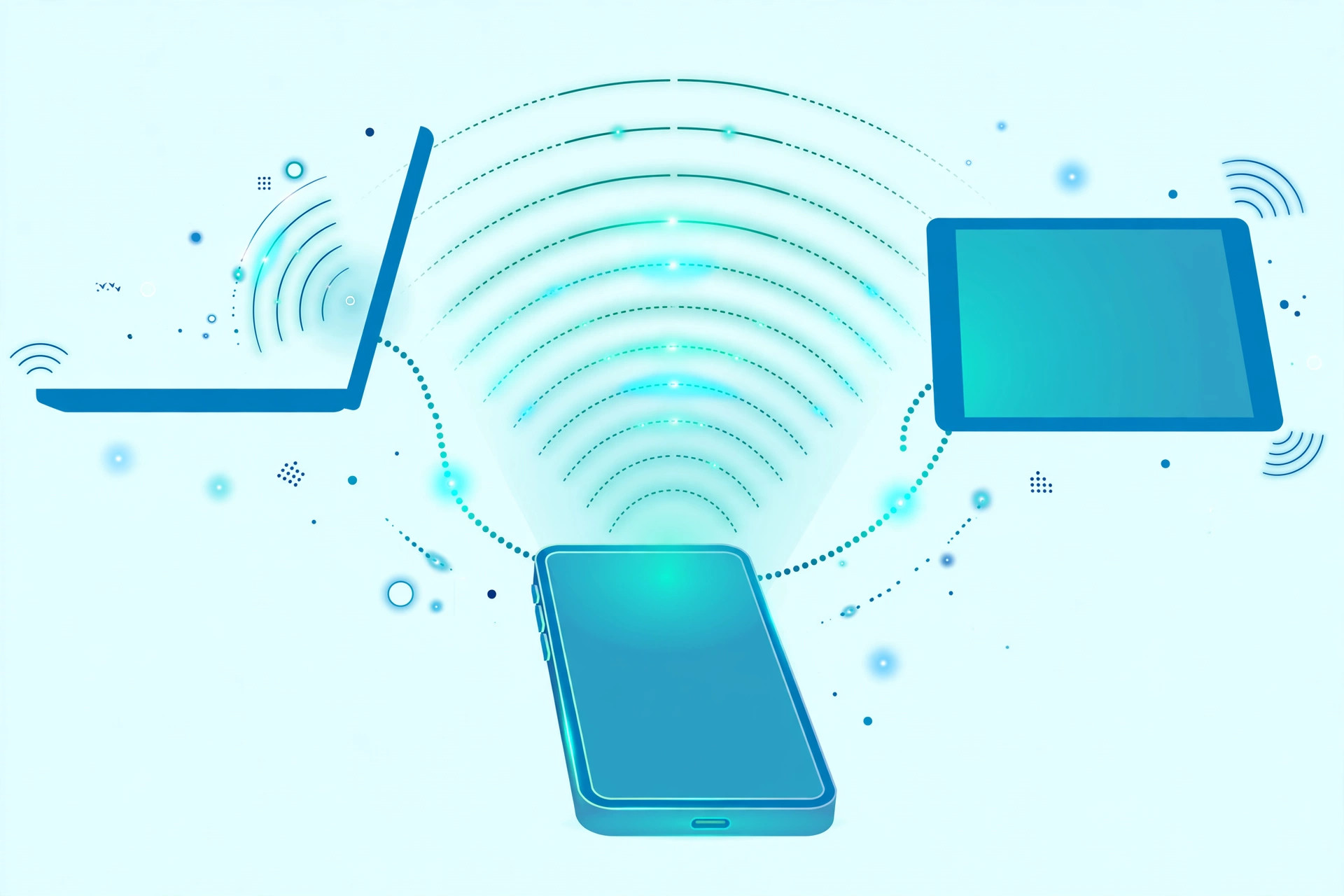
1. Turn On Your Hotspot in 30 Seconds
The quickest method uses the Quick Settings panel — no digging through menus required:
- Swipe down from the top of the screen twice to open the full Quick Settings panel.
- Tap the Hotspot (sometimes labeled Mobile Hotspot) tile. It lights up when active.
- On the connected device, open Wi-Fi settings and look for your phone's name in the network list.
The first time you do this, note the password — a notification usually shows the network name and password while the hotspot is on. If the Hotspot tile is missing from Quick Settings, tap the pencil/edit icon and drag it into the active panel. For the full settings instead, go to Settings > Network & internet > Hotspot & tethering (on Samsung: Settings > Connections > Mobile Hotspot and Tethering).
2. Set Up Your Hotspot Name and Password
Don't leave the defaults — a generic network name like "AndroidAP" with a weak password invites freeloaders. Tap Wi-Fi hotspot in the settings above, then:
- Hotspot name: pick something recognizable but not your full name. "Jamshaid's Phone" is fine at home; at a café, something neutral is safer.
- Security: leave it on WPA3-Personal (or WPA2/WPA3 on older phones). Never choose "None" — an open hotspot means anyone nearby can join and your data disappears fast.
- Password: use at least 12 characters mixing letters, numbers and symbols. Share it in person rather than posting it in a group chat.
- Band: if offered, 5 GHz is faster at short range; 2.4 GHz reaches farther and works with older laptops. Auto picks for you and is fine most of the time.
One more useful setting: Turn off hotspot automatically. It saves battery by disabling the hotspot when nothing is connected — keep it on unless you need a persistent connection (see the FAQ for why this can be annoying, and how to tame it).
3. Connect a Laptop, Tablet or Second Phone
Connecting is exactly like joining any Wi-Fi network. On a Windows laptop: click the network icon in the taskbar, select your phone's hotspot name, enter the password and click Connect. On a Mac: click the Wi-Fi icon in the menu bar. On another Android phone or an iPhone: Settings > Wi-Fi, tap the hotspot name and enter the password.
Tip: on the connected laptop, set the network as metered (Windows: Settings > Network & internet > Wi-Fi > your hotspot > turn on Set as metered connection). This stops Windows Update, OneDrive and other background services from silently eating gigabytes of your mobile data — the single biggest reason hotspots burn through data plans.
4. USB Tethering vs Wi-Fi Hotspot vs Bluetooth Tethering
Android offers three ways to share your connection. Wi-Fi hotspot is the most flexible, but not always the best choice:
- Wi-Fi hotspot: shares with up to 8–10 devices wirelessly. Easiest for multiple people, but drains the battery fastest and is the most exposed to snooping.
- USB tethering: connect the phone to a laptop with a cable, then enable USB tethering under Hotspot & tethering. Slightly faster and more stable than Wi-Fi, doesn't broadcast anything wirelessly, and charges the phone while you work. Best for serious laptop sessions.
- Bluetooth tethering: slower (usually under 25 Mbps), but sips battery. Fine for checking email on a tablet when every percent of battery counts.
For an all-day work session, USB tethering wins: stable speed, no battery drain, zero chance of neighbors piggybacking. For sharing with friends, Wi-Fi hotspot is the obvious pick.
5. Save Data: Hotspot Usage Is Not Phone Usage
This is where most people get burned. A phone sips data; a laptop gulps it. A Windows laptop with Chrome, cloud backup and HD YouTube can consume 1–2 GB per hour without you noticing. Before a long hotspot session:
- Set a data warning and limit on the phone: Settings > Network & internet > SIMs > Data warning & limit. Android will warn you before you blow through your package.
- Check live usage in Settings > Network & internet > Data usage (or Hotspot data usage on some phones) to see exactly what the hotspot has consumed.
- On the laptop: set the connection as metered (see section 3), pause cloud backups and game updates, and drop video quality to 480p.
- On the phone itself, disable automatic app updates while on mobile data (Play Store > profile > Settings > Network preferences > Auto-update apps > Over Wi-Fi only) — these count against the same data.
If your monthly package is small, a dedicated data SIM or a weekly data bundle from your operator often costs less per GB than burning your regular bundle. Check your operator's app for current hotspot-friendly bundles before a big session.
6. Make Your Hotspot Secure
A mobile hotspot is a private network — but only if you treat it like one:
- Always use a password. An open hotspot lets anyone within range join, use your data, and potentially sniff unencrypted traffic.
- Keep WPA3/WPA2 on. These are the encryption standards that keep outsiders off. If a very old device can't connect, temporarily switch to WPA2 only — never to None.
- Watch connected devices. Under the hotspot settings, the list of connected devices is visible — if you see a name you don't recognize, change the password immediately.
- Rotate the password after sharing. Lent your password to a colleague at the office? Change it afterward so it doesn't spread further.
- Forget the network on shared computers. If you connected a public or borrowed laptop, remove the saved network afterward so it can't silently rejoin later.
One caution: your phone acts as the router, so connected devices share a local network with your phone. Avoid transferring sensitive files over the hotspot, and never do banking on a device connected to someone else's hotspot unless you trust the owner.
7. Fix Common Hotspot Problems
Hotspot turns off by itself: this is the automatic timeout (section 2). Disable Turn off hotspot automatically, and also check that Battery Saver isn't killing it — power saving modes aggressively disable the hotspot.
Devices can't find or connect: if the network doesn't appear, switch the band to 2.4 GHz — older laptops and some smart devices can't see 5 GHz networks. If the password keeps failing, retype it carefully: Android passwords are case-sensitive, and lookalike characters (0/O, 1/l) are a classic trap.
Connected but no internet: first check the phone itself has working mobile data (open a website on the phone). If the phone is online but devices aren't, toggle the hotspot off and on, then toggle Airplane mode on the phone for 10 seconds and off again. If your phone's Wi-Fi isn't connecting properly in general, our guide to fixing Wi-Fi problems covers deeper resets.
Hotspot option is missing or greyed out: some carriers and corporate device policies disable tethering. Restart the phone first; if it's still gone, check your operator's app or contact support — some plans need tethering enabled on the account side. Dual-SIM users: try switching the data SIM, since the hotspot uses whichever SIM carries mobile data.
Speed is terrible: hotspot speed can never exceed the phone's mobile signal. Move somewhere with stronger reception, reduce the number of connected devices, and try USB tethering. In weak-signal areas, switching the phone's network mode from 5G to 4G/LTE can actually be more stable — 5G drains power and stutters when the signal is marginal.
Quick Checklist Before You Share
- Strong password set (12+ characters), WPA2/WPA3 on, name customized
- Data warning configured in Settings so you don't burn the whole package
- Laptop set as a metered connection; cloud backups and updates paused
- Automatic hotspot timeout off if you need a persistent connection
- USB cable in the bag for long sessions — faster, stable, charges the phone
FAQ
Why does my Android hotspot keep turning off by itself?
Most Android phones turn the hotspot off automatically when no device is connected for a few minutes. You can disable this timeout under Settings > Network & internet > Hotspot & tethering > Wi-Fi hotspot > Turn off hotspot automatically (path varies slightly by brand).
How much mobile data does a hotspot actually use?
Laptops use far more data than phones — background updates, cloud sync, and HD video can burn 1–2 GB per hour. Set a data warning in Settings and turn off auto-updates on the connected device to keep usage under control.
Is it safe to share my hotspot with strangers?
Not really. Anyone on your hotspot can, in theory, snoop on unencrypted traffic. Use a long WPA3/WPA2 password, change it after lending access, and never share a hotspot connection for banking on someone else's network.
Can I use a hotspot if my carrier plan doesn't mention tethering?
On most networks the hotspot simply works and draws from your data package, but some carriers restrict or charge extra for tethering. Check your operator's app (Jazz, Telenor, Zong or Ufone) or contact support if the option is missing or disabled.
Why is my hotspot so slow?
Hotspot speed is capped by your phone's mobile signal — 1–2 bars means slow internet for everything connected. Also check how many devices are connected, move to a spot with better reception, and try USB tethering, which is slightly faster and more stable than Wi-Fi.