 Auraz Tech
How to Set Up and Use Google Wallet on Android: Tap-to-Pay Guide
When Google Wallet launched in Pakistan in March 2025, it quietly solved a problem millions of Pakistani smartphone users didn't fully realize they had: you can now leave your physical debit and credit cards at home and pay at shops, restaurants, and petrol pumps just by holding your Android phone near the payment terminal. No wallet fumbling, no card skimming risk, no entering PINs on grimy keypads. If your phone has NFC and your bank is on Google's supported list, you can be paying with a tap in about ten minutes. This guide walks you through everything — which banks work, the exact setup steps, how to pay in-store and online, how to keep it secure, and what to do when something goes wrong.
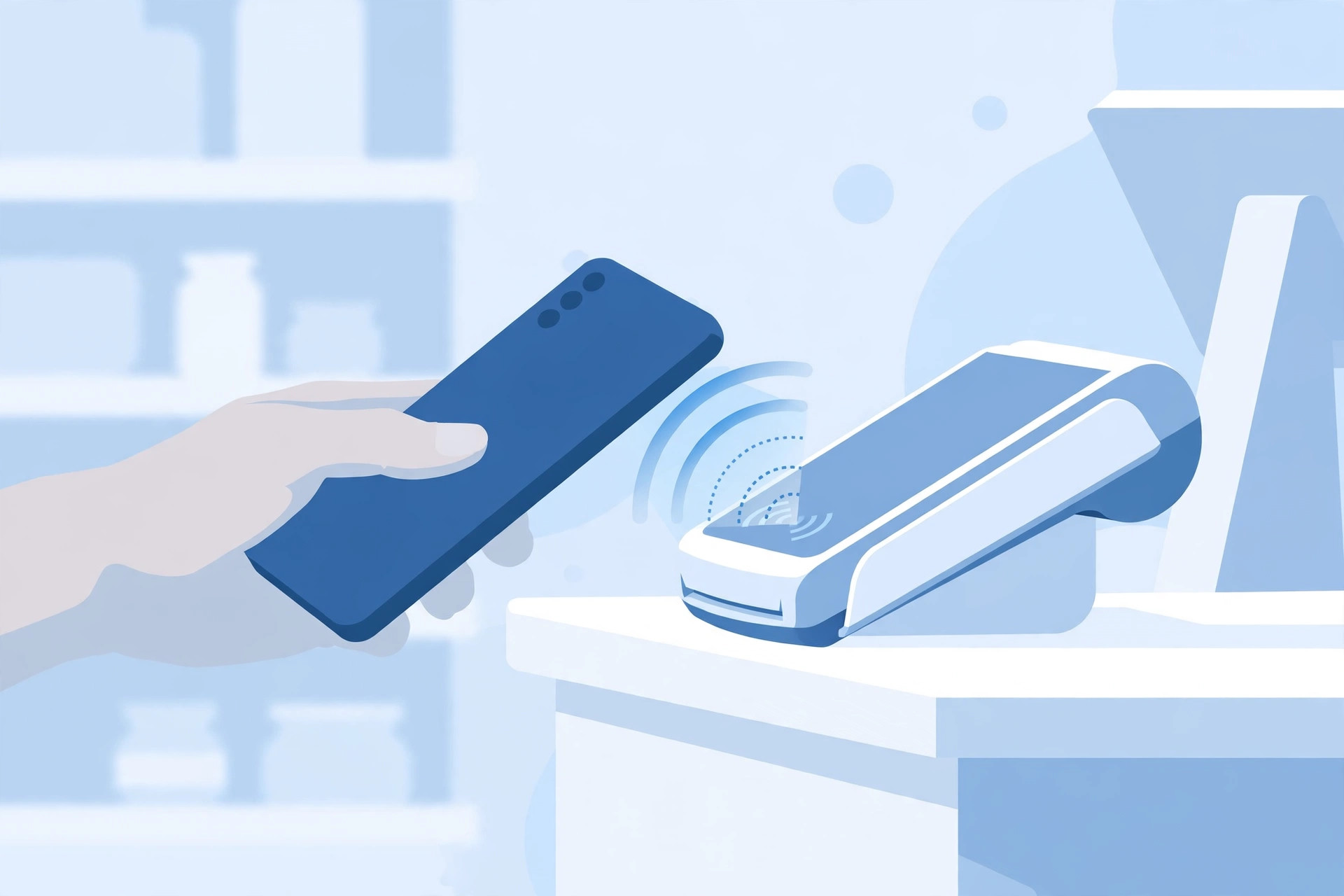
What Is Google Wallet?
Google Wallet is a digital wallet app for Android that stores digital versions of your debit and credit cards (plus boarding passes, loyalty cards, and tickets) so you can pay by tapping your phone on a contactless payment terminal. Instead of handing over your real card number to every shop you visit, Wallet uses a one-time virtual number for each transaction — the shop never sees your actual card details.
One common confusion: Google Wallet is not the old "Google Pay" (G Pay) app. Years ago, Google Pay was the payments app in many countries, and it was later split — the peer-to-peer money-sending features became a separate product (available only in a few countries like the US and India), while the wallet for cards and passes became Google Wallet. In Pakistan, what you get is Google Wallet: a wallet for storing cards and paying, not a money-transfer app. It cannot send money to another person — more on that in the Easypaisa comparison section.
Practically, it works anywhere you see the contactless symbol (the sideways Wi-Fi-looking mark) on a payment terminal — in Pakistan and abroad. It also works for online checkout on websites and in apps that offer Google Pay as a payment method.
What You Need Before You Start
Before you download anything, check off these four requirements — if you miss one, Wallet simply won't work for tap-to-pay:
- An Android phone running Android 9 or higher. Check yours at Settings > About phone > Android version. Almost any phone from the last five or six years qualifies, but if you're on a very old budget handset, check first.
- NFC hardware for in-store tap-to-pay. Near Field Communication is the short-range wireless tech that lets your phone "talk" to the payment terminal. Check at Settings > Connected devices > NFC (on Samsung phones it's often under Settings > Connections > NFC). If your phone has no NFC at all, you can still use Wallet for online and in-app payments — but you won't be able to tap at shop terminals. Flagship and mid-range phones almost always have NFC; ultra-budget phones sometimes don't.
- A screen lock. Wallet requires a PIN, pattern, password, or fingerprint/face unlock to be set on your phone. This is non-negotiable — it's how Google makes sure only you can authorize payments.
- A supported debit or credit card from a Pakistani bank (see the full list in the next section) — Visa or Mastercard only.
Also make sure your phone's Google account is signed in and that you're in Pakistan with a Pakistani-region card. Cards issued in other countries may not be addable here.
Which Banks and Cards Work in Pakistan
Google maintains an official list of supported banks for Pakistan, and it has been growing since the March 2025 launch. At the time of writing, these banks and card types are supported:
- Allied Bank (ABL) — Visa Debit
- Askari Bank — Visa Debit
- Bank Alfalah — Visa & Mastercard Credit and Debit
- Easypaisa Digital Bank — Visa Debit
- Faysal Bank — Mastercard Credit and Debit
- HBL (Habib Bank) — Visa & Mastercard Credit and Debit
- Habib Metropolitan Bank — Visa Debit
- JazzCash (Mobilink Microfinance Bank) — Mastercard Debit
- JS Bank / Zindigi — Visa Debit
- Meezan Bank — Visa & Mastercard Debit
- The Bank of Punjab (BOP) — Mastercard Credit
- UBL (United Bank) — Visa Debit, Mastercard Prepaid and Debit
Three important notes about this list. First, only Visa and Mastercard are supported — PayPak cards cannot be added, so if your only card is PayPak-only, you'll need to request a Visa or Mastercard debit card from your bank (most banks issue both on request, often free). Second, the list keeps growing — if your bank isn't listed today, check Google's official support page for Pakistan every few months rather than assuming it's permanently excluded. Third, within a supported bank, individual card products can vary; if one specific card fails to add, your bank's helpline can usually confirm whether that card type is enrolled.
How to Set Up Google Wallet: Step by Step
Set aside ten minutes and your physical card. Here's the exact process:
- Install the app. Open the Play Store, search for "Google Wallet" (the publisher must be Google LLC — beware of lookalike apps), and install it. Many newer phones ship with it preinstalled.
- Open Wallet and sign in. Launch the app and make sure you're signed into the Google account you want the cards tied to. Note: cards you already saved to your Google account (for example, from Chrome autofill or YouTube purchases) may appear automatically as suggestions.
- Add a payment card. Tap "Add to Wallet" or the + button, choose "Payment card", and accept the terms. You can scan your card with the camera or enter the details manually: card number, expiry date, CVV, and the name on the card.
- Verify with your bank. This is the step where most setups stall. Your bank needs to confirm it's really you adding the card. Wallet will offer verification options — typically an OTP (one-time password) sent by SMS or email, your bank's mobile app, or a phone call to the bank. Complete the verification immediately; the codes usually expire within a few minutes. If the OTP doesn't arrive, check that your mobile number is registered with the bank and not blocked for international/short-code SMS.
- Set Google Wallet as your default payment app. Go to your phone's settings — Settings > Connected devices > Connection preferences > NFC > Contactless payments (Samsung: Settings > Connections > NFC and contactless payments) — and select Google Wallet as the default. If you use Easypaisa or JazzCash's own NFC features, this step is what prevents conflicts.
- Make your first test payment. Head to a shop with a contactless terminal and try a small purchase (a bottle of water works fine). Unlock your phone, hold it near the terminal, and wait for the checkmark.
Tip: Google charges nothing for the app or its use — it's free to download and set up. Any charges you see are your bank's normal card fees, identical to using the physical card.
How to Pay In-Store With Tap-to-Pay
Once set up, paying is genuinely faster than cash or cards:
- Make sure NFC is switched on (quick-settings tile or Settings) and your phone is unlocked — Wallet won't pay from a locked phone.
- When the cashier enters the amount, hold the back of your phone near the terminal's contactless symbol (usually within 2–4 cm).
- Hold steady for a second or two until you see a checkmark on your phone and hear the terminal's approval beep.
- That's it — the receipt prints, and a payment notification appears on your phone.
You don't even need the Wallet app open: with NFC on and the phone unlocked, tapping works from the lock screen on most phones (you still unlock first, but the app launches itself). Also note that you do not need mobile data or Wi-Fi to tap-pay — the NFC transaction happens offline between your phone and the terminal. Internet is only needed for setup, adding cards, and bank verification, not for the payment itself.
For larger amounts, terminals in Pakistan follow the same contactless limits as physical tap cards — if a payment is declined above a certain value, insert the physical card or split the bill; this is a bank/terminal rule, not a Wallet problem.
Paying Online and In Apps
Wallet isn't just for shops. When you check out on a website or in an app that offers Google Pay as a payment option, tapping it pulls up your Wallet cards — you pick a card, confirm, and the merchant gets a one-time virtual card number instead of your real details. This is safer than typing your actual card number into every random website, and it's faster than fetching your physical card from another room.
Remember: online and in-app payments do not need NFC, so even if your phone lacks NFC hardware, Wallet is still useful for digital checkout. Your saved cards sync to your Google account, so a card added on your phone can also be available when you shop in Chrome on your laptop.
Adding Loyalty Cards, Boarding Passes and Tickets
Wallet is called a "wallet" for a reason — it holds more than bank cards. You can add:
- Loyalty and membership cards — supermarket, pharmacy, and retail loyalty programs with barcodes can live in Wallet instead of your physical wallet.
- Boarding passes — airlines like PIA and international carriers let you save boarding passes to Wallet after online check-in, so your flight is one tap away at the airport.
- Event and cinema tickets — participating ticketing services can push tickets straight into Wallet.
To add one, tap "Add to Wallet", choose the pass type (loyalty, transit, event, etc.), and follow the prompts — some scan a barcode or QR code from the merchant's app or email. Not every Pakistani merchant supports digital passes yet, but the list is growing, and international travel is where this feature really shines.
Managing Your Cards
A few housekeeping moves worth knowing:
- Set a default card: open Wallet, long-press (or tap and open the card menu on) the card you use most, and set it as default. The default is what gets charged when you tap without choosing.
- Remove a card: open the card in Wallet, tap the menu (three dots), and choose Remove payment method. This deletes the digital token from your phone — your actual bank account and physical card are untouched, so the card still works normally everywhere else.
- Changing phones: your Wallet cards do not automatically transfer to a new phone for security reasons. On your new phone, install Wallet, sign into the same Google account, and re-add each card (verification with the bank is required again). Before selling or giving away your old phone, remove your cards from Wallet and then factory-reset the device.
- Expired or replaced cards: when your bank issues a renewed card, the old token may stop working. Remove the old card and add the new one, then re-verify.
How Google Wallet Keeps Your Money Safe
The core security technology is called tokenization. When you add your card, Google stores the real card number securely and creates a unique virtual account number (token) on your phone. Every payment you make uses that token — the merchant never sees or stores your real card number. If a shop's system is ever breached, the thieves get a useless token, not your card. This is strictly safer than swiping or inserting the physical card, where the real number passes through the terminal.
On top of tokenization, three layers protect you:
- Screen lock required. Wallet refuses to work without a PIN, pattern, password, or biometric lock — and payments require the phone to be unlocked, so a thief can't tap-pay with your locked phone. For extra protection, consider using an app lock on the Wallet app itself — see our guide on how to lock apps on Android so even someone holding your unlocked phone can't open Wallet casually.
- You stay in control. You can remove a card from Wallet at any time, and removing it kills the token instantly. Your bank's fraud monitoring works exactly as with physical cards.
- Google Play Protect scans your device for malware that could compromise payment apps — keep it enabled and keep your phone updated.
Lost your phone? Act fast: use Find My Device to locate, lock, or erase your Android phone remotely. Locking the phone via Find My Device immediately stops anyone from making tap payments, and you can also remove your cards from your Google account on the web. Then call your bank to report the phone lost — most banks can also suspend the digital tokens as a precaution.
Troubleshooting Common Problems
Most Wallet issues fall into four buckets:
Your card won't add
Double-check the card details (a wrong expiry year is the classic mistake), then confirm your card is a Visa or Mastercard from a supported bank — PayPak-only cards will always fail. Make sure the phone number registered with your bank can receive the verification OTP, and that you're physically in Pakistan with location services on (banks sometimes geo-check the enrollment). If it still fails, call your bank's helpline and ask whether your specific card product is enrolled for mobile wallet tokenization — sometimes the bank needs to enable it on their end.
Tap-to-pay doesn't work at the terminal
Work through this checklist: (1) Is NFC turned on? (2) Is the phone unlocked? (3) Is Google Wallet set as the default contactless payment app (not your bank's app or another wallet)? (4) Are you holding the phone's NFC spot — usually the upper-middle of the back — close enough to the terminal's contactless symbol, and holding still for a full second? (5) Try removing any thick metal phone case or pop-socket near the NFC area, which can block the signal. If one terminal fails but others work, the problem is that terminal, not your phone.
Your phone has no NFC option at all
Some budget phones genuinely lack NFC hardware — no setting or app can add it. You can still use Wallet for online and in-app payments, which don't need NFC. For in-store tap-to-pay, you'd need a phone with NFC — check the specs before your next upgrade if tap-to-pay matters to you.
Bank verification keeps failing
OTP problems are almost always on the bank/SMS side: make sure the SIM with your registered number is in the phone, SMS inbox isn't full, and you haven't blocked short-code messages. Wait a full two minutes before requesting a resend — rapid re-requests can temporarily lock verification. If verification repeatedly fails, call your bank: they can often complete enrollment manually or reset whatever is stuck on their system.
Google Wallet vs Easypaisa and JazzCash: When to Use Which
Pakistani users already have Easypaisa and JazzCash — so where does Google Wallet fit? They solve different problems:
- Paying at shops with a bank card: Google Wallet wins on convenience — one tap with the phone, tokenized security, and your existing bank card's rewards/credit limit. Easypaisa and JazzCash debit cards (which are Mastercard/Visa) can themselves be added to Wallet, giving you the best of both.
- Sending money to a person: Wallet can't do this at all. Use Raast through your bank app, or Easypaisa/JazzCash transfers — this is their home turf.
- Paying utility bills, mobile top-ups, and tickets: Easypaisa and JazzCash have deep local bill-pay integrations; Wallet doesn't handle bill payments.
- Online shopping on local sites: many Pakistani stores accept Easypaisa/JazzCash directly; international sites more often offer Google Pay checkout. Keep both options ready.
- Traveling abroad: Wallet works at any contactless terminal worldwide with your Pakistani card (normal foreign-transaction charges apply) — far more practical than carrying cash.
The sensible setup for most people: use Google Wallet for card payments (in-store taps and online checkout) and keep Easypaisa or JazzCash for money transfers, bill payments, and mobile loads. They're complements, not competitors.
FAQ
Is Google Wallet free to use in Pakistan?
Yes — Google charges no fee for downloading, setting up, or using Google Wallet. Your bank's normal charges (annual card fees, per-transaction fees where they exist) still apply exactly as if you were using the physical card.
Can I add my PayPak card to Google Wallet?
No. Google Wallet in Pakistan currently supports only Visa and Mastercard cards — PayPak is not supported. You can still use your PayPak card through your bank's own app, Easypaisa, or JazzCash, and use a Visa or Mastercard debit card in Wallet.
Do I need mobile data or Wi-Fi to pay with tap-to-pay?
No. In-store tap-to-pay works offline over NFC — you can hold your phone to the terminal and pay even with mobile data and Wi-Fi switched off. You only need internet for the initial setup, adding cards, and bank verification.
Can I send money to a friend with Google Wallet?
No. Google Wallet in Pakistan cannot transfer money to another person. For person-to-person payments, use Raast through your bank's app, or Easypaisa and JazzCash.