 Auraz Tech
How to Use Circle to Search on Android in Pakistan (2026): Circle, Tap and Translate Anything on Your Screen
You are scrolling Instagram and spot a kurta you like, but there is no link. A friend sends a screenshot of a shop sign in English you cannot fully read. A song plays in a video and you want its name. Until recently, each of these meant screenshots, switching apps, typing a description into Google, and hoping for the best. Circle to Search changes that completely: long-press one button, circle whatever is on your screen, and Google searches for exactly that thing — no typing, no screenshots, no app-switching. It works on photos, videos, social media posts, websites and even text inside images, and it is one of the most genuinely useful Android features of the last few years. Here is how to turn it on, use every gesture, and fix it when it refuses to appear on your phone in Pakistan.
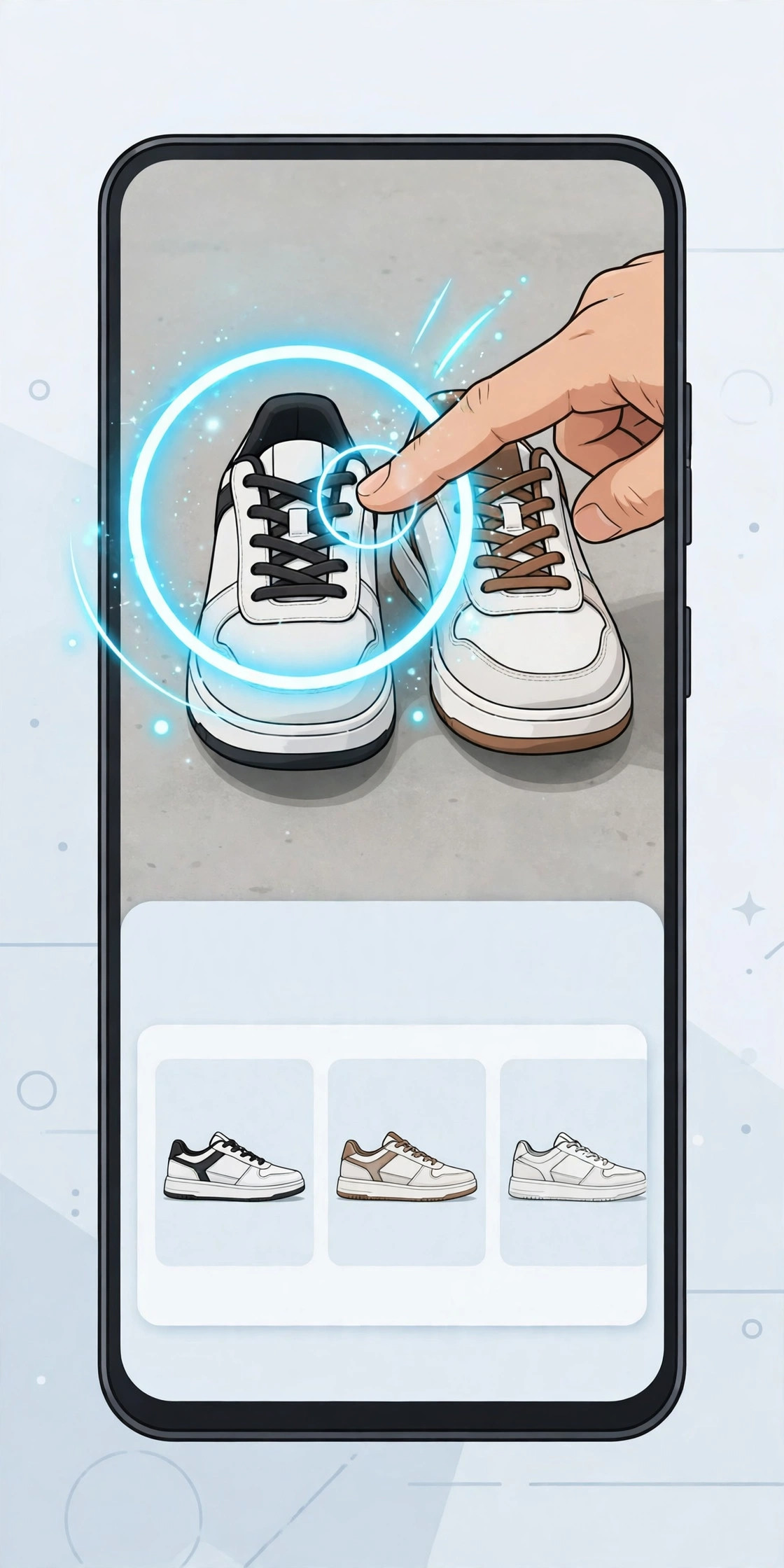
What Circle to Search Actually Does
Circle to Search is a system-level Google search tool built into supported Android phones. When you activate it, your screen freezes for a moment and a Google search bar appears at the bottom. You then mark what you are curious about — circle it, highlight it, scribble over it, or just tap it — and Google searches for that selection. The results slide up from the bottom, and you can swipe them away to return exactly where you were, in the same app, without losing your place.
That last part is the real magic. Ordinary reverse image search needs a saved photo and several steps. Circle to Search works on anything currently displayed, including a paused video frame, a story that will disappear in seconds, or a product photo inside an app that does not allow downloads. It is closer to pointing at something in real life and asking what it is. Our guide on hidden Android features covers other tricks like this, but Circle to Search is the one most people end up using daily once they discover it.
It can do more than identify objects. Circle a block of text and you can translate it, copy it, or search for the words. Circle a restaurant name and you get its location and reviews. Circle a song playing in a video and the music button identifies it. Circle a product and you get shopping results for that item or similar ones. It is one feature with at least five different jobs, which is why this guide covers each one separately.
Which Phones Support Circle to Search in Pakistan
Circle to Search is not available on every Android phone, and this is the single biggest source of confusion. It requires both a supported model and a software update that includes the feature. Here is the picture as of late 2026:
- Google Pixel: Pixel 6, 6 Pro, 6a and all newer Pixels support it. Pixel is the reference: if a Pixel has the latest update, Circle to Search is there.
- Samsung: Galaxy S21 series and newer, Galaxy Z Fold 4 and newer, Z Flip 4 and newer, and newer A-series models such as the A55 and A56. Older Samsung phones, even on the latest One UI, generally do not get it.
- Xiaomi, Redmi and Poco: support has been rolling out to flagship and upper mid-range models on HyperOS, including the Xiaomi 14 and 15 series and some Redmi Note models. Budget Redmi and Poco phones are the least likely to have it.
- Oppo, Realme, Vivo, OnePlus and Honor: selected newer models support it, but coverage is patchy and depends on the exact model and region firmware. A phone bought in Pakistan with local firmware may differ from the same model sold elsewhere.
- Infinix, Tecno and itel: these popular Pakistani budget brands mostly do not support Circle to Search yet. If you own one, check the Settings search below before assuming it is missing due to a setting.
To check your own phone, open Settings and type Circle to Search in the search bar at the top. If a result appears, your phone supports it. If nothing appears, your phone does not — and no Play Store app can add the real feature. Apps calling themselves Circle to Search are imitations that take screenshots and run a normal image search; they are slower, need extra permissions, and are not worth installing. First make sure your phone is fully updated — our guide on updating your Android phone walks through every brand — because the feature often arrives in an update months after launch.
How to Turn On Circle to Search
On supported phones, Circle to Search is usually on by default. If the gesture does nothing, work through these checks in order:
- Open Settings and search for Circle to Search. Open the result and make sure the switch is on.
- Check the assistant setting: go to Settings > Apps > Default apps > Digital assistant app and make sure it is set to Google. If another assistant is set, the long-press gesture opens that assistant instead.
- Check navigation: Circle to Search is triggered by long-pressing the home button (three-button navigation) or the navigation handle (gesture navigation). If you use a third-party launcher with its own gestures, switch back to the system launcher temporarily to test.
- Update the Google app from the Play Store. Circle to Search is partly delivered through Google app updates, so an old Google app can block it even on a supported phone.
- Restart the phone after changing these settings. This sounds trivial, but the gesture service only picks up the new default assistant after a restart on some Samsung and Xiaomi phones.
Once it works, the trigger is always the same: long-press the home button or the bottom navigation handle until the screen dims slightly and the Google bar appears. On Samsung phones you can also set the side key to open it, but the long-press home gesture is the standard way and the one worth learning.
The Four Gestures: Circle, Highlight, Scribble and Tap
Circle to Search gives you four ways to select something, and each suits a different situation:
Circle
Draw a loop around the object — a shoe in a photo, a dish in a food video, a phone in an unboxing clip. Circling is best for objects inside a busy image, because it tells Google exactly which thing you mean and ignores the rest of the picture.
Highlight
Drag across text like you would with a highlighter pen. Highlighting is the best gesture for text: a paragraph in an image, a caption, a signboard, or a price written in a photo. Highlighted text can then be copied, translated or searched as words.
Scribble
Scribble roughly over something you want to identify. Scribbling is fastest when you do not need precision — a quick zigzag over a jacket in a video is enough. It is the gesture most people end up using one-handed while scrolling.
Tap
Tap a word or an object directly. Tapping is best for single words, product names, or clearly separated objects. Tap a brand name in a photo and Google searches for that brand; tap a word and you get its meaning and related results.
After any gesture, results appear in a panel you can drag upward to expand or swipe down to dismiss. Tap a result to open it, and when you go back, you land exactly where you were. If the first result is wrong, try circling tighter around the object, or circling a larger area to give Google more context — both tricks noticeably improve accuracy.
Translating Text on Your Screen
Translation is where Circle to Search earns its keep in Pakistan. Circle any foreign text — an English product label, a sign in a tourist photo, a caption on a reel — and tap the Translate button in the results panel. The translation appears over the original text, in place, so you can read the whole screen in your language without copying anything anywhere.
There is also a full-screen option: after activating Circle to Search, tap the translate icon (usually at the bottom of the panel) to translate everything visible on the screen at once. This is excellent for reading a long English post, a restaurant menu photo, or instructions on a device screen. It works on Urdu-to-English too, though results for Urdu script in images are less consistent than for Latin script, so for important documents, double-check the translation before acting on it.
Translation needs an internet connection and works best with a clear, well-lit image of the text. Blurry screenshots, fancy fonts and handwriting all reduce accuracy. If a translation looks wrong, highlight a smaller piece of text — a single sentence translates far more reliably than a whole dense paragraph.
Identifying Songs, Products and Places
Identify a song playing in a video
Activate Circle to Search while a video or reel is playing, then tap the music note button in the panel. Google listens for a few seconds and names the song, with links to listen to it. This works even when the song is not named in the caption, which makes it the fastest way to find music from reels and TikToks. It needs the phone's microphone permission for the Google app, and it struggles in very noisy recordings.
Shop for something you see
Circle a product — shoes, a watch, a bag, a phone case — and the results include shopping listings for that item or visually similar ones. In Pakistan, results lean toward international stores, so use this to identify the exact product name and model, then search that name on Daraz or local stores for a local price. Circling the brand logo as well as the product usually gives a more exact match than circling the product alone.
Find a place or restaurant
Circle a restaurant name, a shop sign or a landmark in a photo and you get its location, reviews and directions. This is handy when a friend shares a photo of a cafe without its name: circle the signboard and Google usually identifies the place. If the sign is in Urdu script, results are less reliable, so also try circling any English text on the sign.
Circle to Search on Samsung, Pixel and Xiaomi: The Differences
The core feature is the same everywhere, but the details differ by brand:
- Samsung: the gesture can conflict with Samsung's own long-press home shortcuts. If long-press opens Bixby or another tool, change the assistant default to Google as described above. Samsung also lets you trigger it from the side key in some One UI versions, under Settings, Advanced features, Side key.
- Pixel: the cleanest implementation, with the fastest results and the most reliable translation. Pixel phones also show a small hint animation the first few times you use it, which is worth watching once.
- Xiaomi: on HyperOS, the feature may be under Settings, Additional settings, Gesture shortcuts, or inside the Google settings, depending on the model. Xiaomi's own full-screen gestures can also interfere, so if the long-press does nothing, try switching navigation to buttons temporarily to test.
On all brands, Circle to Search does not work on the lock screen, and some apps — mainly banking apps and secure folders — block it from reading their screens. That is a security feature, not a bug: a search tool should not be able to read your banking app. The same applies to DRM-protected video apps, where the screen may appear black to the search tool.
Common Problems and Fixes
Long-press does nothing
Check the digital assistant default first (Settings, Apps, Default apps, Digital assistant app, Google), then the Circle to Search switch in Settings search, then update the Google app and restart. If you use a third-party launcher, test with the stock launcher. If all of those are correct and it still does nothing, your model likely does not support it.
Results are wrong or vague
Circle tighter around the object, or include more context by circling a larger area. For products, circle both the item and its logo. For text, highlight instead of circling — highlighted text is searched as words, which is far more precise than an image search of a circled block.
Circle to Search worked, then disappeared after an update
Updates sometimes reset the default assistant or the feature switch. Re-check both settings after any major Android update. Our update guide covers the post-update checks worth doing, and this is one of them. If the feature vanished permanently after an update on a phone that previously had it, check for a further Google app update — the feature is sometimes restored that way within days.
The app crashes or the panel freezes
Clear the Google app cache (Settings, Apps, Google, Storage, Clear cache — not Clear data, which signs you out) and restart. If crashes persist, the standard app-crash steps in our guide on fixing apps that crash or will not open apply here too.
Translation is wrong or missing
Make sure the text is sharp and well-lit, highlight a smaller section, and check your internet connection. Translation of Urdu script in images is the weakest case — for critical text, translate a typed version instead of relying on the image translation alone.
Privacy: What Google Sees When You Circle
Circle to Search only activates when you long-press, so it is not watching your screen all the time. But when you do activate it, the selected part of the screen — and sometimes surrounding context Google needs to understand the selection — is sent to Google's servers to run the search. That is how the feature works, and it is worth knowing before you use it on sensitive screens.
Practical rules: never circle passwords, OTP codes, bank balances, CNIC numbers or private chats. Banking and secure apps usually block the feature anyway, but screenshots of chats and documents do not. If you are privacy-conscious in general, our guide on stopping apps tracking you covers the wider settings, and for locking sensitive apps themselves, the app-lock guide is the companion piece. Used on public content — social posts, product photos, videos, menus — Circle to Search is no more exposing than an ordinary Google search for the same thing.
Tips to Get More Out of It
- Share what you find: from the results panel you can share a product or place directly to WhatsApp with Quick Share or the normal share sheet, without saving anything first.
- Ask a follow-up: on newer versions, the results panel includes an AI overview and a follow-up box — ask a question about what you circled, such as the price range or where to buy it in Pakistan, instead of starting a new search.
- Use it on your own photos: open any photo in your gallery, activate Circle to Search, and circle an object in it. This is the easiest way to identify plants, landmarks and products in photos you already took.
- Combine it with a fresh setup: if you are setting up a new phone, turn Circle to Search on during setup so it is ready from day one — our new-phone setup guide covers the rest of a clean start.
Circle to Search is a small gesture that removes a surprising amount of friction from daily phone use. Once the long-press becomes muscle memory, you will stop screenshotting things to search later — you will just circle them in the moment, get the answer, and carry on scrolling. That is exactly what a good phone feature should feel like.
FAQ
What is Circle to Search on Android?
Circle to Search is a Google feature that lets you search anything visible on your phone screen without switching apps or taking a screenshot. You long-press the home button or navigation handle, then circle, highlight, scribble over or tap the thing you want to know about, and Google shows results for it in a panel at the bottom of the screen.
Which phones in Pakistan support Circle to Search?
Circle to Search needs a supported phone and a recent software update. Google Pixel 6 and newer, Samsung Galaxy S21 series and newer, Galaxy Z Fold and Flip from the 2023 models onward, and a growing list of Xiaomi, Oppo, Vivo, OnePlus and Honor phones support it. If your phone is not on the list, the feature simply does not appear, and no app from the Play Store can add the real version.
How do I turn on Circle to Search?
On most phones it is on by default once your phone supports it. If it does not trigger, open Settings, search for Circle to Search, and make sure it is switched on, and check that Google is set as your default digital assistant app under Settings, Apps, Default apps, Digital assistant app. A long-press on the home button or navigation handle should then activate it.
Can Circle to Search translate text on my screen?
Yes. Circle any foreign-language text on your screen and tap the Translate button in the results panel to see it in your language, or tap the translate icon to translate the whole screen. It works on images, videos paused on screen, and social media posts, which makes it handy for Urdu speakers reading English posts and for reading product labels in other languages.
Does Circle to Search work without the internet?
No, Circle to Search needs an internet connection, because the search and translation happen on Google servers. On a slow mobile data connection it may take a few seconds longer, and it will fail outright with no connection. The gesture itself will still activate, but no results will load until you are back online.
Is Circle to Search private? Does Google see my whole screen?
When you activate Circle to Search, Google processes the part of the screen you select, and sometimes the surrounding screen context, to run the search. It does not record your screen continuously and it only activates when you long-press. If you search banking screens or private chats, be aware that the selected content is sent to Google, so avoid circling passwords, OTP codes, or private messages.