 Auraz Tech
How to Use Quick Share on Android in Pakistan (2026): Send Files Without Internet
You have just shot a wedding video on your phone, a shopkeeper needs to send you a price list, or a classmate wants last night's lecture notes — and nobody wants to burn mobile data uploading it to WhatsApp, wait for a slow connection, or lose quality to compression. Quick Share is the built-in answer on Android: it sends photos, videos, documents and even apps directly from one phone to another, with no internet, no mobile data and no cable. It works between Samsung, Pixel, Infinix, Tecno, Xiaomi and almost every other Android phone sold in Pakistan, and it can even send files to a Windows PC. This guide covers exactly how to turn Quick Share on, send and receive files step by step, how Samsung's version differs, how to share with a PC, the privacy settings that keep strangers out, and fixes for the common problems — a phone that never appears, a transfer stuck halfway, or files that refuse to arrive.
What Quick Share Is, and Why It Beats WhatsApp for File Transfers
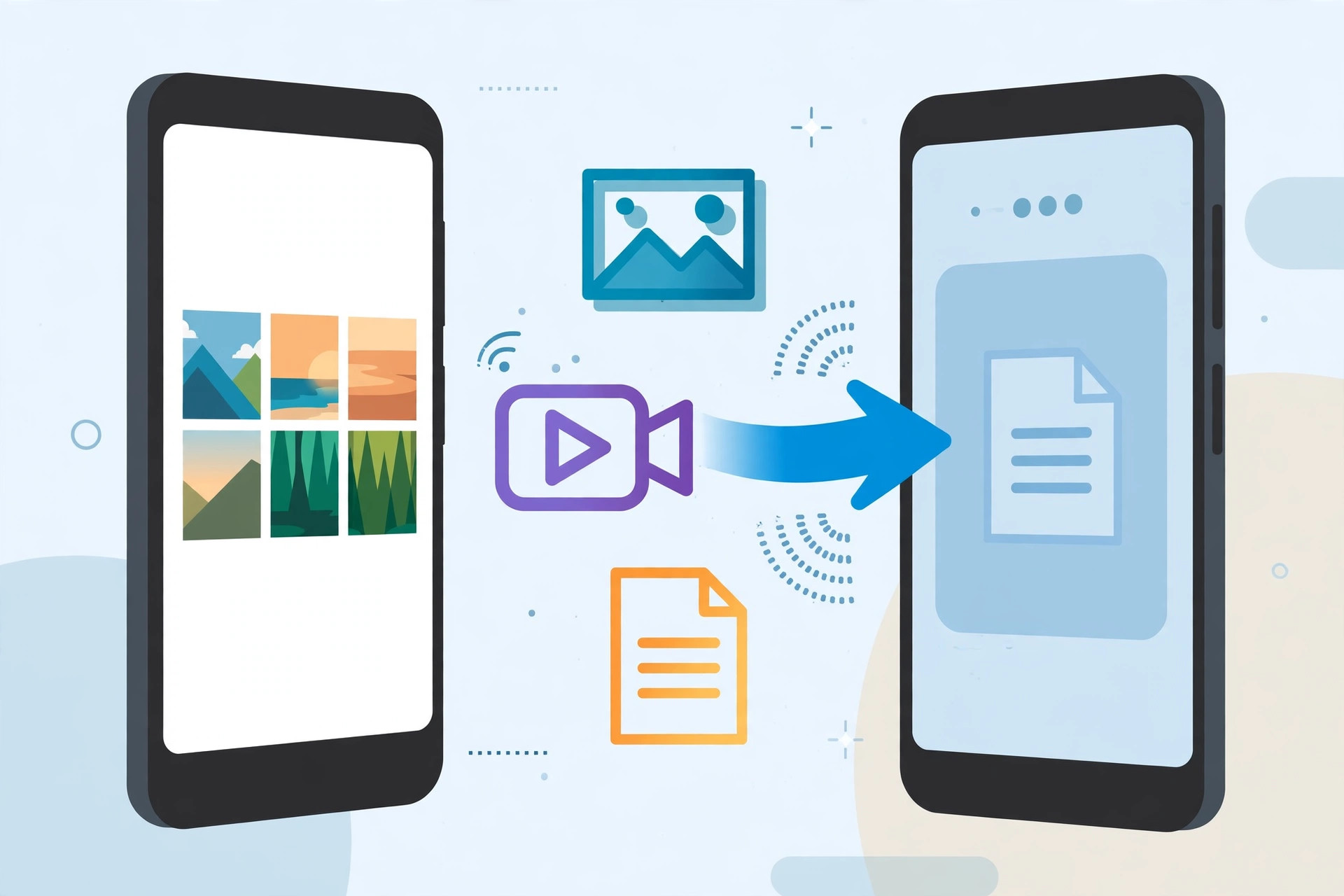
Quick Share is Android's built-in nearby sharing feature. You may remember its older name, Nearby Share; in 2024 Google and Samsung merged Nearby Share and Samsung's own Quick Share into a single system with the Quick Share name, so today there is only one Quick Share to learn, whatever brand of phone you own. When you share a file, your phone first finds the other phone with Bluetooth, then the two phones connect directly to each other over Wi-Fi — a technology called Wi-Fi Direct. No router is involved, no mobile network is involved, and no data bundle is used. That is why a 500 MB video that would take an age to upload on a weak 4G signal in a village or a crowded bazaar can move between two phones in a couple of minutes, at full original quality.
Compared with WhatsApp, the differences matter. WhatsApp compresses photos and videos, caps documents, and needs an internet connection on both ends. Quick Share sends the original file untouched, works completely offline, and has no practical size cap for everyday use — a full HD video, a folder of photos, a PDF, an APK or a contact card all go across as they are. Compared with Bluetooth file transfer, the old method everyone remembers from feature-phone days, Quick Share is dramatically faster, because Bluetooth is only used to find the other device, not to carry the file. And unlike a USB cable or a memory card, there is nothing to buy, carry or lose. If you regularly move files between phones, it is worth learning properly — and if you also share your connection rather than files, our mobile hotspot guide covers that side separately.
One honest limit: Quick Share is for nearby devices. The phones need to be in the same room, ideally within a few metres, with their screens on. It is not a way to send a file to someone in another city — for that you still need WhatsApp, email or a cloud link. Think of it as handing a file to the person next to you, without the cable.
Before You Start: The Three Things Both Phones Need
Quick Share fails most often because one of three simple things is off. Check all three on both phones before you start, and most problems never appear.
- Bluetooth on. Swipe down from the top of the screen twice to open Quick Settings and make sure Bluetooth is switched on. You do not need to pair the phones manually — Quick Share handles that itself.
- Wi-Fi on. Wi-Fi must also be switched on, even though you do not need to be connected to any Wi-Fi network. The phones create their own direct connection. If Wi-Fi is off, transfers crawl over Bluetooth or fail outright.
- Location on (on most phones). Android requires location permission for nearby device discovery, so Quick Share may ask you to turn location on the first time. This is a system requirement, not tracking by the other person — your location is not sent with the file.
Both phones also need to be awake with their screens unlocked, at least until the transfer starts. A phone that locks mid-transfer can pause or drop it, which is the single most common cause of a stuck transfer. Keep both phones nearby, charged, and unlocked for the minute or two the transfer takes.
Step 1: Set Who Can Find You (Do This on the Receiving Phone First)
Quick Share has a visibility setting that controls who can see your phone. Getting this right first saves the most common frustration: the sender taps Share and the other phone simply never appears.
- Open Settings, then search for Quick Share. On Samsung phones it is under Settings > Connected devices > Quick Share; on Pixel and most other phones it is under Settings > Connected devices > Connection preferences > Quick Share, or inside the Google settings. You can also long-press the Quick Share tile in Quick Settings if your phone has one.
- Tap Who can share with you (sometimes labelled Device visibility).
- Choose one of three options:
- Your devices: only phones and PCs signed in to your own Google account can find you. This is the safest setting and the best default for everyday use.
- Contacts: people in your contacts who also have you saved can find you. Good for family and regular colleagues.
- Everyone: anyone nearby can see your phone for 10 minutes. Use this only when you are about to receive a file from someone who is not in your contacts — a shopkeeper, a new classmate, a customer — and switch back afterwards.
For a first transfer between two friends, set the receiving phone to Everyone for 10 minutes. Once the transfer works, you can leave it on Contacts or Your devices for normal days. Note that even on Everyone, nobody can push a file onto your phone without your permission: every transfer shows a preview and asks you to tap Accept first. That accept step is your real protection, and it is covered in the safety section below.
Step 2: Send a File from Your Phone
Sending is the same on almost every Android phone, because Quick Share lives inside the standard Share menu.
- Open the photo, video, document or file you want to send. In Gallery, tap the photo; in Files, long-press the file; in a browser or document app, open the file first.
- Tap Share (the three-dots-connected icon). The share sheet opens.
- Tap Quick Share. If you do not see it in the top row, scroll the share row sideways or tap More — on older phones it may still be labelled Nearby Share, and updating Google Play services renames it to Quick Share.
- Your phone searches for nearby devices. After a few seconds, the receiving phone's name appears — usually its model name, or the name its owner set, such as Ahmed's Galaxy.
- Tap the device name. The receiving phone shows a prompt with your device name and the file type.
- Ask the other person to tap Accept. The transfer starts, with a progress bar on both phones.
- When it finishes, the file lands in the right place automatically: photos and videos go to the Gallery or Downloads, documents to Downloads, and the receiving phone shows a notification saying where the file was saved.
To send several photos at once, select them all first — long-press one photo in Gallery, tap the others to add them, then tap Share and Quick Share. The whole batch goes across in one transfer, which is far quicker than sending them one by one. You can also share a link, a contact, or even an app: from the Play Store page of an app, tap Share and choose Quick Share to send the app itself to another phone, which then installs it from the Play Store.
Step 3: Receive a File (and Where It Goes)
Receiving is deliberately simple, because the sender does most of the work. Keep your phone unlocked with Bluetooth and Wi-Fi on and visibility set as above. When someone shares to you, a full-screen or pop-up prompt appears showing the sender's device name, the file name and size. Tap Accept to start, or Decline to refuse. Never accept a file from a device name you do not recognise in a public place — a market, a bus, a university corridor — because an accepted file can be anything, including a harmful APK disguised as a video.
After accepting, leave both phones close together until the progress bar completes. When it finishes, tap the notification to open the file, or find it later: photos and videos appear in Gallery, everything else in the Downloads folder in the Files app. If you accepted a file but cannot find it, open Files > Downloads first — that is where Quick Share puts documents, PDFs, APKs and zipped files. Our photo recovery guide is the place to look if a received photo was later deleted by accident.
Samsung Phones: Quick Share, Quick Share to PC, and One Extra Feature
Samsung phones have the same Quick Share as everyone else, plus two extras worth knowing. First, the Quick Share tile is in Samsung's Quick Settings panel: swipe down twice, find Quick Share, and long-press it to jump straight to the visibility settings above — the fastest way to switch to Everyone for 10 minutes. Second, Samsung's Quick Share can share directly to a Windows PC through the Quick Share for Windows app, and on newer Galaxy phones it can also share a file to a nearby Galaxy device signed in to the same Samsung account without even showing an accept prompt, because the devices already trust each other. If you share between your own Samsung phone and Samsung tablet, that is why the file sometimes just arrives.
One Samsung quirk: older Galaxy phones shipped with both Samsung Quick Share and Google Nearby Share as separate entries. After the 2024 merger and a software update, there should be only one Quick Share. If you still see two, update your phone's software and Google Play services, then use the Quick Share entry — the older Nearby Share entry may stop working. Our Bluetooth fix guide helps if Samsung's Quick Share cannot see any device at all, since a broken Bluetooth radio breaks discovery before anything else.
Sharing with a Windows PC or Chromebook
Quick Share is not only phone-to-phone. If you edit photos on a laptop, write assignments on a PC, or run a shop with a computer at the counter, sending files straight to the computer saves the cable and the upload.
- On the PC, download Quick Share for Windows from Google's official site and install it. Sign in with the same Google account as your phone, or set the PC to receive from Everyone.
- Make sure the PC's Bluetooth and Wi-Fi are on. A desktop PC without Bluetooth needs a cheap USB Bluetooth adapter; most laptops have both built in.
- On your phone, share the file with Quick Share as normal. The PC's name appears alongside nearby phones.
- Tap the PC name, accept on the PC, and the file lands in the PC's Downloads folder.
Chromebooks have Quick Share built in under Settings > Connected devices, with no extra app needed, and they appear in the same nearby list. This is genuinely useful in Pakistan's load-shedding reality: when the home Wi-Fi router is down but the laptop battery is alive, Quick Share still works, because it never needed the router in the first place.
Privacy and Safety: Settings That Keep Strangers Out
Quick Share is safe by default, but only if you leave the defaults alone. Three rules cover almost everything. First, keep visibility on Your devices or Contacts for daily life, and only switch to Everyone for the 10 minutes you actually need to receive from a stranger — then switch back. A phone left on Everyone in a crowded place will keep showing up to everyone nearby, and while nobody can force a file onto it, the prompts themselves become an annoyance and a social-engineering risk. Second, always read the file name before tapping Accept. A file called video.mp4 that is actually an APK, or a document with a double extension, should be declined on sight. Our APK safety guide explains how to check an app file before installing it, and the same caution applies to anything received over Quick Share. Third, never send or accept sensitive personal documents over Quick Share from someone you do not trust — a CNIC scan, a bank statement, a password list — because the file then exists in full on another person's phone, and you cannot take it back.
One more privacy note: Quick Share shows your device name to nearby phones when you are visible. If your phone is named with your full name and you would rather it was not, change it in Settings > About phone > Device name to something neutral, such as Galaxy A15 or My Phone. This is a small change that stops strangers in a waiting room from learning your name from a device list.
Good Uses in Pakistan: Shops, Classrooms, Weddings and No-Data Days
Quick Share earns its place in a few very Pakistani situations. Shopkeepers and customers: a mobile shop can send a price list, a catalogue PDF or a phone's photos to a customer in seconds, without asking for a WhatsApp number. Students: lecture slides, past papers and recorded lectures move between classmates in a hostel or classroom with no data at all — particularly valuable on a hostel Wi-Fi network that barely works. Weddings and family events: hundreds of photos from one phone can be shared with relatives on the spot, at full quality, instead of being squeezed through WhatsApp status compression. New phone setup: when you buy a new phone, Quick Share moves your photos and files across faster than re-downloading everything, and it pairs well with our WhatsApp transfer guide for the chats themselves. Data-saving days: on the last days of a monthly bundle, or during a network slowdown, Quick Share is the way to move anything large without touching the bundle. If your phone itself is running slowly during big transfers, our speed-up guide covers the background-app and storage clean-up that helps.
Troubleshooting: Quick Share Not Showing, Not Finding, or Stuck
- Quick Share missing from the share sheet: update Google Play services from the Play Store, restart the phone, and check the share sheet again. On very old phones without Play services, Quick Share may not be available at all — Bluetooth transfer is the fallback.
- Other phone never appears: check the three basics — Bluetooth on, Wi-Fi on, location on — on both phones, set the receiving phone to Everyone for 10 minutes, bring the phones within arm's reach, and make sure neither screen is locked. Also check that neither phone is in airplane mode.
- Transfer starts but stalls halfway: keep both phones close, awake and charging; a locked screen or a phone moved to another room is the usual cause. Cancel and resend the file — Quick Share restarts cleanly rather than resuming a broken transfer.
- Transfer is very slow: slow transfers usually mean Wi-Fi Direct failed and the phones fell back to Bluetooth. Turn Wi-Fi off and on again on both phones, move away from a crowded Wi-Fi area if possible, and retry. Large videos also slow down if either phone is low on storage.
- File received but cannot be opened: check it actually finished — a partial file shows a smaller size than expected. For a video, try a different player; for a document, check it is in Downloads rather than a half-downloaded copy. If the sender's original was corrupt, only a resend fixes it.
- Quick Share worked yesterday but not today: a software update or a battery-saver mode often resets visibility to Your devices only, or puts Google Play services to sleep. Re-check visibility, exempt Play services from aggressive battery optimisation, and restart both phones.
- Sent to the wrong device: if two phones have the same model name, check the device name carefully before tapping it, or rename your own phone as suggested above so it is unmistakable in the list.
- Wi-Fi or Bluetooth will not switch on at all: this is a hardware or system fault, not a Quick Share setting — follow our Wi-Fi fix guide or Bluetooth fix guide before retrying.
FAQ
Does Quick Share use mobile data or internet?
No. Quick Share finds nearby devices with Bluetooth and then transfers files over a direct Wi-Fi connection between the two phones, so it uses no mobile data and needs no internet or Wi-Fi router. Your Jazz, Zong, Telenor or Ufone balance and data bundle are untouched.
Can I Quick Share from a Samsung phone to a Pixel or Infinix phone?
Yes. Since Google and Samsung merged their sharing systems, one Quick Share now works across Samsung, Pixel, Infinix, Tecno, Xiaomi, Oppo and other Android phones running Android 6 or later with Google Play services. Both phones just need Bluetooth and Wi-Fi switched on and Quick Share visible.
Why is my phone not showing up in Quick Share?
The receiving phone is usually set to receive from your own devices only, or its visibility window has expired. On the receiving phone, open Quick Share settings, set Who can share with you to Everyone for 10 minutes, keep the phones within a few metres with Bluetooth and Wi-Fi on, and try again.
Is there a file size limit on Quick Share?
There is no small fixed limit like a messaging app. Quick Share handles full-length videos and large files, but very large transfers take longer and are more likely to stall if the phones move apart or the screen locks. For a huge video, keep both phones close, charged and awake until the transfer finishes.
Is Quick Share safe from strangers sending me files?
Yes, if you keep the default setting. With visibility set to Contacts or Your devices, strangers cannot send you anything, and every transfer still asks you to tap Accept before it starts. Never accept a file from an unknown device in a public place, and never open an APK file sent by someone you do not trust.
Can I Quick Share files to a Windows PC?
Yes. Install the Quick Share for Windows app from Google on the PC, sign in with the same Google account or set the PC to receive from Everyone, then share from your phone exactly as you would to another phone. The PC must have Bluetooth and Wi-Fi switched on.