 Auraz Tech
How to Set Up and Use Android Auto in Pakistan: Complete 2026 Guide
Glancing at your phone for directions on the M-2 motorway at 120 km/h is how accidents happen — and how traffic fines happen too. Android Auto fixes this by putting your phone's maps, music, calls, and messages on your car's dashboard screen, controlled by voice or a few big, driver-friendly buttons. It works fully in Pakistan, it's free, and setup takes about ten minutes once you know the steps. This guide covers everything: what your phone and car need, wired and wireless setup walkthroughs, the best apps for Pakistani drivers, how to survive low-signal stretches with offline maps, and fixes for the connection problems that frustrate so many people.
What Is Android Auto (and Does It Work in Pakistan?)
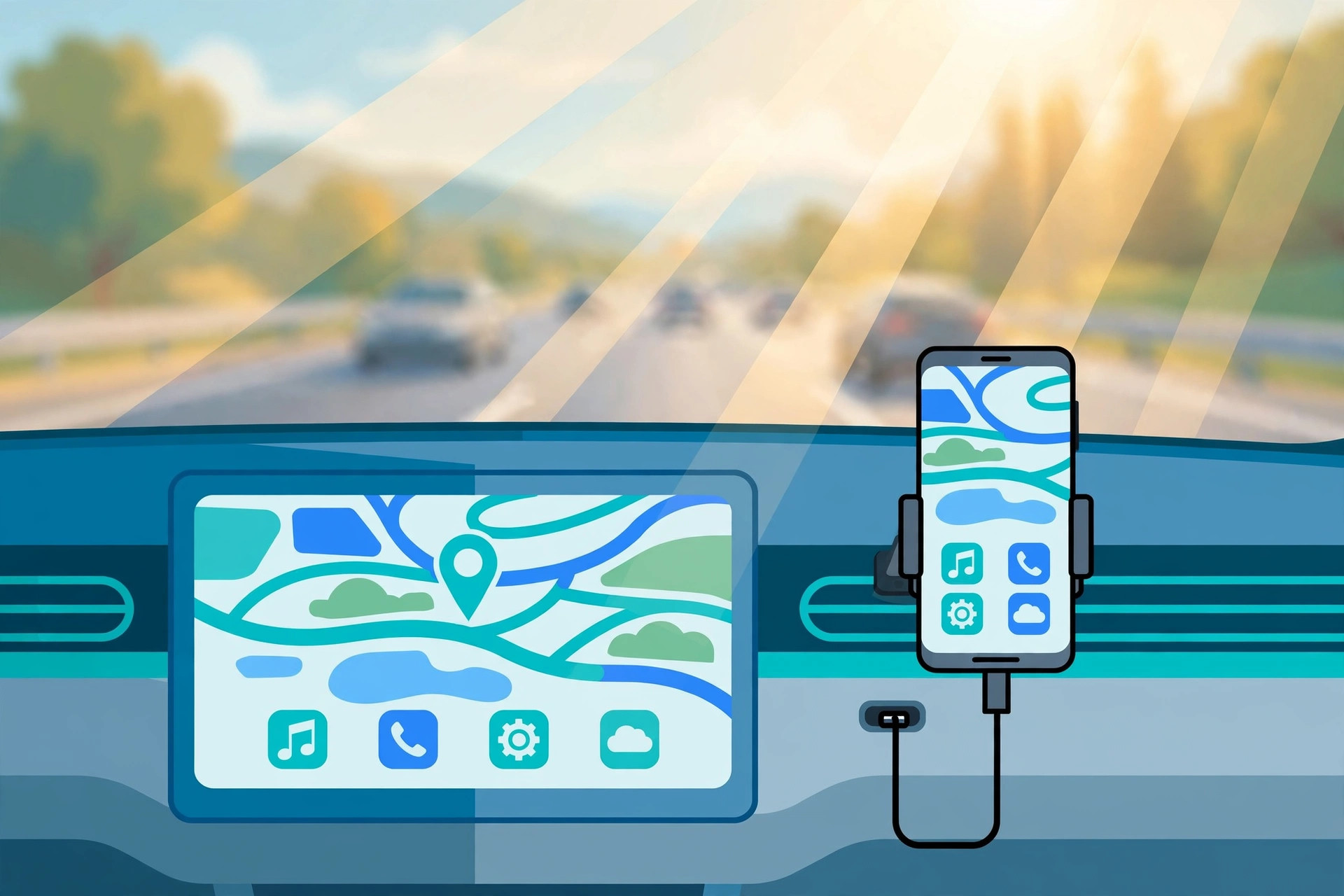
Android Auto is Google's driving interface: when you connect your phone to a compatible car, your car's display shows a simplified, car-optimized version of your phone — big navigation maps, your music apps, recent calls and messages, and Google Assistant voice control. The phone does all the computing; the car screen is just the display and input. Your phone stays in your pocket or on charge while you drive.
Yes, Android Auto officially supports Pakistan. Google's supported-country list includes Pakistan, which means no VPN, no foreign Google account, and no hacks are needed — it works on phones bought locally with a Pakistani SIM. The current interface (Google calls it the "Coolwalk" design) shows navigation, music, and communications side by side on one screen, so you can follow a map while seeing who's calling without switching apps.
What Android Auto gives you on the road: turn-by-turn navigation with live traffic on Google Maps or Waze, hands-free calls, WhatsApp messages read aloud with voice replies, Spotify or YouTube Music playback, and "Hey Google" voice control for everything from finding the nearest petrol pump to texting that you're running late. What it deliberately doesn't give you: video apps, web browsing, games, and social media feeds — Google blocks those while driving, and that's a feature, not a bug.
What You Need: Phone, Car, and Cable Requirements
Before you start, check that you actually have compatible hardware. Most failures people blame on "Android Auto not working in Pakistan" are really just a missing requirement.
Your phone
- Android 8.0 (Oreo) or newer for wired Android Auto. Practically every phone sold in Pakistan in the last several years qualifies — Samsung, Xiaomi, Infinix, Tecno, Vivo, Oppo, Realme, and Pixels included.
- Android 11 or newer (plus 5 GHz Wi-Fi) for wireless Android Auto. Some Samsung phones on Android 10 also support it.
- On Android 10 and newer, Android Auto is built into the system — there's no separate app to install. You'll find it under Settings > Connected devices > Connection preferences > Android Auto (the exact path varies slightly by brand). On Android 9 and older, install the "Android Auto" app from the Play Store.
- A Google account signed in on the phone, with Google Maps and Google Assistant up to date.
Your car
Your car's infotainment head unit must support Android Auto — it's a hardware/software feature of the stereo, not something any car gets automatically. In Pakistan, many 2020-and-newer models from Honda, Toyota, Kia, Hyundai, and Suzuki include it, but often only on higher trims — base variants of the same model frequently ship with a basic stereo that lacks it. Check your car's manual, the manufacturer's Pakistan website specs page, or look for the Android Auto logo on the head unit itself. If your car doesn't have it, an aftermarket Android Auto head unit (widely available in car-accessory markets in Lahore, Karachi, and Rawalpindi) or a portable Android Auto display that mounts on the dashboard are both practical upgrades.
Your cable (for wired setup)
This is the single most underestimated part. Android Auto is picky about USB cables: use a short (under 1 meter), high-quality cable that supports data transfer, not just charging. Many cheap cables sold in local markets are charge-only and will never work. If you have connection trouble later, the cable is the first suspect — keep a known-good cable in the car.
How to Set Up Android Auto With a Cable (Step by Step)
Wired is the most reliable way to use Android Auto, and it charges your phone while you drive. Do this setup while parked, not on the road.
- Start your car and make sure the infotainment system is on. Put the car in Park.
- Unlock your phone and plug it into the car's USB port using your good-quality cable. Note: many cars have multiple USB ports but only one is the data port that talks to the head unit — it's often marked with a smartphone or USB symbol. Check the manual if you're unsure.
- On the car's screen, select Android Auto when it appears (some head units launch it automatically; on others you tap the Android Auto icon in the car's app menu).
- Your phone will show a setup prompt: accept the permissions — Android Auto needs access to location, contacts, calls, messages, and notifications to work properly. Declining permissions is a common reason features "don't work" later.
- Follow the on-screen tutorial on the car display. It takes about a minute and shows you the layout: navigation on one side, media controls, and the voice button.
- Enable "Hey Google" detection if prompted, so you can control everything by voice while driving.
That's it. Next time, just plug in — Android Auto should launch automatically within a few seconds.
How to Set Up Wireless Android Auto
Wireless Android Auto connects over Wi-Fi (with Bluetooth handling the initial handshake), so you can leave your phone in your pocket. Requirements are stricter: a phone on Android 11+ with 5 GHz Wi-Fi, and a car/head unit that explicitly supports wireless Android Auto — many units in Pakistan only support the wired version, so check your specs first.
- On your phone, go to Settings > Connected devices > Connection preferences > Android Auto and make sure wireless Android Auto is enabled (on some phones it's under Android Auto's settings as "Wireless Android Auto").
- In the car, turn on the infotainment system and enable Bluetooth and Wi-Fi on your phone.
- On the car's screen, open the phone-projection menu and select your phone from the list of available devices, or pair via the car's Bluetooth menu — the car and phone will negotiate the Wi-Fi connection automatically.
- Accept the pairing and permission prompts on both screens.
One trade-off to know: wireless Android Auto drains your phone battery faster because it's running Wi-Fi, Bluetooth, GPS, and the screen-off workload simultaneously. For long drives, keep a car charger or wireless charging pad handy. If wireless proves flaky in your car, the wired connection is always the fallback — it just works.
The Best Android Auto Apps for Pakistani Drivers
Only apps certified for driving appear on the car screen, which keeps things focused. These are the ones worth installing before your first drive:
- Google Maps — the default and the best choice locally: excellent Pakistan road coverage, live traffic in major cities, speed-limit warnings, and Urdu voice guidance. Download offline maps (next section) for motorway stretches with weak signals.
- Waze — community-reported hazards, police checkpoints, and road closures. Its Pakistan user base is smaller than Maps', so reports are thinner outside big cities, but it's great on the routes where it's active.
- Spotify / YouTube Music — full music control with big touch targets and voice search. Download playlists over Wi-Fi before long trips to save mobile data.
- WhatsApp — incoming messages are read aloud; you dictate replies with Google Assistant. You can't scroll old chats or view images — it's voice-only by design.
- Google Assistant — the real power of Android Auto. "Hey Google, navigate to Packages Mall Lahore," "call Ammi," "play Coke Studio," "what's my next calendar event," "find petrol pumps nearby" — learn five or six commands and you'll barely touch the screen.
- Audible / Pocket Casts — audiobooks and podcasts make long motorway drives far more pleasant, and both have clean car interfaces.
Customize which apps appear: on your phone, open Android Auto settings and use "Customize launcher" to hide apps you don't want in the car and reorder the rest.
Using Offline Maps for Motorways and Low-Signal Areas
Pakistan's motorways and rural highways have stretches where mobile data drops out — and losing navigation mid-journey is miserable. The fix is offline maps, which Android Auto can use when the connection dies:
- On your phone (over Wi-Fi, before the trip), open Google Maps > tap your profile picture > Offline maps > Select your own map.
- Zoom and drag to cover your whole route — e.g., the full Lahore–Islamabad corridor — and tap Download. Maps are typically a few hundred megabytes.
- In Android Auto, navigation will seamlessly use the offline map when data is unavailable. Live traffic and rerouting need a connection, but turn-by-turn guidance keeps working.
Also download your music: in Spotify or YouTube Music, download playlists over Wi-Fi so a dead zone doesn't kill your soundtrack too. Between offline maps and offline music, your drive survives even long signal gaps on the M-2 or the road to Naran.
Android Auto Not Working? 10 Fixes That Actually Work
Run through these in order — they resolve the vast majority of connection problems:
- Change the USB cable. Seriously — try a different, short, high-quality data cable first. This alone fixes most "it worked yesterday" cases.
- Try a different USB port in the car. Only the designated data port works with Android Auto; the others are charge-only.
- Restart both devices: reboot your phone and turn the car's ignition fully off and on (not just the screen).
- Clear the Android Auto cache: Settings > Apps > Android Auto > Storage > Clear cache. Don't clear data unless you want to redo the whole setup.
- Check for updates: update Google Maps, Google app, and Android Auto (via Play Store > your profile > Manage apps) and install any pending phone software update.
- Re-grant permissions: in Android Auto's app settings, confirm location, phone, SMS, contacts, and notification access are all allowed.
- Forget and re-pair: in the car's Bluetooth/settings menu, remove your phone from previously connected devices; on the phone, go to Android Auto settings > Connected cars and remove the car. Then set up fresh.
- Disable battery optimization for Android Auto and Google Maps (Settings > Apps > [app] > Battery > Unrestricted) — aggressive power savers on Xiaomi, Infinix, and Tecno phones are notorious for killing the connection mid-drive.
- Check the car's firmware: some head units need a software update from the dealer to fix Android Auto bugs. Ask at your next service visit.
- Confirm compatibility: if it never worked at all, verify your exact car trim supports Android Auto. Many Pakistani base trims don't — no setting will conjure a feature the head unit lacks.
Tips for Safe (and Fine-Free) Driving With Android Auto
- Set up while parked. Enter your destination, pick your playlist, and queue your calls before you move. Every setting in this guide assumes a stationary car.
- Use your voice, not the touchscreen. "Hey Google" handles navigation, calls, messages, and music. Touch is for passengers.
- Know the law: traffic police in Lahore, Karachi, and Islamabad fine drivers caught holding phones, and the National Highway & Motorway Police enforce it strictly on motorways. Android Auto keeps the phone out of your hand — that's the whole point.
- Keep a charger in the car. Navigation plus screen projection eats battery; arrive with a charged phone, not a dead one you need for an emergency.
- Don't fight the passenger rule: let a passenger operate the screen if something needs tapping. The driver drives.
Bottom line: Android Auto turns the most distracting object in your car — your phone — into a proper co-pilot. Ten minutes of setup buys you safer navigation, hands-free everything, and your music exactly where you want it, on every drive from DHA to the motorway and beyond.
Related Guides
- How to Cast Your Phone Screen to a TV — the same screen-mirroring idea for your living room: get your phone's display onto a bigger screen wirelessly.
- How to Fix Mobile Data Not Working on Android in Pakistan — navigation dies without data; fix your connection before blaming Android Auto.
- How to Set Up Emergency SOS on Android — essential safety setup for drivers: one button press calls for help and shares your location.
FAQ
Is Android Auto officially available in Pakistan?
Yes. Pakistan is on Google's list of supported Android Auto countries, so the feature works out of the box on compatible phones and cars bought locally. You don't need a VPN, a foreign Google account, or any workaround — just plug in and follow the on-screen setup.
How much mobile data does Android Auto use?
Navigation with Google Maps uses roughly 5–10 MB per hour of driving, so it is very light on data. Music streaming is the real data consumer — Spotify can use 40–150 MB per hour depending on audio quality. Download offline maps and offline playlists over Wi-Fi before long trips to keep data usage near zero.
Why won't my phone connect to Android Auto in my car?
The most common cause is the USB cable — cheap, long, or charge-only cables frequently fail. Switch to a short, high-quality data cable and try a different USB port in the car. If it still fails, clear the Android Auto app cache, check that your phone runs Android 8.0 or newer, and confirm your car's head unit actually supports Android Auto (many base trims in Pakistan don't).
Can I use Android Auto if my car's stereo doesn't support it?
You can't get the full dashboard experience without a compatible head unit, but you have options: upgrade to an aftermarket Android Auto-compatible stereo, use a portable Android Auto display that mounts on the dashboard, or run navigation and music on a phone mount with voice control as a simpler hands-free setup.
Does Android Auto work with WhatsApp?
Yes. Android Auto reads incoming WhatsApp messages aloud and lets you dictate replies using Google Assistant, all without touching your phone. You can't browse old chats or view photos while driving — messaging apps on Android Auto are voice-first by design for safety.
Is it legal to touch my phone screen while driving in Pakistan?
Traffic police in major Pakistani cities fine drivers for using handheld phones while driving, and the motorway police take it seriously too. That's exactly why Android Auto exists — it moves maps, music, and calls to your car's screen with voice control. Set everything up while parked, then keep your hands on the wheel.