 Auraz Tech
How to Fix Mobile Data Not Working on Android in Pakistan (2026): APN Settings for Jazz, Zong, Telenor & Ufone
Your WhatsApp messages are stuck with a single grey tick. YouTube spins forever. The bus is about to reach your stop and your ride-hailing app won't refresh. And right there in the status bar sits the little "4G" icon, mocking you — signal bars full, internet zero. If this sounds familiar, you're not alone: dead mobile data is one of the most common phone problems in Pakistan, and the fixes are usually embarrassingly simple once you know where to look. This guide walks you through every fix in order — from the 30-second checks that solve half of all cases, to the APN settings for Jazz, Zong, Telenor and Ufone that bring data back to life when nothing else works.
First: The 2-Minute Quick Checks That Fix Half of All Cases
Before touching anything technical, rule out the silly stuff — because in our experience, most "mobile data not working" panic is one of these:
- Turn off Airplane mode. Swipe down from the top of the screen and check the airplane icon. It's surprisingly easy to switch on by accident in the quick-settings panel, and with it on, mobile data is dead. If it was on, turn it off and wait 30 seconds for the network to reconnect.
- Make sure the Mobile Data toggle is on. In the same quick-settings panel, look for the "Mobile data" or arrow icon. If it's greyed out, tap it. On some Samsung and Xiaomi phones this toggle hides on the second page of quick settings — swipe left to find it.
- Check your signal. Are you in a basement, elevator, or a building with thick concrete walls? Full signal bars with no internet is a settings problem (keep reading), but one bar or "No service" means you simply don't have coverage where you are. Step outside or near a window and try again.
- Restart the phone. Yes, really. A restart re-registers your phone with the network tower and clears whatever glitch was holding data back. If it has been weeks since your last restart, this alone fixes the problem surprisingly often.
If data is still dead after these four steps, the problem is deeper — move on to the next sections in order.
Check Your Balance, Bundle & SIM Status
No balance or an expired bundle is the number-one real cause of dead mobile data in Pakistan, because most of us are on prepaid weekly or monthly internet bundles. Check before you troubleshoot further:
- Jazz/Warid: dial *111# for balance, or *117*1# for remaining bundle MBs.
- Zong: dial *200# to check your balance and remaining data.
- Telenor: dial *444# for balance and bundle status.
- Ufone: dial *124# for balance and remaining MBs.
If your bundle shows zero MBs remaining, that's your answer — renew the bundle and data comes back instantly. Also note: some bundles are "app-only" (WhatsApp-only or Facebook-only packages). With those, general browsing and other apps won't work at all — you'd need a full data bundle.
One more check while you're at it: on dual-SIM phones, Android only uses one SIM for mobile data at a time. If your Jazz bundle is on SIM 2 but the phone is set to pull data from SIM 1, nothing loads. Go to Settings > SIM cards (on Samsung: Settings > Connections > SIM card manager; on Xiaomi: Settings > SIM cards & mobile networks) and confirm the "Mobile data" SIM matches the one with your bundle. This single setting is behind a huge share of "my data stopped working" complaints after people swap SIMs.
And if your SIM shows "No SIM" or "Invalid SIM," the card itself may be worn out or not seated properly — see the SIM reseat section below. (Buying a new SIM while you're at it? Run the PTA check first — our guide on checking PTA approval explains why it matters before you pay.)
Reset Network Settings: The Fix That Solves Most Real Cases
If the quick checks didn't help, the next step is resetting your network settings. This clears every network-related configuration — Wi-Fi passwords, Bluetooth pairings, VPN settings, and APN settings — back to factory defaults, which wipes out whatever misconfiguration is blocking your data.
Good news: this does not delete your photos, apps, files, or WhatsApp chats. It only touches network settings. You will need to re-enter your saved Wi-Fi passwords afterwards, though (see our guide on finding your Wi-Fi password on Android if you don't remember them).
Here's how to do it:
- Open Settings and go to General management (Samsung) or use the search bar at the top of Settings and type "reset network settings."
- Tap Reset > Reset network settings (on Xiaomi: Settings > Connection & sharing > Reset Wi-Fi, mobile & Bluetooth; on stock Android: Settings > System > Reset options > Reset Wi-Fi, mobile & Bluetooth).
- Confirm with your PIN or fingerprint, then tap Reset settings.
- Restart the phone and wait a minute for it to reconnect to the tower.
After a network reset, your operator usually pushes the correct APN settings automatically via a configuration message. Try your data now — if it works, you're done. If it doesn't, the APN is probably missing or wrong, and you'll set it manually in the next section.
Fix Your APN Settings (Jazz, Zong, Telenor & Ufone)
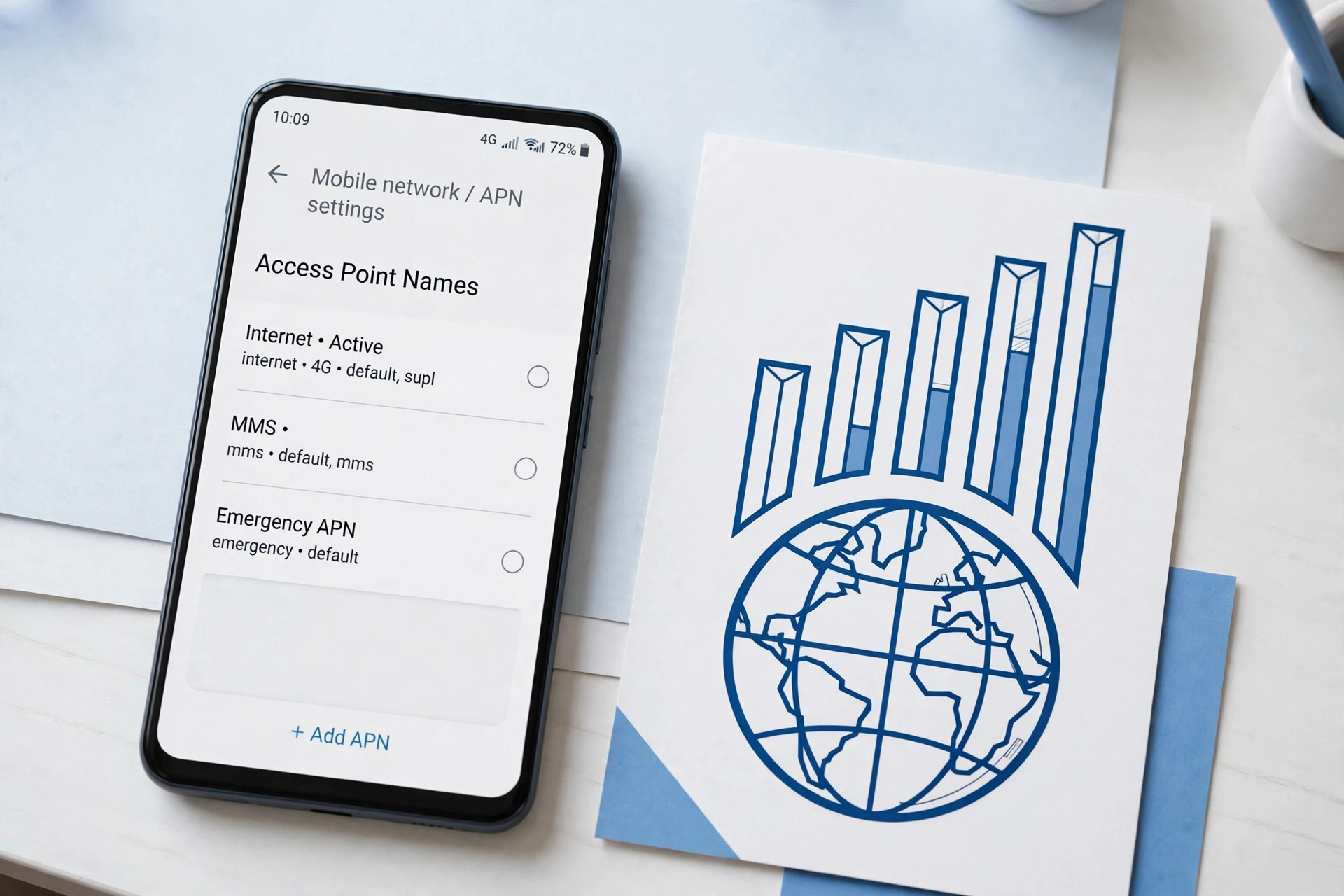
The APN (Access Point Name) is the setting that tells your phone how to connect to your operator's internet gateway. Without the correct APN, you can have full 4G signal and still load nothing — the classic "bars but no internet" symptom. APNs get corrupted by SIM swaps, software updates, and network resets, which is why manually entering the right one fixes so many dead-data cases.
Here are the correct APN settings for Pakistan's four operators:
- Jazz (Mobilink): APN = jazzconnect.mobilinkworld.com
- Zong: APN = zonginternet
- Telenor: APN = internet
- Ufone: APN = ufone.pinternet
For most users, the APN name alone is enough — leave username, password, MCC, MNC and the other fields at their defaults. Now enter it on your phone:
- Go to Settings > Mobile network (or Connections > Mobile networks on Samsung; SIM cards & mobile networks > [your SIM] > Access Point Names on Xiaomi).
- Tap Access Point Names (APN).
- Tap the + (or three dots > New APN).
- In the Name field, type your operator's name (e.g. "Jazz Internet"). In the APN field, type the APN value from the list above exactly — APNs are case-sensitive.
- Tap the three dots > Save, then tap the radio button next to your new APN to select it.
- Toggle mobile data off and back on, or restart the phone.
Data should start flowing within a minute. If your operator's SMS configuration service is available, you can also request the settings automatically — but manual entry takes two minutes and is more reliable.
Reseat Your SIM Card
A SIM card that isn't sitting perfectly in its tray causes intermittent or dead data, dropped calls, and the dreaded "No SIM" error — especially after a drop or a SIM swap. It takes a minute to rule out:
- Power the phone off completely.
- Remove the SIM tray with the ejector tool (or a straightened paperclip).
- Take the SIM out, wipe the gold contacts gently with a dry soft cloth, and check for visible scratches or cracks. A badly scratched SIM belongs at your operator's franchise for a free duplicate SIM.
- Put the SIM back firmly in the correct slot orientation and reinsert the tray until it clicks.
- Power on and test your data.
If you have two SIMs, try the problematic SIM in the other slot — a slot-specific failure tells you the issue is the tray contact, not the SIM. And if the SIM is very old (the large, thick older cards), getting a fresh duplicate SIM from your operator's service centre often fixes mysterious connectivity problems outright, since the newer cards make better contact.
Check Your Network Mode: 4G/LTE Settings
Sometimes the phone is locked to an old network mode, or the preferred network type got changed by an update. Check that your phone is allowed to use 4G:
- Go to Settings > Mobile network (Samsung: Connections > Mobile networks > Network mode).
- Make sure the preferred network type is set to 4G/3G/2G (auto) or LTE/3G/2G (auto connect) — not "3G only" or "2G only."
- If your area genuinely has weak 4G but decent 3G, try 3G/2G auto temporarily — a stable slow connection beats a dead fast one.
Also toggle VoLTE (Voice over LTE) off and on if you see the option — on some phones a stuck VoLTE registration blocks data until it re-registers. And while you're in these settings, confirm Data roaming is off unless you're actually roaming; having it on at home changes nothing, but having it off abroad is what kills data — match it to your situation.
Data Saver, VPN & Private DNS Conflicts
Three phone features silently block mobile data in the background, and all three are easy to check:
- Data Saver: Android's Data Saver restricts background data, and when it's too aggressive (or stuck), apps stop loading entirely. Go to Settings > Network & Internet > Data Saver (Samsung: Connections > Data usage > Data saver) and turn it off. If you need it on to save your bundle, at least add your important apps to the "unrestricted" list.
- VPN apps: A VPN that failed to connect — or one left running from last night — routes all traffic into a dead tunnel. Swipe down and check for the VPN key icon in the status bar; disconnect or force-stop the VPN app and test again.
- Private DNS: If you set a custom Private DNS hostname (following our guide on setting up Private DNS), a mistyped hostname kills all name resolution — pages won't load even though data is technically flowing. Temporarily set Private DNS to Off or Automatic and test.
Also check per-app: go to Settings > Apps > [the app that won't load] > Mobile data and confirm "Allow background data usage" is on — it's possible to block a single app's data access without realising it.
Still Nothing? Carrier-Side & Software Issues
If every fix above failed, the problem is probably not in your phone at all — or it's deep in the software. Work through these last checks:
- Check for a carrier outage. Operators in Pakistan have regional outages more often than people think — load shedding hits towers, and maintenance windows go unannounced. Ask someone on the same network nearby, or check the operator's Facebook/Twitter page for complaints. If everyone's data is down, waiting is the only fix.
- Update Carrier Services and your phone software. Open the Play Store, search for "Carrier Services" and update it — this Google app handles network features and an outdated version causes data glitches. Then go to Settings > Software update and install any pending update.
- Test in Safe Mode. Hold the power button, then long-press Power off and tap Safe mode. This boots Android with all third-party apps disabled. If data works in Safe Mode, one of your apps (often a "battery saver," "cleaner," or security app) is blocking it — uninstall recently added apps one by one. (Our guide on removing bloatware shows how to get rid of the worst offenders properly.)
- Try the SIM in another phone. This is the definitive test: if your SIM gets data in a friend's phone, the problem is your handset; if it's dead there too, the problem is the SIM or your account — visit your operator's franchise.
- Factory reset as the absolute last resort. If a second phone works with your SIM and Safe Mode didn't help, back up everything (see our guide on backing up Android to Google), then go to Settings > General management > Reset > Factory data reset. If data still doesn't work after a clean reset, the phone's modem hardware is likely faulty and needs a repair shop.
FAQ
Why is my mobile data not working even though I have an active bundle?
The most common causes are wrong or missing APN settings, the wrong SIM selected for mobile data on a dual-SIM phone, Data Saver being on, or a network settings glitch. Work through the quick checks first, then reset your network settings and verify your APN — that resolves it for most people.
What are the correct APN settings for Jazz, Zong, Telenor and Ufone in 2026?
Jazz uses APN jazzconnect.mobilinkworld.com, Zong uses zonginternet, Telenor uses internet, and Ufone uses ufone.pinternet. Enter the APN under Settings > Mobile network > Access Point Names, save it, and select it as the active APN.
Does resetting network settings delete my photos, apps or WhatsApp chats?
No. Resetting network settings only clears saved Wi-Fi networks and passwords, Bluetooth pairings, VPN configurations, and mobile/APN settings. Your photos, apps, files, and WhatsApp chats are completely untouched.
Why does mobile data work on one SIM but not the other?
On dual-SIM phones, only one SIM at a time can be the designated mobile-data SIM. Go to Settings > SIM cards (or Mobile network) and check which SIM is selected for mobile data — if the data bundle is on SIM 2 but the phone is set to use SIM 1, nothing will load.
My phone shows 4G but pages won't load. What does that mean?
A 4G icon only means you have a radio connection to the tower — not that data is flowing. It usually points to an APN problem, an exhausted data bundle, a VPN or Private DNS conflict, or a carrier-side issue. Fix the APN first, then check Data Saver, VPN, and your bundle balance.