 Auraz Tech
How to Use Your Android Phone as a Webcam for PC (2026): Built-in USB Mode, Free Apps & Fixes
Your laptop's built-in webcam is probably terrible. Most ship with a grainy 720p sensor that makes you look like a blurry ghost on every Zoom call — while the phone sitting next to you has a camera that costs more than the entire laptop webcam assembly and shoots crisp 4K video. There is no reason to buy a separate webcam in 2026: your Android phone is already a better webcam than anything under Rs. 15,000 on the market, and setting it up takes about five minutes. This guide covers every method — Android's built-in USB webcam mode (no app needed), free wireless apps like DroidCam and Iriun, Microsoft's Phone Link camera for Windows 11, how to get the best picture quality, and fixes for lag, freezing, and overheating — tested on Samsung, Xiaomi, Infinix, Tecno, Oppo, and Pixel devices.
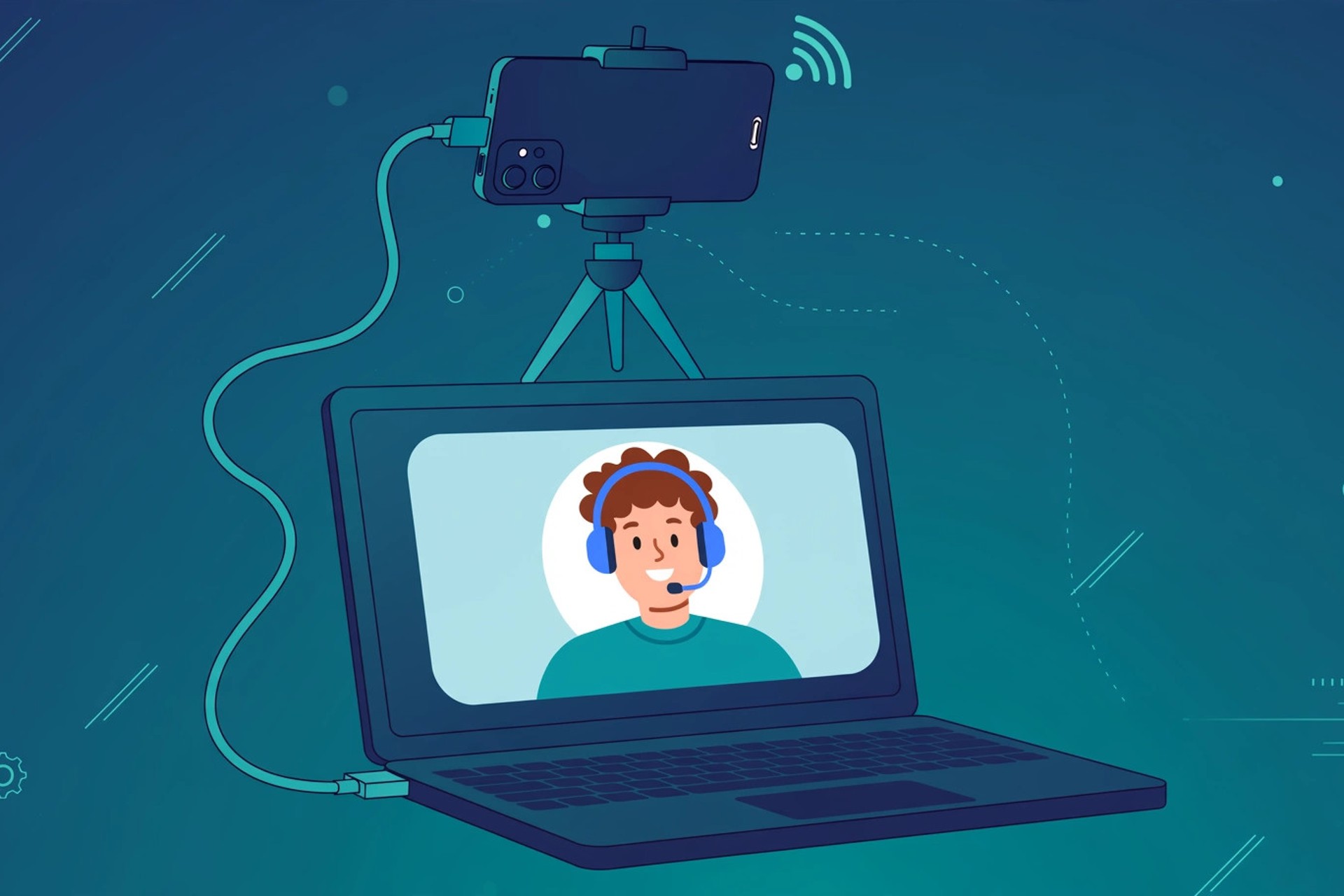
Why Your Phone Beats Your Laptop's Webcam
Before the how-to, a quick reality check on why this is worth doing at all. A mid-range Android phone sold in Pakistan in 2026 — an Infinix Note, a Redmi Note, a Galaxy A series — carries a main camera with a sensor several times larger than a laptop webcam's, a brighter lens, and a dedicated image processor that handles noise, skin tones, and low light far better. In a typical dimly lit room, the difference is dramatic: the laptop shows a muddy, noisy image; the phone shows a clean, detailed one.
There are real, practical wins too:
- Better low-light performance. Phone cameras are designed for night mode photography; laptop webcams fall apart the moment the sun goes down.
- Autofocus that actually works. Laptop webcams are mostly fixed-focus. Your phone tracks your face and stays sharp when you lean in or back.
- Flexible placement. A phone on a small tripod sits at eye level, while a laptop webcam stares up your nose. You can also position the phone anywhere — on a shelf, across the room — over Wi-Fi.
- Free. You already own the best webcam you're likely to get. A decent external webcam costs real money; this costs nothing.
The only genuine trade-off is battery and heat, which we solve below. Everything else is an upgrade.
What You'll Need
The shopping list is short, and you probably own most of it already:
- An Android phone running Android 9 or newer. Android 14+ gets the built-in USB webcam mode; older versions use the free apps in Method 2.
- A USB cable (USB-C or micro-USB to match your phone) for the wired methods. Any data cable works — the thin charging-only cables some phones ship with are fine too, since they carry data.
- A PC running Windows 10/11, macOS, or Linux. All three recognize Android's webcam mode as a standard camera.
- Something to hold the phone — a cheap mini tripod (a few hundred rupees at any mobile market), a phone stand, or even a stack of books. Eye-level positioning matters more than any setting.
- Wi-Fi (only for the wireless method) — phone and PC on the same network.
Optional but recommended: keep the phone's charger plugged in during long calls, and turn on Do Not Disturb so notifications don't pop up mid-meeting.
Method 1: Android's Built-in USB Webcam Mode (Android 14+, No App Needed)
This is the simplest, highest-quality option — and it needs zero apps on either side. Since Android 14, Google ships a "Device as webcam" mode in the USB settings. It works on Pixels, Samsung phones on One UI 6+, Xiaomi on HyperOS, and most other brands that have updated to Android 14 or 15. Infinix, Tecno, and itel models running recent Android versions include it too.
- Connect your phone to the PC with a USB cable. Use any data-capable cable.
- Pull down the notification shade on your phone and tap the USB notification ("Charging this device via USB" or similar).
- In the USB preferences, select Webcam. That's it — your phone is now a camera.
- On your PC, open Zoom, Teams, Meet, or any camera app. Open its video/camera settings and switch the camera to "Android Camera" or "Device as webcam".
- A small preview window opens on your phone showing what the camera sees, with controls for zoom, switching between front and rear cameras, focus, and pausing the feed (newer Android versions added these). Tap to switch cameras mid-call.
Two things to know: the feed is video only — your PC keeps using its own microphone, so pick your mic separately in the meeting app's audio settings. And on most phones the rear camera looks dramatically better than the front one; the trade-off is you can't see yourself, so frame the shot with the phone preview first, then switch.
Which camera should you use? For the absolute best image, use the rear main camera — it has the bigger sensor. For natural eye contact, the front camera is fine and far easier to frame. In a well-lit room the front camera still beats any laptop webcam.
Method 2: Free Wireless Apps — DroidCam and Iriun (Any Android 9+)
If your phone runs Android 9 through 13, or you want to place the phone somewhere a cable can't reach, free webcam apps are the answer. The two most reliable in 2026:
- DroidCam (by Dev47Apps) — the long-running standard. Free version streams 720p over Wi-Fi or USB; the paid version unlocks 1080p and more camera controls. Includes a microphone option so your phone's mic can replace the PC's.
- Iriun Webcam — free, streams up to 4K depending on your phone, over Wi-Fi or USB. Simple setup and a clean PC client.
Setup is the same pattern for both:
- Install the app on your phone from the Play Store, and install the PC client from the developer's website on your computer.
- Connect both devices to the same Wi-Fi network (for the wireless route) or connect via USB (for the wired route).
- Open the app on your phone — it shows an IP address and port (for example, 192.168.1.5:4747).
- Open the PC client, enter that IP and port (or select USB mode), and click Start. A preview appears.
- In your meeting app, switch the camera to "DroidCam" or "Iriun". Done.
Wi-Fi tips that actually matter: use the 5 GHz band of your router instead of 2.4 GHz — it has far more bandwidth and less interference. Keep the phone reasonably close to the router. If the feed stutters, drop the app's resolution from 1080p to 720p; on a video call nobody can tell the difference, but the stream stays smooth. And keep the phone plugged into its charger — Wi-Fi streaming drains the battery fast.
USB mode in DroidCam/Iriun is the best of both worlds on older phones: full resolution, near-zero latency, and the phone charges while streaming. It usually needs USB debugging enabled (Settings > Developer options) for the PC client to find the phone — a one-time toggle that is safe to leave on for this purpose.
Method 3: Phone Link's Connected Camera (Windows 11 + Android)
If you have a Windows 11 PC, Microsoft's Phone Link app can turn your Android phone into a wireless camera without any third-party app — and it works in every video app, not just Microsoft's.
- On your PC, open Phone Link (search for it in the Start menu) and make sure your phone is paired via the Link to Windows app.
- On your phone, open Link to Windows > Settings and enable "Use as connected camera" (wording varies slightly by update).
- Back on the PC, your phone's camera now appears as a camera device in any app's camera picker — Zoom, Teams, Meet, OBS, the Windows Camera app.
This is the most "it just works" wireless option for Windows users: no IP addresses, no ports, no extra accounts. It needs Bluetooth and Wi-Fi on both devices, and both signed into the same Microsoft account. The image quality is good rather than great — Microsoft compresses the stream — so for maximum quality, USB methods still win.
Get the Best Picture: 7 Quick Tips
The method gets the feed working; these tips make it look professional:
- Face a light source. Sit facing a window or a lamp. A Rs. 500 desk lamp pointed at your face does more for image quality than any settings tweak. Never sit with a bright window behind you.
- Get the phone to eye level. A mini tripod or phone stand on a stack of books beats the laptop-staring-up-your-nose angle every time. Eye-level framing is the single biggest "professional" upgrade.
- Use the rear camera when it counts. Job interviews, presentations, recorded videos — the rear main camera's bigger sensor is visibly better. Use the phone's preview screen to frame yourself first.
- Clean the lens. Phone lenses collect pocket grease. One wipe with a soft cloth before an important call genuinely sharpens the image.
- Lock the phone's screen orientation and enable Do Not Disturb. A call or notification lighting up the phone mid-stream can freeze or drop the feed in some apps. DND takes ten seconds to enable.
- Keep it plugged in. Camera streaming is heavy work — expect 10–20% battery drain per hour at 1080p. USB methods charge while streaming; on Wi-Fi, plug the charger in.
- Mind the heat. If the phone feels hot, take the case off and keep it out of direct sunlight. Overheating phones throttle the camera, which is the hidden cause of many "why did my feed get blurry" complaints. Our overheating guide has more cooling tricks.
Troubleshooting: Fix the Most Common Problems
- PC doesn't see the phone camera at all: first confirm the feed works in the app's own preview (DroidCam/Iriun) or the phone's webcam preview screen (built-in mode) — if the preview is live, the problem is the meeting app's camera picker, not the phone. Fully close and reopen the meeting app, or pick the camera again in its settings. Some apps cache the camera list at startup.
- Feed lags or stutters on Wi-Fi: switch the router band to 5 GHz, move closer to the router, drop the app resolution to 720p, and close video-heavy apps on the PC (a 4K YouTube tab in the background will eat the bandwidth your webcam needs).
- Feed freezes mid-call: force-stop the webcam app on the phone and reopen it; in USB mode, unplug and reconnect, then re-select Webcam in the USB notification. If it keeps happening, the phone is probably overheating — remove the case.
- "Webcam" option missing from USB preferences: your phone is on Android 13 or older, or the manufacturer stripped the feature. Use Method 2's apps instead — they work on any Android 9+ phone.
- Picture is dark or grainy: this is almost always lighting, not the camera. Face a window or lamp. Also check the app isn't stuck on a low resolution setting, and wipe the lens.
- Audio is out of sync or missing: in built-in USB mode there is no audio — select your PC mic or a headset in the meeting app's audio settings. In DroidCam, enable the audio toggle in the app and pick the phone as the mic in the meeting app; if audio lags behind video, use a wired headset instead.
- Phone gets very hot: remove the case, avoid 4K streaming (1080p is plenty for calls), keep the phone out of sunlight, and prefer USB mode so the battery isn't discharging while it works.
- DroidCam PC client can't find the phone over USB: enable USB debugging (Settings > About phone > tap Build number 7 times, then Settings > Developer options > USB debugging) and accept the RSA prompt on the phone when you plug it in.
Still stuck after all of this? The nuclear option is a restart of both devices — it clears stuck camera services on the phone and stale device lists on the PC, and fixes a surprising number of "it worked yesterday" problems.
FAQ
Can I use my Android phone as a webcam without installing any app?
Yes, if your phone runs Android 14 or newer. Google added a built-in 'Device as webcam' mode: connect the phone to your PC with a USB cable, pull down the notification shade, tap the USB notification, and choose 'Webcam'. Your phone then appears as a standard USB camera on Windows, macOS, or Linux — no app needed on either side. On Android 15 and 16, Google added quality controls like zoom and focus to this mode.
Which is better for a phone webcam: USB or Wi-Fi?
USB wins on both quality and reliability. A wired connection gives you the full camera resolution with almost no delay and keeps the phone charging while you stream. Wi-Fi is more convenient — no cable, and you can place the phone anywhere in the room — but it adds 100–300 ms of latency and is vulnerable to network congestion, so the picture can stutter when someone else in the house is streaming video. Use USB for interviews and presentations; Wi-Fi is fine for casual calls.
Why does my phone's webcam feed lag or freeze?
Lag almost always comes from the connection, not the camera. On Wi-Fi, move closer to the router or switch to the 5 GHz band, and close bandwidth-hungry apps on the PC. In DroidCam-style apps, drop the resolution from 1080p to 720p — the smaller stream stays smooth on weak networks. If the feed freezes entirely, force-stop the webcam app on the phone and restart it; on USB mode, unplug and reconnect the cable and re-select Webcam in the USB notification. A phone that is overheating will also throttle the camera, so take the case off if the phone feels hot.
Will using my phone as a webcam drain the battery or overheat it?
Streaming video from the camera is one of the heaviest things a phone does — expect roughly 10–20% battery drain per hour of 1080p streaming, plus noticeable warmth. That's why USB mode is the best option: the cable charges the phone while it streams, so battery isn't a concern. On Wi-Fi, keep the phone plugged into its charger. To control heat, remove thick cases, keep the phone out of direct sunlight, and avoid 4K streaming — 1080p looks great on video calls and generates far less heat.
Can I use my phone's webcam with Zoom, Teams, and Google Meet?
Yes. All of these apps simply see a new camera device. In Zoom, Teams, Meet, OBS, or any browser-based meeting, open the video settings and switch the camera from your laptop's built-in webcam to 'Android Camera', 'DroidCam', or 'Device as webcam' — the exact name depends on the method you used. The switch works mid-call in most apps, so you can compare quality live. No plugin or special version of the meeting app is required.
Does my phone's microphone get used too, or do I need a separate mic?
It depends on the method. DroidCam and similar apps can stream the phone's microphone audio alongside video — enable the audio option in the app and select the phone as your mic in the meeting app's audio settings. Android's built-in USB webcam mode, however, is video-only, so your PC will keep using its own microphone. Phone microphones are tuned for close-up voice pickup, which is actually an advantage when the phone is on a tripod a metre away from you. For the cleanest audio on long calls, a wired headset or earbuds still beat any phone mic.