 Auraz Tech
How to Set Up Parental Controls on Android in Pakistan (2026): Family Link, Screen Time & Safe Browsing
The first phone usually arrives as a gift for a birthday or good grades — and within a week, the same phone that was supposed to be for schoolwork is running YouTube at 1 AM. Pakistani parents face the same balancing act as parents everywhere: children need phones for classes, homework groups on WhatsApp, and staying in touch, but an unfiltered smartphone hands them the entire internet with no guardrails. The good news is that the controls you need are free, built into Android, and take about half an hour to set up properly. This guide walks you through Google Family Link (the core supervision system), screen time limits and bedtimes, app approvals and Play Store age filters, safe browsing filters that work on Jazz, Telenor, Zong and Ufone, and YouTube controls — plus how to handle the shared family phone that your child borrows, and the common mistakes that quietly undo everything.
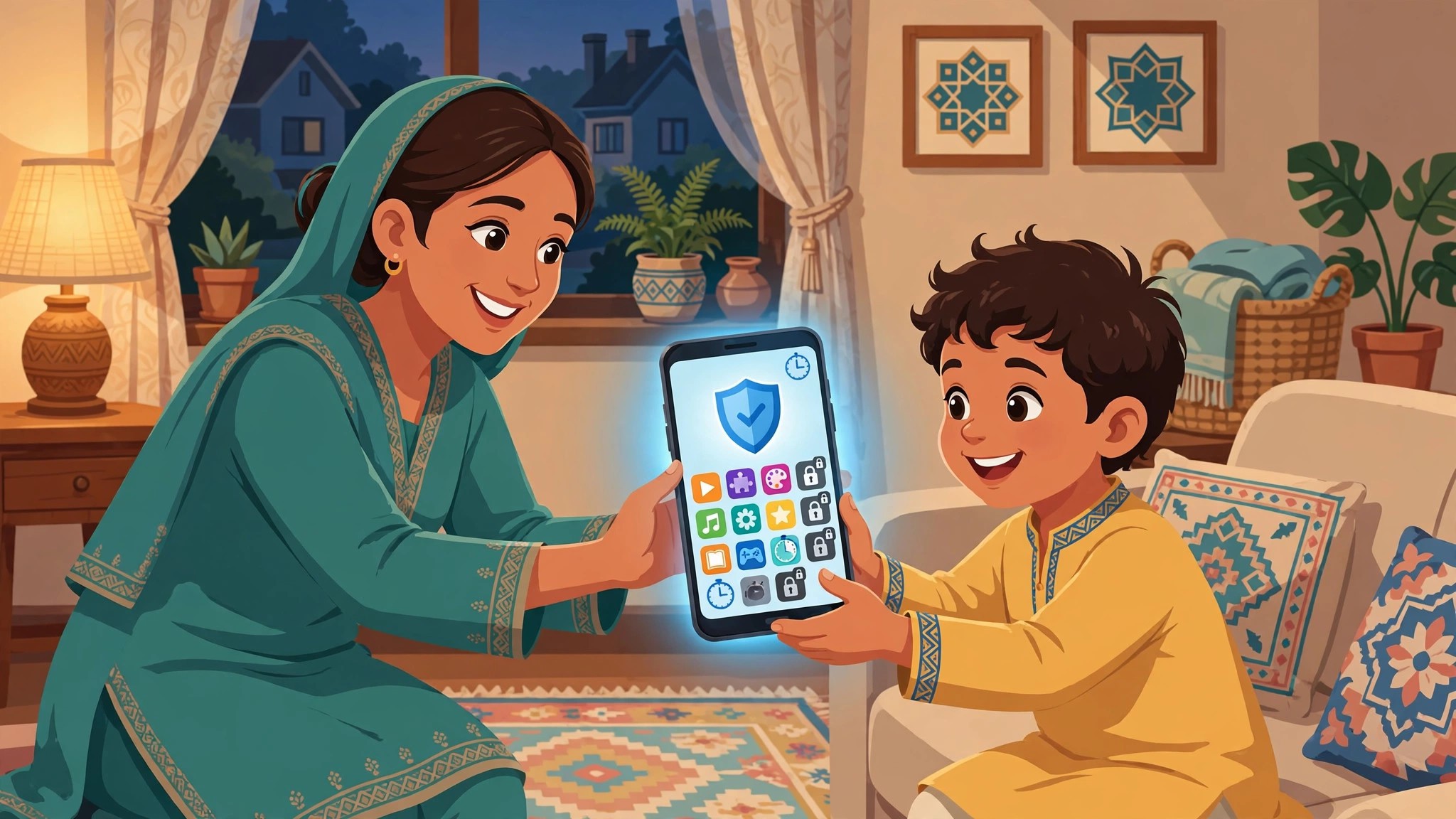
Before Anything: Decide Your Rules First
Parental controls work best when the child knows the rules before the locks go on — otherwise every block feels like an ambush. Sit down together for ten minutes and agree on the basics: how many hours of screen time per day, a bedtime after which the phone locks (bedtime schedules are far more effective than arguing every night), which apps need permission, and what happens with in-app purchases. Write it down or message it to the family WhatsApp group. When the phone itself enforces the rules you agreed together, you stop being the villain — the phone is.
Also be honest about the goal. No system is unbreakable, and a determined teenager will always find a way around something eventually. What parental controls reliably do is remove casual temptation: no accidental stumbles into adult content, no surprise Rs. 5,000 game bills, no 4 AM TikTok sessions on school nights. That is worth a lot.
Method 1: Google Family Link — The Core System
Google Family Link is Google's official parental supervision app, and it is the backbone of everything in this guide. It lets you approve app downloads, set daily screen time limits and bedtimes, lock the child's phone remotely, see where the device is, and filter web content — all from your own phone. It is free, and it works on essentially every Android phone sold in Pakistan (Android 7.0 and up: Samsung, Xiaomi, Oppo, Vivo, Realme, Infinix, Tecno, itel — all supported).
You need two things: your own Google account (the parent), and a Google account for your child. If your child is under 13, Google requires the account to be supervised — you create it during Family Link setup, and it cannot be used without supervision until they turn 13. If your child is 13 or older, they can keep their existing Google account, and supervision is added on top with their knowledge (they get notified about what is being supervised).
Setting Up Family Link Step by Step
- On your phone (the parent's): install Google Family Link for parents from the Play Store and sign in with your Google account.
- On the child's phone: install Google Family Link for children & teens from the Play Store. Open it and sign in with the child's Google account — or tap Create a new account if they do not have one.
- The app walks you through linking the two accounts. You will confirm a code shown on your phone on the child's phone, agree to the supervision terms, and choose the basic filters.
- Back on your phone, open Family Link and go through the child's profile settings. The important ones are covered in the sections below: screen time limits, bedtime, app approvals, and content filters.
One practical note: during setup the child's phone needs a stable internet connection, since it downloads device policy updates. Use Wi-Fi if you have it — the setup downloads can be a few hundred megabytes.
Screen Time Limits and Bedtime That Enforce Themselves
This is the feature parents in Pakistan ask about most, and it is where Family Link earns its keep. In the Family Link app on your phone, tap your child's profile and open Screen time:
- Daily limits: set how many hours the phone can be used each day, with different limits for school days and weekends. When the limit is reached, the phone locks except for calls (and any apps you mark as always allowed, like the phone dialer or a school app).
- Bedtime: set a nightly window (for example, 10 PM to 7 AM) during which the phone is locked. Bedtime is per-day, so you can be stricter on school nights. This single setting ends more late-night arguments than any other.
- Per-app limits: tap App limits to set timers on specific apps — 1 hour of TikTok, 30 minutes of a game, unlimited WhatsApp. When a per-app timer runs out, that app closes itself.
- Bonus time and lock now: you can grant extra minutes from your phone ("bonus time") as a reward, and hit Lock now to freeze the child's phone instantly — useful when dinner is ready and the game "just needs one more match".
A tip that saves friction: let the child see their own remaining time. Kids who can see the countdown manage their hours far better than kids who get surprise-locked. Our Android screen time guide explains the same timer concepts for your own phone too.
App Approvals: Nothing Installs Without Your OK
With Family Link, every Play Store download on the child's phone can require your approval. In Family Link on your phone, open the child's profile and go to Controls > Google Play:
- Require approval for: set this to All content for younger children (every app, game and movie needs your tap) or Only paid content for older kids you trust a bit more. You get the approval request as a notification on your phone, and you can allow or deny it from anywhere — you do not need to be in the same room.
- Apps & games age ratings: restrict downloads by age rating (3+, 7+, 12+, 16+, 18+). Play Store ratings are not perfect, but they filter out the worst of the age-inappropriate games automatically.
- Movies: set the highest allowed maturity rating the same way.
This approval system is also your defence against surprise in-app purchase bills — the classic Rs. 2,000–10,000 game gem purchase that appears on a parent's JazzCash or card statement. For full protection, also open the Play Store on the child's phone, go to Settings > Authentication > Require authentication for purchases and set it to For all purchases through Google Play. Even free apps then need your approval to install, which stops "free" games with aggressive in-app stores from ever reaching the phone.
Safe Browsing: Filtering the Web on Mobile Data and Wi-Fi
App controls mean nothing if the browser is wide open. There are two layers to fix, and they work together:
Layer 1 — Google SafeSearch and Chrome filters
On the child's phone, in Family Link go to Controls > Google Chrome and turn on Try to block mature sites. Then in Chrome itself, open Settings > Privacy and security > Safe Browsing and choose Enhanced protection. This blocks explicit results in Google Search and warns about dangerous sites. It is not perfect — no filter is — but it catches the accidental clicks that cause most problems.
Layer 2 — Private DNS family filter (works on all networks)
This is the layer most parents miss, and it is powerful: Android's Private DNS setting can filter adult and malicious content at the network level, working on both Wi-Fi and mobile data (Jazz, Telenor, Zong, Ufone — all of them), in every app and browser on the phone. Go to Settings > Network & Internet > Private DNS (on some phones: Settings > Connections > More connection settings > Private DNS) and enter a family-safe DNS hostname such as family.adguard-dns.com — AdGuard's free family filter blocks adult content, trackers and malicious sites. Our Private DNS setup guide walks through the exact steps with screenshots of each menu path.
Combine both layers and the child's phone is meaningfully filtered everywhere: at home on Wi-Fi, on a cousin's hotspot, and on mobile data on the school bus.
YouTube Controls: Restricted Mode and YouTube Kids
YouTube is where Pakistani children spend most of their phone time, so it deserves its own setup:
- YouTube Kids (ages 12 and under): install the separate YouTube Kids app and let Family Link manage it. It only shows curated, age-appropriate content with its own search controls — the right choice for younger children.
- Restricted Mode (teens): in the regular YouTube app on the child's phone, tap the profile icon > Settings > General > Restricted Mode and turn it on. Family Link can enforce this so it cannot be switched off without your approval.
- Watch history and search: in Family Link, you can pause or review the child's YouTube watch and search history under their Google account activity. Reviewing it together once a week is a better habit than secret monitoring.
- TikTok's own controls: if TikTok is allowed, open TikTok on the child's phone and enable Family Pairing (Settings > Family Pairing) — link it to your TikTok account to set daily limits, restricted mode and who can message them.
The Shared Family Phone: Controls When There Is No Second Device
Many Pakistani families share one phone — the child borrows the parent's device for an hour in the evening. Family Link is designed for a child's own device, but you have good options for a shared phone:
- App pinning: open the app the child is allowed to use, then go to Settings > Security > App pinning (Samsung: Settings > Biometrics and security > Other security settings > Pin windows) and pin it. The child cannot leave that app without your screen lock PIN. Perfect for "watch this one video" or "play this one game".
- Separate user profile: many Android phones support multiple users (Settings > System > Multiple users). Create a "Kids" profile with only approved apps installed — the child gets their own home screen, and your WhatsApp, photos and banking apps stay in your profile, locked behind your PIN.
- Lock sensitive apps: use your phone's built-in app lock (or a third-party one) so that even in a shared session, banking apps, WhatsApp and the Play Store need your fingerprint. Our app lock guide covers the built-in options on Samsung, Xiaomi and others.
The golden rule for shared phones: the child should never know your screen lock PIN or your Google account password. Change both before handing the phone over, and change them again if you suspect they have been seen.
Location: Knowing Where the Phone Is
Family Link includes location sharing — you can see where the child's device is from your phone, and get notified when they arrive at or leave places you define (home, school, a relative's house). Turn it on in Family Link under the child's profile > Location. It uses the phone's GPS, so it works anywhere in Pakistan with mobile data or Wi-Fi on.
Be upfront about this one. Children who know location sharing is on treat it as normal; children who discover it secretly treat it as spying. For the mechanics of finding any Android phone — including one with a dead battery or no data — see our find a lost Android phone guide.
Common Mistakes That Quietly Undo Everything
- The child knows the parent's Google password. With it, they can approve their own app requests and remove supervision. Your Google password is now a house key — treat it like one.
- No screen lock on the child's phone. Without a PIN, a factory reset from recovery mode wipes Family Link away. Set a screen lock PIN that only you know (on your own phone too, for shared devices).
- Only filtering Wi-Fi. If you set up filters on the home router but nothing on the phone, the first mobile-data session or neighbour's hotspot bypasses everything. The Private DNS filter above travels with the phone — that is the one that matters.
- Forgetting the Play Store on the parent's approval phone. Purchase authentication must be set on the child's device. Approvals arriving on your phone mean nothing if the child's Play Store allows purchases without a password.
- Blocking everything, then giving up. Over-blocking leads to constant approval requests, arguments, and eventually the parent disabling everything in frustration. Start moderate — time limits and bedtimes first, per-app rules after a week of seeing actual usage.
FAQ
Can my child remove Google Family Link from their phone without my permission?
On a child's supervised Google account, Family Link cannot be removed from the device without the parent's approval — the uninstall button is disabled and attempting to remove the account from Settings triggers a parent approval prompt. The one workaround is a factory reset, which wipes the phone but also erases all of the child's data and apps, so it is rarely worth it. To close that hole, protect the phone itself: keep the screen lock PIN known only to you and make sure the child does not know your Google account password, since removing the supervised account requires parent sign-in.
What ages does Google Family Link cover, and can I use it for teenagers?
Family Link works for children under 13 (a supervised Google account is required for them) and for teenagers aged 13 and older with their regular Google accounts — supervision for teens is optional and the teen gets notified about what is being supervised. Controls gradually loosen with age: for a 16-year-old you might keep purchase approvals and bedtime schedules but drop per-app time limits. The honest advice is to supervise younger children tightly and use the tools as a conversation starter with teenagers rather than a lockbox.
Does Family Link work on all Android phones in Pakistan, including Infinix, Tecno and itel?
Yes. Family Link works on any Android phone running Android 7.0 (Nougat) or newer, which covers essentially every Samsung, Xiaomi, Oppo, Vivo, Realme, Infinix, Tecno and itel phone sold in Pakistan in the last several years. The parent can supervise from any Android phone or even an iPhone using the Family Link app. You do not need a special edition of Android or a particular brand — if the phone has the Play Store, Family Link installs and works.
Will parental controls completely block TikTok, YouTube and games on my child's phone?
Only if you choose to block them outright, which Family Link lets you do per app. But blocking is rarely the best strategy — children need entertainment, and blocked apps get replaced by browser workarounds. The more effective setup is limits instead of bans: allow YouTube with Restricted Mode and a daily time limit, allow TikTok with its own built-in Family Pairing, and use per-app timers on games so they close automatically at the limit. You stay in control without turning the phone into a brick your child resents.
Can I see everything my child does — their messages, browsing history and photos?
No, and that is by design. Family Link shows you screen time per app, installed apps, download requests, location and device lock status — it does not let you read WhatsApp chats, SMS messages, photos or browsing history. If you need visibility into browsing, pair Family Link with Google's Web & App Activity on the child's account (which you manage as the parent) and Chrome SafeSearch. For serious concerns, the right approach is regular, open conversations plus knowing the account passwords — not spyware, which is illegal in many situations and destroys trust.