 Auraz Tech
How to Type in Urdu on Android (2026): Gboard Urdu Keyboard Setup Guide
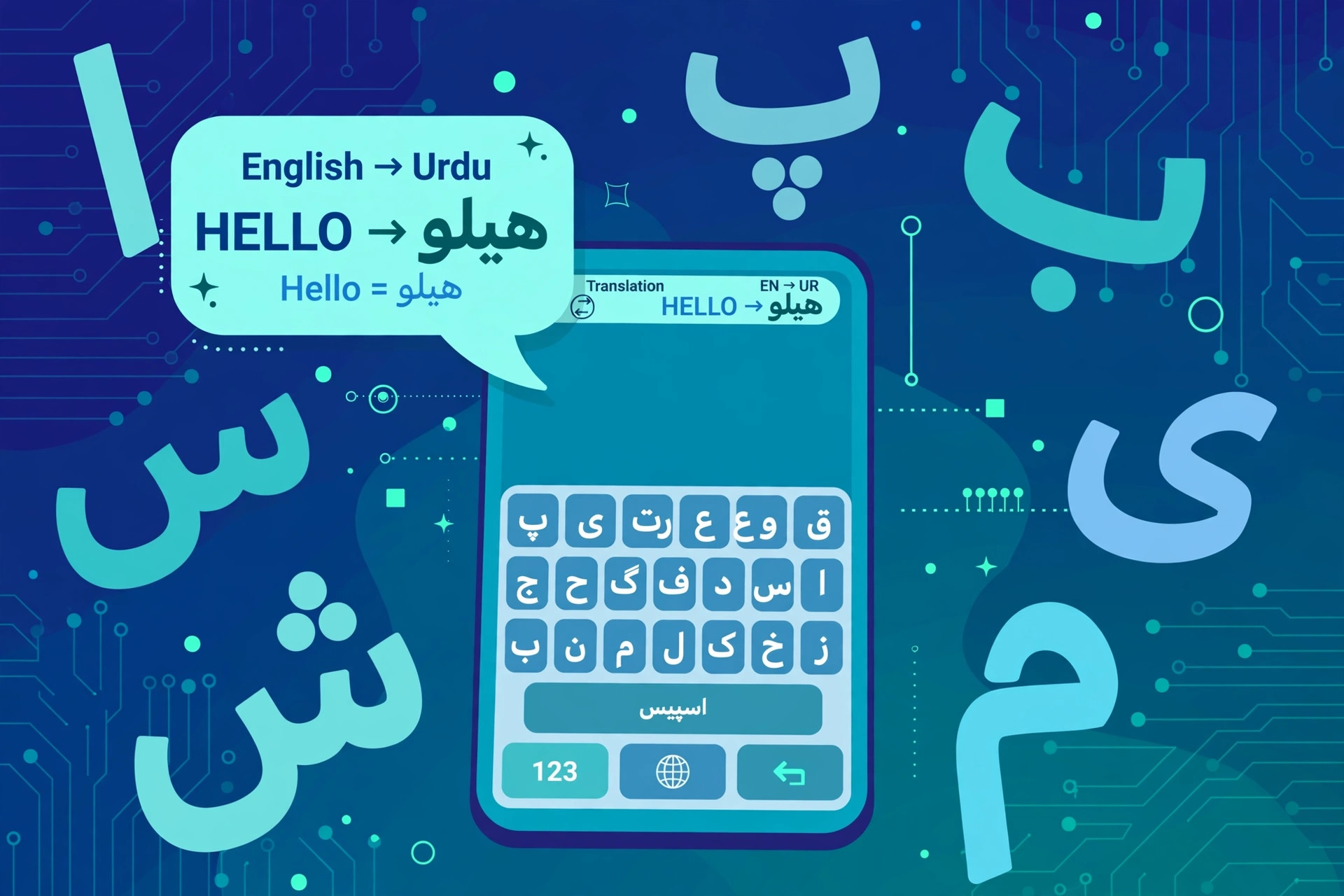
Millions of Pakistanis type Urdu every day — WhatsApp messages to family, Facebook posts, poetry, wedding invitations, business texts — and almost nobody bothers with the default English keyboard to do it. If your phone only types in English right now, you are one settings change away from a full Urdu keyboard, plus a clever Roman Urdu to Urdu converter, voice typing in Urdu, and one-tap switching between languages. This guide shows you every way to type in Urdu on Android in 2026: adding the Urdu keyboard to Gboard step by step, the Roman Urdu auto-conversion trick that turns kia haal hai into Urdu script in real time, the same setup on Samsung Keyboard and other brands like Infinix and Tecno, Urdu voice typing, speed tricks the built-in keyboard hides, and fixes for the common case where Urdu simply does not appear in the list.
Your Three Options at a Glance
Before the steps, pick the method that fits how you think. Most people end up using two of them together:
- Full Urdu keyboard: keys show Urdu letters directly. Best if you already read Urdu script and want full control over spelling. This is the standard Urdu keyboard most Pakistanis use.
- Roman Urdu to Urdu conversion: you type in English letters (kia haal hai) and the keyboard converts each word into Urdu script automatically. Best if you think in Roman Urdu and never learned a Urdu keyboard layout.
- Urdu voice typing: you speak and the phone writes in Urdu script. Best for long messages when you are walking, driving (hands-free only), or just tired of typing.
All three live inside Gboard, Google's keyboard, which comes pre-installed on most Android phones sold in Pakistan — Pixels, most Infinix, Tecno, itel, and Xiaomi phones. Samsung phones use Samsung Keyboard instead, which also supports Urdu; there is a section for it below. If you are not sure which keyboard you have, open any app, tap a text box, and look at the keyboard that appears — the Gboard name or Google's multicolour G logo on it means you are on Gboard.
Method 1: Add the Urdu Keyboard to Gboard (Step by Step)
This is the core setup and takes about one minute:
- Open your phone's Settings app.
- Tap System, then Languages and input. (On Samsung phones it is under General management instead — and for Samsung Keyboard see Method 3 below.)
- Under Keyboards, tap Virtual keyboard or On-screen keyboard.
- Tap Gboard, then Languages.
- Tap Add keyboard at the bottom of the list.
- Scroll through the list or use the search box, find Urdu, and tap it.
- Pick your layout. Gboard usually offers the standard Urdu layout plus a phonetic layout that places Urdu letters on the keys matching their sounds. If you know the traditional Urdu layout from computers, take the standard one; if not, the phonetic layout is easier to learn.
- Tap Done.
Open WhatsApp or any text box, and tap the globe icon on the keyboard (bottom row, usually left of the spacebar). Each tap cycles to the next language. One tap takes you to the Urdu keyboard with full Urdu letters, Urdu numerals, and Urdu punctuation — all right-to-left, exactly like writing Urdu on paper. The guide covers switching in more detail further down, including the fastest method of all: just holding the spacebar.
Tip: keep English as your first language and Urdu as the second. Gboard remembers the order, so the globe tap always lands where you expect. You can also turn on multilingual typing in Gboard's Languages settings — this lets Gboard accept both languages at once and auto-detects which one you are typing, which is handy for the mixed English-Urdu sentences everyone in Pakistan actually writes.
Method 2: Type Roman Urdu, Get Urdu Script Automatically
This is the feature people in Pakistan love most, and it has been inside Gboard since 2017: a special Urdu mode that converts Roman Urdu to Urdu script in real time. Type kia haal hai? in English letters and it becomes Urdu script the moment you press space. It also handles Sindhi, Punjabi, and Kashmiri script conversion from Roman text in the same mode.
- Open any app, bring up the Gboard keyboard, and tap the settings gear on the keyboard (or go through Settings, System, Languages and input, Virtual keyboard, Gboard, Languages).
- In Gboard's Languages screen, turn off the Use system language toggle. This is the step everyone misses — the Roman Urdu option only appears in the full language list, not the short system list.
- Tap Add keyboard and search for Urdu. Look for the entry shown as Urdu (abc → اردو) — that is the Roman-to-Urdu converter. Select it.
- Tap Done.
Now switch to that keyboard with the globe icon and just type normally in English letters. The conversion happens word by word as you type. Because Roman Urdu has no fixed spelling, the converter occasionally guesses a word wrong — tap the suggestion strip above the keyboard to pick a different spelling of the word you just typed. A few practical notes from daily use:
- Spelling variations work. Typing aap, ap, or aapko all get you the right Urdu words, because the converter understands common Roman Urdu spellings, not just one correct one.
- Mixed messages are fine. English words you type (like school, office, mobile) stay in English letters — the converter only transforms words it recognizes as Urdu.
- Always proofread important text. A wedding invitation or a job application deserves a read-through, because a wrongly converted word in Urdu script can change meaning more than a typo in English.
If you write mostly in Roman Urdu on WhatsApp, this mode can genuinely replace the full Urdu keyboard for you — you never have to learn where the Urdu letters sit on the keys.
How to Switch Between English and Urdu While Typing
Adding the keyboard is half the job; switching fast is the other half. Three ways, from slowest to fastest:
- Tap the globe icon. Each tap cycles to the next language in your list. With two languages this is one tap; with four it is tedious — which is why the next two methods exist.
- Hold the spacebar. Press and hold the spacebar, and a popup shows all your languages. Slide your finger to the one you want and release. This is the fastest reliable method with three or more languages.
- Swipe the spacebar left or right. A quick sideways swipe on the spacebar jumps straight to the next or previous language. With English and Urdu as your two languages, one swipe toggles between them instantly — this becomes muscle memory within a day.
The keyboard also shows the current language on the spacebar itself (English, اردو, or the Roman Urdu mode name), so a glance tells you which language will appear when you type. If you keep typing the wrong language, check the spacebar before you start — the most common cause of Urdu gibberish in English chats and vice versa is simply being on the wrong keyboard.
Method 3: Urdu Keyboard on Samsung Phones
Samsung phones ship with Samsung Keyboard instead of Gboard, but the Urdu setup is just as quick:
- Open Settings, then General management.
- Tap Samsung Keyboard settings (or Keyboard list and default, then Samsung Keyboard).
- Tap Languages and types, then Add keyboard or Manage input languages.
- Find Urdu in the list — you may see Urdu and Urdu (Pakistan); pick the Pakistan one.
- Choose the layout: Samsung typically offers QWERTY and phonetic Urdu layouts. The phonetic layout maps Urdu letters to English keys by sound and is the easier starting point.
- Back on any text box, tap the globe icon on Samsung Keyboard to switch to Urdu.
Note that Samsung Keyboard does not have Gboard's Roman Urdu auto-conversion mode — if that feature matters to you, install Gboard from the Play Store (it is free), set it as your default keyboard, and follow Method 2 above. Many Samsung owners in Pakistan run Gboard exactly for this reason. Our hidden Android features guide has a few more keyboard tricks worth knowing once you are set up.
Other Brands: Xiaomi, Oppo, Vivo, Infinix, Tecno
Most budget phones sold in Pakistan — Infinix, Tecno, itel, and most Xiaomi/Redmi models — use Gboard as the default keyboard, so Method 1 and Method 2 above apply unchanged: Settings, System, Languages and input, Virtual keyboard, Gboard, Languages, Add keyboard, Urdu. A few things that differ by brand:
- Oppo / Vivo / Realme: these sometimes ship with their own keyboard app. If the steps above do not match your menus, install Gboard from the Play Store and set it as default under Settings, then follow Method 1. It takes two extra minutes and you get the Roman Urdu converter too.
- Xiaomi / Redmi / Poco: on some MIUI versions the path is Settings, Additional settings, Languages and input instead of the standard System path. The Gboard section inside is identical.
- Older Android versions: on Android 9 and older, look for Settings, System, Languages and input, Virtual keyboard — the same screen, slightly different wording. Gboard still supports Urdu on these versions, but update Gboard from the Play Store first for the newest language options.
Urdu Voice Typing: Speak and It Writes in Urdu
Voice typing in Urdu is genuinely good now — not the comedy it was five years ago. To set it up:
- Go to Settings, System, Languages and input, then Voice input (or in Gboard settings, Voice typing).
- Add Urdu (Pakistan) to the voice input languages.
- Switch to your Urdu keyboard in any app, tap the microphone icon on the keyboard, and speak.
Your words appear in Urdu script as you talk. It handles everyday sentences well — grocery lists, directions to a driver, long family updates. Two honest limitations: it struggles with heavy code-switching (sentences that flip between English and Urdu every few words), and background noise in a bazaar or on a bus degrades it like any voice system. For quiet rooms and clear speech it is fast enough that many people now dictate long WhatsApp messages instead of typing them. If the mic icon does not appear, check that Gboard has microphone permission and that voice typing is enabled in Gboard's settings — permission resets after major updates are a common culprit, as our microphone troubleshooting guide explains.
Speed Tricks the Urdu Keyboard Hides From You
Once Urdu typing works, these make it fast:
- Word suggestions and autocorrect in Urdu. Gboard learns your Urdu vocabulary and suggests whole words as you type. If it keeps changing a word you want, tap the word in the suggestion strip to lock it, or add it to your personal dictionary under Gboard settings, Dictionary.
- Glide typing in Urdu. Gboard's glide (swipe) typing works on the Urdu keyboard too — drag your finger across the Urdu letters without lifting and it forms the word. It takes a day of practice but doubles your speed once it clicks.
- Urdu punctuation. Long-press the period key for Urdu-specific punctuation, and check the symbols page (?123 key) — Gboard's Urdu layout includes Urdu numerals (۰۱۲۳۴۵۶۷۸۹) alongside Western numerals. Long-pressing number keys shows both.
- Emoji and GIFs. The emoji button works on the Urdu keyboard exactly as in English — your Urdu messages get the same sticker and GIF access, which matters more than people admit for family chats.
- Translate while typing. Gboard has a built-in translate button (the translate icon in the keyboard toolbar). Type in Urdu and translate to English on the fly, or write in English and paste Urdu — useful for messages to relatives abroad who read English better.
- Handwriting input. In Gboard's Languages settings, the Urdu entry sometimes offers a handwriting layout: you draw Urdu letters with your finger and it converts them to text. Slow, but a lifesaver for anyone who never learned any keyboard layout and just wants to write one Urdu word now.
Troubleshooting: When Urdu Won't Cooperate
Urdu is not in the language list. Update Gboard from the Play Store, then turn off Use system language in Gboard's Languages settings — that toggle hides most languages behind the short list. Restart the phone after updating; language lists refresh on boot.
I added Urdu but the keyboard still types English. You added the language but have not switched to it — tap the globe icon or hold the spacebar and select اردو. Check what the spacebar says; if it says English, you are on the wrong keyboard.
The Roman Urdu converter option is missing. The entry is specifically Urdu (abc → اردو), separate from plain Urdu. It only appears with Use system language turned off, and on a reasonably current Gboard version. If your Gboard is years old, update it.
Autocorrect keeps mangling my Urdu. Gboard's Urdu dictionary improves as you use it, but early on it can be aggressive. Long-press a wrongly corrected word in the suggestion strip to remove it, add your common words to the personal dictionary, or temporarily turn off autocorrect for Urdu under Gboard settings, Text correction.
Urdu text shows as boxes or broken letters in some app. The app or the phone's font does not support Urdu script rendering. Update the app and the phone's system software — Urdu rendering is handled by the system font, and very old Android versions render it poorly. Modern phones (Android 10 and up) handle Urdu correctly everywhere.
The keyboard layout feels wrong. You probably picked the phonetic layout when you wanted the standard one, or vice versa. Go back to Gboard, Languages, tap Urdu, and switch the layout — you can enable both and compare.
Urdu keyboard disappeared after an update. Major Android updates occasionally reset keyboard settings. Re-add Urdu the same way as Method 1 — your personal dictionary and learned words are tied to your Google account and usually survive, especially if backup is on (see our Android backup guide).
Using Urdu Everywhere: WhatsApp, Facebook, and Beyond
The Urdu keyboard is system-wide — once added, it works in every app that takes text. WhatsApp, Facebook, Messenger, TikTok, Instagram captions, SMS, Gmail, Chrome's search bar, YouTube comments: all of them. A few things worth knowing:
- WhatsApp: Urdu messages, group names, and status updates all work. If you move to a new phone, your Urdu chats transfer with everything else — follow our WhatsApp transfer guide so nothing is lost. Running two accounts? Our dual WhatsApp guide shows the setup, and both accounts get the Urdu keyboard automatically.
- Facebook and TikTok: Urdu posts and comments render for everyone — Urdu script support is universal on modern phones, so your audience sees exactly what you typed.
- Search in Urdu: you can search Google, YouTube, and Daraz in Urdu script. Urdu search results are thinner than English ones, but for local shops, naats, poetry, and news it often finds exactly what English keywords miss.
- Contacts and notes: saving contacts in Urdu (امی, ابو) makes them findable by voice and by typing — and nobody borrowing your phone reads your contact list as fast.
FAQ
How do I add an Urdu keyboard to my Android phone?
Go to Settings, System, Languages and input, Virtual keyboard, Gboard, Languages, and tap Add keyboard. Select Urdu from the list and tap Done. You can then switch to it any time with the globe icon or by holding the spacebar on the keyboard.
Can I type in Roman Urdu and get Urdu script automatically?
Yes. In Gboard settings go to Languages, turn off Use system language, and add the Urdu (abc to Urdu) option. After that, typing something like kia haal hai in English letters converts it to Urdu script in real time.
Why is Urdu not appearing in my Gboard language list?
Update Gboard from the Play Store first, then turn off the Use system language toggle in Gboard's Languages settings — this unlocks the full language list. If it still does not appear, restart the phone and add the language again.
How do I switch between English and Urdu while typing?
Tap the globe icon on the keyboard to cycle through your languages, or hold the spacebar and slide your finger to pick the language you want. You can also swipe the spacebar left and right to jump between your last two languages.
Can I use voice typing in Urdu?
Yes. In Gboard go to Languages and input, Voice input, and add Urdu (Pakistan). Then when the Urdu keyboard is active, tap the microphone icon and speak — your words appear in Urdu script.
Does Urdu typing work on WhatsApp and Facebook?
Yes — the Urdu keyboard works in every app that accepts text: WhatsApp, Facebook, Messenger, TikTok, SMS, Gmail, and browsers. The keyboard is system-wide, so whatever language you pick is available everywhere you type.