 Auraz Tech
How to Tell If Your Android Phone Is Hacked: 12 Warning Signs and What to Do About It
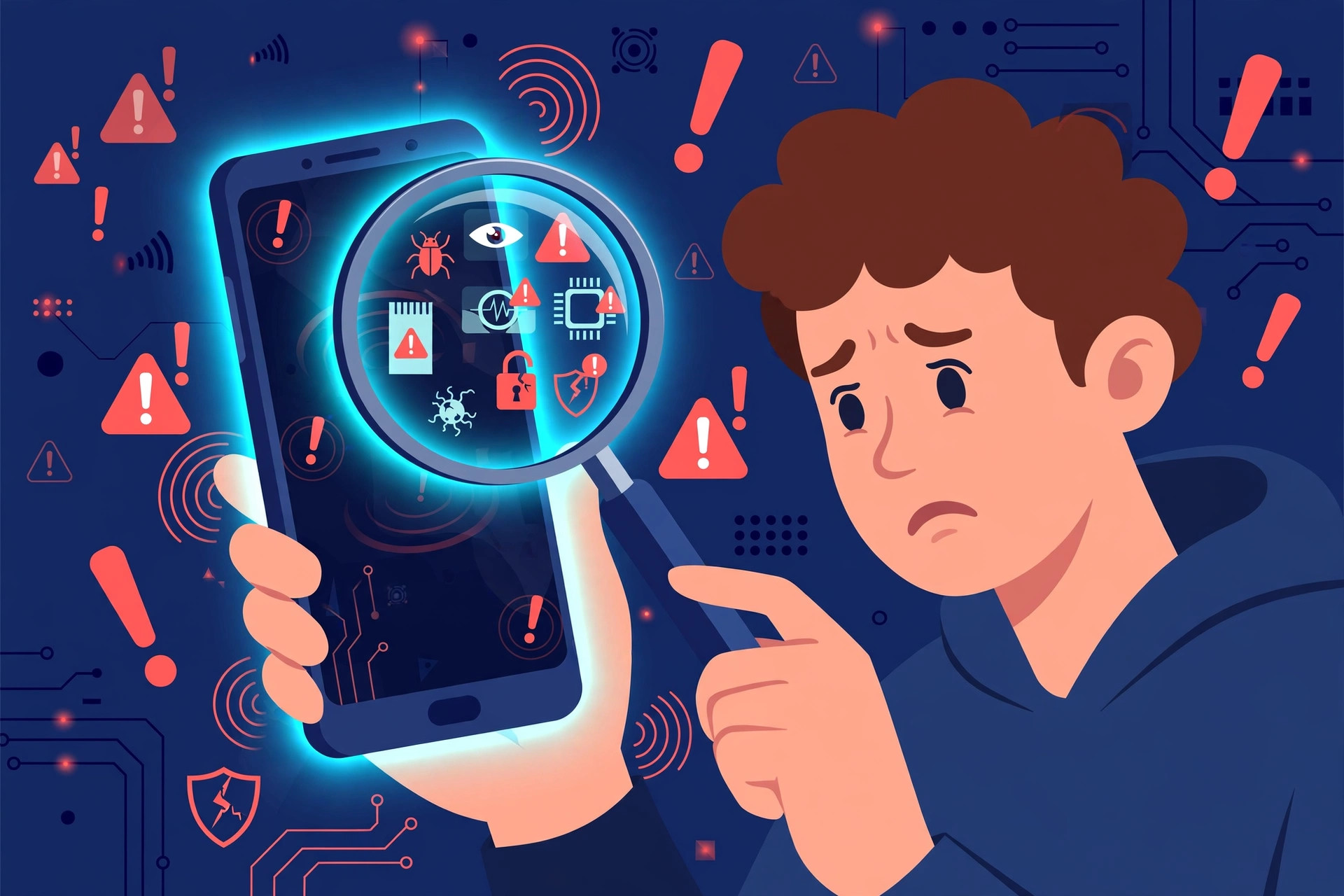
Your phone holds your photos, messages, bank apps, and email — so the thought of someone secretly controlling it is genuinely frightening. The good news: real phone hacking is far less common than people fear, and most "hacked phone" scares turn out to be an aging battery, a buggy update, or a greedy-but-legitimate app. The bad news: spyware and malware on Android are real, and they announce themselves through behavioral clues long before you'd ever see a hacker's face. This guide walks you through the 12 warning signs that actually matter, how to tell a real infection from normal phone aging, and exactly what to do if something is wrong.
Why Android Phones Get Targeted
Android's openness is its strength and its weakness. Unlike iPhones, Android lets you install apps from outside the Play Store ("sideloading"), which is convenient — and it's exactly the door malware walks through. Attackers typically want one of three things: your money (premium-SMS fraud, banking trojans, ad fraud), your data (spyware that reads messages, photos, and location — sometimes installed by someone you know), or your accounts (stealing login sessions for email, social media, and banking).
Almost all Android infections arrive the same way: a fake app. Disguised as a flashlight, a "free" version of a paid app, a video player, or a system "cleaner," it asks for far more permissions than it needs — access to SMS, contacts, accessibility services — and quietly goes to work in the background. Phishing links in SMS and WhatsApp are the second most common route. Knowing this matters, because it tells you where to look: the app list, the permissions, and the battery/data stats. That's where every sign below points.
Performance Red Flags: Signs 1–3
Malware runs constantly in the background — mining crypto, showing hidden ads, uploading your data — and that invisible workload leaves physical traces on your phone.
1. Battery drains much faster than usual
The single most common symptom. If your phone suddenly can't make it through the day when it used to, and nothing else changed (no new update, no new heavy app), something may be running in the background. Spyware and adware are notoriously power-hungry because they never sleep. Check Settings > Battery > Battery usage: if an app you barely use — or one you don't recognize at all — is sitting near the top of the list, treat it as suspect number one.
2. Phone gets hot when you're not using it
A phone warming up during gaming or charging is normal. A phone that's warm in your pocket while idle is not. Constant background activity — crypto mining malware, spyware uploading recordings, ad-fraud apps clicking invisible ads — keeps the processor working and generates heat. If your phone is hot to the touch after sitting untouched for an hour, investigate the battery-usage screen before blaming the weather.
3. Sluggish performance, freezes, and random crashes
Malware competes with your real apps for RAM and CPU, so everything gets slower: apps take forever to open, the keyboard lags, the phone freezes and reboots on its own. One caveat — this is also what an old, full-storage phone does (see the "innocent explanations" section below). The difference: malware slowdowns often arrive suddenly, right after installing something new, rather than creeping in over months.
Data and Billing Red Flags: Signs 4–6
Malware talks to the internet constantly — sending your data out, downloading ads, or subscribing you to premium services. Your bill and your data meter notice before you do.
4. Mobile data usage spikes for no reason
Check Settings > Network & internet > Data usage (path varies by brand). If your monthly usage has jumped and your habits haven't changed, look at the per-app breakdown. A calculator, flashlight, or wallpaper app consuming hundreds of megabytes is a screaming red flag — legitimate simple apps barely touch the network. Spyware uploads photos, recordings, and location data, and it prefers mobile data because it's always on.
5. Strange texts, calls, or premium charges on your bill
Some malware subscribes you to premium SMS services that charge per message, or sends texts to premium numbers in the background. Watch for: SMS messages in your sent folder you didn't write, unknown numbers in your call log, or line items on your carrier bill for "value-added services" you never signed up for. In Pakistan and similar markets, this "toll fraud" is one of the most common Android malware money-makers — check your balance and bill regularly.
6. Pop-up ads appearing outside apps — or on the home screen
Ads inside a free game are normal. Full-screen pop-ups appearing on your home screen, over other apps, or on the lock screen are not — that's adware, usually from an app you installed outside the Play Store. Similarly, if your browser suddenly redirects to strange pages, your homepage changed itself, or new bookmarks appeared, a malicious app has likely hooked into your browser. Note which app you installed just before the ads started; that's usually the culprit.
App and Settings Red Flags: Signs 7–9
Sophisticated malware tries to protect itself by changing your phone's settings so you can't easily remove it. These signs are the most damning.
7. Apps you never installed
Open your full app list (Settings > Apps > See all apps) and scroll slowly. Malware often hides behind bland, official-sounding names: "System Update," "Device Health," "Phone Booster," "Carrier Services." If you see an app you don't remember installing — especially one with a generic icon and vague name — don't open it. Google it by exact name first; security forums quickly identify known malware package names.
8. Settings changed by themselves
Red flags include: Google Play Protect turned off (malware disables the scanner first), unknown apps granted Accessibility or Device Admin permission (these let an app control your phone and resist uninstallation), or "Install unknown apps" enabled for apps you don't recognize. Check Settings > Security > Device admin apps — this list should be nearly empty (typically just "Find My Device"). Anything else there deserves hard scrutiny.
9. You can't uninstall a suspicious app
Try to uninstall the suspect app and the Uninstall button is greyed out? That's a classic malware self-defense move using Device Admin privileges. The fix: go to Settings > Security > Device admin apps, deactivate the app's admin rights first, then uninstall it normally. Legitimate apps never need to block their own uninstallation — if an app fights being removed, it's telling you exactly what it is.
Account and Behavior Red Flags: Signs 10–12
Sometimes the hack isn't on the phone at all — it's your accounts that are compromised, and the phone is just where you notice it.
10. Login alerts and verification codes you didn't request
Getting "someone tried to sign in" emails, password-reset messages, or SMS verification codes you never asked for means someone has your password and is probing your accounts — or malware on your phone is reading your incoming SMS codes. Don't ignore these. Change the affected passwords immediately from a different, trusted device, and turn on app-based two-factor authentication.
11. Your contacts receive spam or strange messages "from you"
If friends ask why you sent them a weird link, your messaging apps or accounts may be compromised — malware and hijacked accounts both blast phishing links to your contacts to spread. Check your sent folders in SMS, WhatsApp, and Messenger. If messages went out that you didn't send, change those account passwords and review connected devices/sessions in each app's settings.
12. Camera or microphone indicators appearing unexpectedly
Android shows a green dot in the status bar whenever the camera or microphone is in use. If that dot appears while you're not on a call, recording, or using a camera app, something is accessing your sensors. Pull down the notification shade and tap the indicator — Android tells you exactly which app triggered it. A voice recorder or video-call app doing this in the background is a serious privacy breach: revoke its permissions immediately.
Rule Out the Innocent Explanations First
Before panicking, check these far more common causes — they explain the majority of "my phone is hacked" scares:
- An aging battery: lithium batteries lose capacity after 2–3 years. If your phone is old and the drain built up gradually, that's chemistry, not criminals. Some brands show battery health under Settings > Battery.
- A recent software update: big Android updates re-index files and re-optimize apps for a day or two, causing temporary heat and drain. Give it 48 hours.
- One greedy legitimate app: Facebook, TikTok, and some games are famously heavy. The battery-usage screen identifies the hog — often it's a app you chose to install, just a badly optimized one.
- Weak signal: in low-signal areas your phone burns extra power straining to stay connected. If the drain happens only in certain places, it's the network, not malware.
- Full storage: a phone with under 10% free space slows to a crawl as the system struggles. Free up space before suspecting an attack.
If none of these fit and the symptoms arrived suddenly — especially right after installing a new app or tapping a strange link — keep reading.
How to Check If Your Phone Is Really Compromised
Work through these checks in order. They take about ten minutes and catch the vast majority of real infections:
- Run a Play Protect scan: open the Play Store, tap your profile icon, go to Play Protect, and tap Scan. Also confirm Play Protect is turned on — if it was mysteriously off, that's itself a red flag.
- Audit your apps: go to Settings > Apps > See all apps, tap the three-dot menu, and sort by last used or check install dates. Uninstall anything you don't recognize or no longer need — when in doubt, remove it; you can reinstall legitimate apps later.
- Check Device Admin apps: Settings > Security > Device admin apps. Deactivate anything that isn't "Find My Device" or your company's device-management app, then uninstall the app.
- Review Accessibility permissions: Settings > Accessibility — look at which apps have access. Accessibility is the most abused permission on Android; only password managers and a few trusted utilities legitimately need it.
- Inspect battery and data per app: Settings > Battery and Settings > Network & internet > Data usage. An unfamiliar app consuming outsized resources is your prime suspect.
- Check your Google Account: visit myaccount.google.com > Security and review "Your devices" and "Recent security activity." Remove any device you don't recognize and change your password if anything looks off.
- Look at notification access and "display over other apps": under Settings > Apps > Special app access, review which apps can read notifications or draw over the screen. Malware loves both; revoke them from anything non-essential.
If every check comes back clean, your phone is very likely fine — the symptoms probably have an innocent cause from the list above.
What to Do If You Confirm Malware
Found the culprit? Act in this order:
- Disconnect from the internet — turn on airplane mode. This stops data theft and prevents the malware from receiving new instructions.
- Revoke its privileges: remove it from Device Admin apps and Accessibility access first (see step 3–4 above), then uninstall it.
- Change your important passwords — Google, banking, email, social media — from a different device, since the compromised phone may still be logging keystrokes. Start with your Google account, then enable two-factor authentication with an authenticator app.
- Run a second scan with Play Protect and, if you want extra confidence, one reputable mobile security app from the Play Store (avoid random "antivirus" apps — many are junk themselves).
- Check your carrier bill for premium charges and dispute anything fraudulent with your carrier.
- Nuclear option — factory reset: if problems persist, if multiple suspicious apps keep reappearing, or if it's stalkerware you can't fully remove, back up your photos and files, then go to Settings > System > Reset > Erase all data. Reinstall apps only from the Play Store afterward. This wipes virtually all consumer malware.
If you suspect stalkerware installed by someone you know (a partner, family member, employer overstepping), consider contacting a local digital-safety helpline before resetting — they can advise on evidence preservation and safety planning, since the installer may notice the removal.
How to Keep Your Phone Safe Going Forward
- Install security updates promptly: most real-world Android attacks exploit known vulnerabilities that patches already fix. Don't postpone updates.
- Stick to the Play Store and think twice before sideloading APKs — the vast majority of Android malware arrives as sideloaded apps.
- Read permission requests: a flashlight doesn't need your contacts; a wallpaper app doesn't need SMS access. Deny anything disproportionate.
- Use app-based two-factor authentication (authenticator apps or passkeys) instead of SMS codes wherever services offer it — this neuters SIM-swap attacks.
- Set a carrier account PIN so nobody can social-engineer your mobile provider into transferring your number.
- Review app permissions twice a year: Settings > Privacy > Permission manager shows which apps hold sensitive permissions — prune aggressively.
- Keep Play Protect on and be skeptical of "your phone has a virus" pop-ups in the browser — those are scams, not diagnoses.
The honest summary: Android malware is real but almost always invited in — through a sideloaded app, a phishing tap, or careless permission grants. The twelve signs above tell you when to worry, the ten-minute audit tells you whether the worry is justified, and the habits above make a repeat visit very unlikely.
Related Guides
- How to Remove Bloatware From Android Without Rooting — suspicious apps often disguise themselves as system utilities; here's how to remove stubborn ones safely.
- How to Block Spam Calls and Texts on Android — compromised numbers attract scam calls; lock down your call and text defenses.
- How to Lock Apps on Android (No Root Needed) — add an extra PIN or fingerprint barrier to your banking and messaging apps.
FAQ
Can an Android phone be hacked without clicking anything?
True zero-click attacks exist but are extremely rare and usually target high-value individuals via expensive spyware. For ordinary users, nearly every infection requires an action: installing a malicious app, tapping a phishing link, or granting shady permissions. If you only download from the Play Store and don't tap suspicious links, your risk is very low.
Does a factory reset remove a hacker from my Android phone?
A factory reset removes virtually all app-level malware and spyware, including stalkerware, because it wipes the data partition where malicious apps live. Back up your photos and files first, reset, and reinstall apps only from the Play Store. Extremely rare firmware-level infections can survive, but those affect almost no consumer phones.
Can someone hack my phone just by knowing my phone number?
Knowing your number alone doesn't install malware, but it enables SIM-swap attacks: a scammer convinces your carrier to move your number to their SIM, then intercepts your calls and SMS verification codes. Protect yourself with a carrier account PIN and by using app-based two-factor authentication instead of SMS codes where possible.
Will an antivirus app find the hacker on my phone?
Google Play Protect scans your apps automatically and catches most known malware. Reputable third-party scanners can help, but manual checks matter more: unknown apps, device-admin permissions, and per-app battery and data usage usually reveal the culprit faster than any scan. No scanner can detect every brand-new threat.
Is my phone hacked, or is it just getting old?
Aging phones genuinely do slow down and lose battery capacity — that's the most common innocent explanation. Check Settings > Battery to see which app is draining power and whether battery health has degraded. If one unfamiliar app is consuming huge battery or data, that's suspicious; if everything is just gradually worse, it's probably age.