 Auraz Tech
How to Set Up Android Private Space in Pakistan (2026): Hide Apps, Photos and Files Behind a Separate Lock
Most Android privacy tricks are only skin-deep. Hiding an app removes its icon, but the app is still listed in Settings, still buzzes with notifications, and still opens from a search. If you share your phone with family, hand it to a shopkeeper to fix, or keep banking apps and private photos on the same device your children play games on, hiding icons is not really privacy at all. Android Private Space is the stronger answer: a separate locked area built into Android 15 and later that holds its own copies of apps, with its own data, its own lock, and the option to disappear from the app drawer entirely. Think of it as a second, smaller phone living inside your phone, one that only opens with a different PIN, pattern or fingerprint.
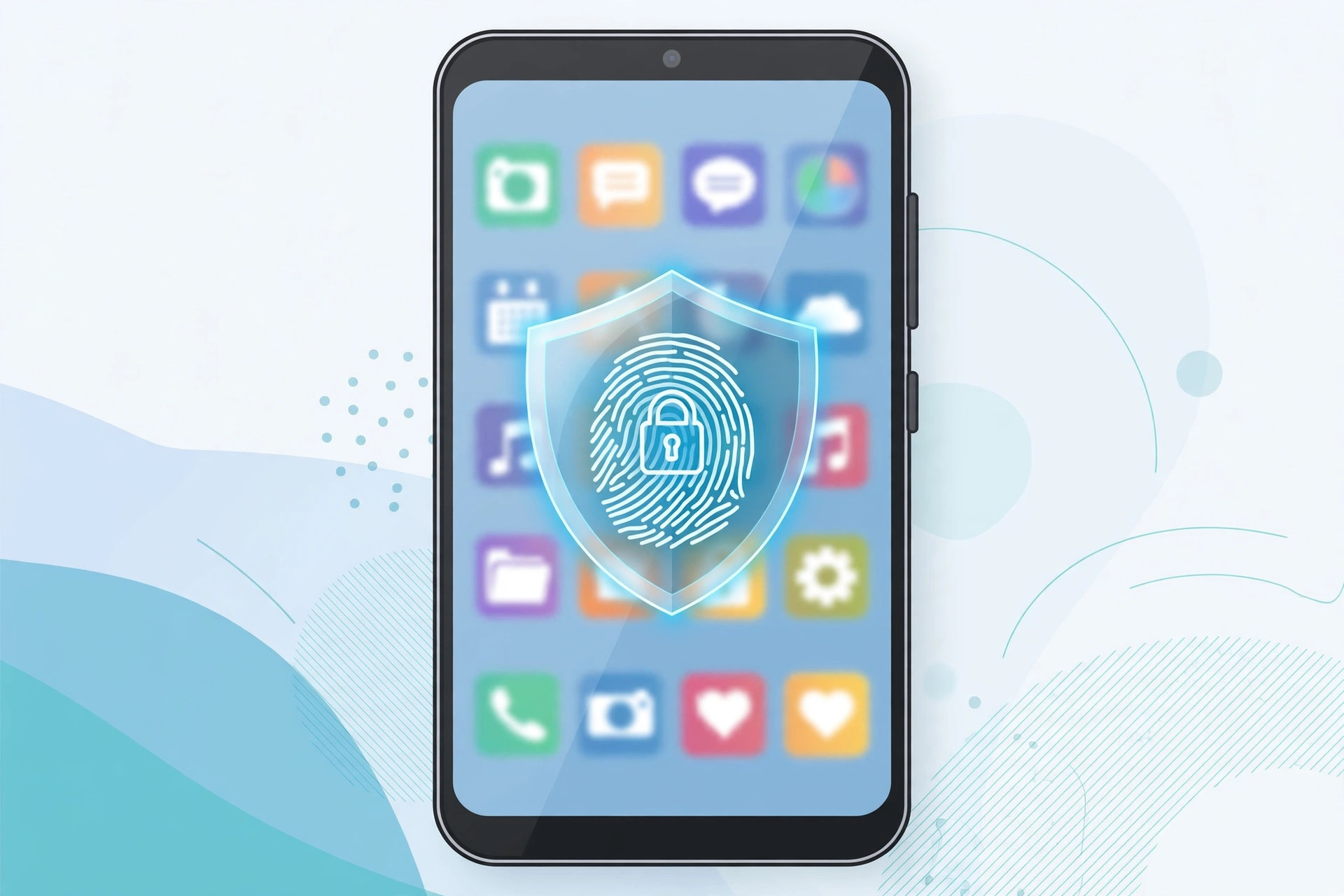
What Private Space Actually Is (and Is Not)
Private Space is not a launcher trick and not a vault app from the Play Store. It is a system feature: when you set it up, Android creates a separate user profile on your phone, walled off from your main profile. Apps you install inside Private Space get fresh, separate data. A WhatsApp installed inside Private Space has no access to your main WhatsApp chats. A gallery app inside it sees only the photos you move there, not your main camera roll. Files, accounts and logins inside the space are invisible to apps outside it, and vice versa.
That separation is exactly what makes it different from the older methods covered in our guide on hiding apps on Android. Hiding removes an icon. Private Space removes the whole app, its data and its notifications from your daily phone until you deliberately unlock it. It is also different from app lock, which just asks for a PIN before opening one app: our app-lock guide covers that lighter option, which is fine for a single banking app but does not hide the app or its data from anyone browsing your phone.
What Private Space is not: it is not encryption for your whole phone, it is not a second SIM or a second phone number by itself, and it does not protect you from someone who already knows your Private Space lock. It also does not hide the fact that your phone supports the feature — someone who knows Android can check Settings and see whether a space exists, even if they cannot open it. For most everyday situations in Pakistan — a shared family phone, a phone repaired at a market stall, a colleague borrowing your device — that level of protection is exactly right.
Which Phones Support Private Space in Pakistan
Private Space arrived with Android 15, so the first question is your Android version, not your brand. Go to Settings > About phone > Android version. If it says Android 15 or newer, your phone very likely supports Private Space, though the maker can still remove it.
- Google Pixel: full support from Android 15 onward, under Settings > Security and privacy > Private Space. This is the reference implementation and the easiest to follow.
- Samsung: Samsung phones have Secure Folder, which does the same job and in some ways more, but the stock Private Space setting may be absent because Samsung prefers its own tool. If you have a Samsung, use Secure Folder instead of hunting for Private Space — the steps are in our hide-apps guide.
- Xiaomi, Redmi and Poco: HyperOS and newer MIUI builds may include Private Space, but many Xiaomi phones instead offer Second Space or Hidden Apps. If Private Space is missing, those are your equivalents, not a fault with your phone.
- Oppo, Realme, Vivo and OnePlus: support varies by model and update. Some ColorOS, Realme UI and OxygenOS builds include Private Space; others offer their own private-safe or app-hide features instead.
- Infinix, Tecno and itel: these budget brands are the least consistent. Many models on Android 15 still ship without Private Space, relying on XHide or Phone Master instead. Check the setting path below before assuming it is there.
If your phone is still on Android 14 or older, Private Space will not appear at all. The fix is an update, not an app: check Settings > System > Software update. Our guide on updating your Android phone walks through that for every brand. Do not install a Play Store app calling itself Private Space — it is not the system feature, it will ask for broad permissions, and it can vanish after an update.
How to Set Up Private Space, Step by Step
Setup takes about five minutes. Do it somewhere private, because you will choose a lock you must remember, and do it on Wi-Fi if you plan to install large apps inside the space.
- Open Settings > Security and privacy > Private Space. If you cannot find it, type Private Space in the Settings search bar.
- Tap Set up and read the short explanation. Android will warn you that the space is tied to its own lock and that forgetting it means losing the contents — this is the most important warning in the whole process, and it is true.
- Choose the lock. You can reuse your main screen lock, but that defeats much of the point: anyone who can unlock your phone can unlock the space. Choose a different PIN, pattern or password. If your phone offers it, add a fingerprint for the space that is different from your main unlock finger, for example a different finger.
- Choose a Google account for the space (optional). You can use your main account or a separate one. A separate account keeps Play Store downloads, backups and recommendations inside the space fully apart from your main account — the cleaner choice for a work profile or a second WhatsApp.
- Wait while Android creates the space. When it finishes, a Private section appears at the bottom of your app drawer, with a lock icon.
- Tap the lock icon and enter your new lock. The section opens and shows a mostly empty drawer with the Play Store and a few system apps.
That is the whole setup. Nothing else about your main phone changes: your home screen, wallpaper, main apps and files stay exactly as they were.
Moving Apps, Photos and Files Into Private Space
An empty Private Space protects nothing, so the next step is deciding what belongs inside it. A good rule: anything you would be embarrassed or harmed by if a stranger scrolled through your phone for two minutes. For most people in Pakistan that means banking and JazzCash or Easypaisa apps, private photo folders, a second WhatsApp or work chat, health apps, and any dating or job-search app you would rather keep personal.
Installing apps inside Private Space
- Unlock Private Space from the bottom of the app drawer.
- Open the Play Store inside the space — it looks the same, but it installs into the space, not your main phone.
- Install the app and sign in with the account you want inside the space. Remember, this is a fresh copy: your main app's chats, saved logins and settings do not carry over automatically.
- Long-press an app in your main drawer and look for an Install in Private or similar option on some phones — this installs a private copy without opening the Play Store.
Moving photos and files
Photos need a different route, because Private Space apps cannot see your main gallery. Open your Files app or gallery, select the photos or documents, tap Share, and share them to the Private Space version of Files or Photos if your phone offers it. On phones without a direct share target, the reliable method is: back the files up first (our Android backup guide covers this), then download or copy them into the space and delete the originals from the main gallery. Never move the only copy of an important document without a backup — a forgotten Private Space lock deletes everything inside.
Storage is worth a quick check too. Apps inside Private Space take up storage twice: once for the main copy, once for the private copy, plus their separate data. On a 128 GB phone this rarely matters. On a 64 GB phone with a full gallery, move photos into the space only after freeing room — our guide on freeing up Android storage helps here.
Hiding Private Space Completely
By default, anyone opening your app drawer sees a locked Private section at the bottom. That is a hint that something is hidden, even if they cannot open it. If you want the space invisible, hide it:
- Go to Settings > Security and privacy > Private Space.
- Turn off Show Private Space in app drawer or the similarly named option on your phone.
- From now on, the space appears only when you search for it: open the app drawer, tap the search bar, and type Private Space, or use the gesture your phone offers. You will still need the lock to open it.
Hiding the section also changes notifications. While the space is locked, its apps cannot show notifications on your lock screen, and their icons do not appear in the shade. That is deliberate: a banking notification popping up on a locked phone would give the game away. If you need alerts from a work app inside the space, you can allow sensitive notifications in the Private Space settings, but for banking and private chats, leaving them off is the safer default. The same caution applies to tracking: a hidden app can still use data in the background when the space is unlocked, so if tracking worries you, read our guide on stopping apps tracking you as well.
Locking and Unlocking in Daily Use
Private Space locks itself automatically. The usual triggers are: you lock your phone, you manually lock the space from the drawer, or a timer you set in the space settings expires. In practice this means you unlock it when you need it, use the private apps, and it locks again when you put the phone down. Get into the habit of locking it manually before handing your phone to anyone: open the app drawer, long-press the Private section, and tap Lock.
One habit saves a lot of trouble: keep the private apps you use daily to a short list. If you move twenty apps into Private Space, you will unlock it twenty times a day and eventually leave it unlocked out of annoyance, which defeats the purpose. Keep the truly private three or four apps inside, and leave everything else outside with a normal app lock if needed.
Common Problems and Fixes
Private Space is missing from Settings
First check your Android version. If you are on Android 14 or older, the feature does not exist on your phone yet. If you are on Android 15 and it is still missing, your maker removed it in favour of its own tool (Samsung Secure Folder, Xiaomi Second Space, Infinix XHide). Use that tool instead — it is not a lesser option, just a branded one. A factory reset will not bring back a feature your maker removed.
An app will not install inside Private Space
Some apps, especially banking apps with strict device checks, refuse to run in a second profile or in a work-like space. If a banking app installs but will not log in inside Private Space, that is the bank's security policy, not a phone fault. Keep that one app outside the space and protect it with a strong app lock and a strong screen lock instead, and keep your photos and chats in the space.
Private Space apps stop working after an update
After a major Android update, unlock the space once and let its apps update from the Play Store inside the space. Updates for private apps do not always happen automatically while the space is locked, so a stale app can misbehave until you open the space and update it.
Notifications from private apps appear anyway
Check two places: Settings > Security and privacy > Private Space for the sensitive-notifications toggle, and Settings > Notifications for the individual app. If you allowed sensitive notifications during setup, turn them off. Also remember that notifications sent while the space is unlocked will show normally until it locks again.
You forgot the Private Space lock
There is no recovery, no reset link, and no support trick. Google and your phone maker cannot open it for you — that is the security design. Your only option is Settings > Security and privacy > Private Space > Delete, which wipes the space and everything in it, then you set it up again from scratch. This is why the setup warning matters: choose a lock you will remember, and keep a written copy somewhere only you can reach, not in a note on the same phone.
Private Space, App Lock, or a Second Profile: Which One for You
- Private Space: best when you want several apps and files hidden together behind one extra lock, especially on a shared family phone. Strongest everyday privacy short of a second phone.
- App lock: best for one or two apps, like a banking app, on a phone only you use. Quicker, but the app icon and its notifications are still visible.
- Guest mode or a second user profile: best when someone else will use your phone for a while. They get a clean phone with none of your apps at all. For children, a supervised setup is better still — see our parental controls guide for Pakistan.
- Just hiding icons: best only for tidying a home screen. It is not privacy, and it should never be your only protection for money or private photos.
If you are setting up a brand-new phone, consider turning Private Space on during the first setup rather than months later. It is easier to put private apps straight into the space than to move chats and photos later, and our new-phone setup guide covers the rest of a clean start.
FAQ
What is Android Private Space and how is it different from hiding apps?
Private Space is a separate locked area inside your phone with its own copy of apps and its own data. Hiding an app only removes its icon from the home screen, while Private Space keeps the app, its files and its notifications locked behind a different PIN, pattern or fingerprint until you unlock it.
Which phones in Pakistan support Android Private Space?
Private Space is a standard feature on Android 15 and later, so Pixel phones and most phones updated to Android 15 support it. Samsung, Xiaomi and other brands may offer it under their own names, such as Secure Folder on Samsung, or may not include it at all, so check Settings, Security and privacy, Private Space on your own phone.
Can I use two copies of the same app, one inside and one outside Private Space?
Yes. An app installed in Private Space is a separate copy with separate data, so you can run a second WhatsApp, banking app or email account inside Private Space while the normal copy stays outside. The two copies do not share chats, photos or login sessions.
What happens to Private Space if I forget its lock?
You cannot open Private Space without its lock, and there is no back door. If you forget the PIN, pattern or password, your only option is to delete the space from Settings, which permanently removes every app and file inside it. Write the lock down somewhere safe, away from the phone, when you set it up.
Do apps in Private Space still send notifications?
By default, Private Space apps do not show notifications on the lock screen while the space is locked, and the space itself can be hidden from the app drawer. You can allow sensitive notifications in the Private Space settings, but leaving them off is the safer choice for privacy.
Can I back up the apps and files inside Private Space?
Private Space has its own Google account option for backup, separate from your main account, and you can back up its files before deleting the space. Move anything you cannot afford to lose out of Private Space first, because deleting the space erases its contents with no recovery.