 Auraz Tech
How to Schedule Text Messages on Android in Pakistan (2026): Google Messages, Samsung & WhatsApp Reminders
You need to wish your mother a happy birthday at midnight, remind a customer about tomorrow's appointment, or send a payment reminder to a client first thing in the morning — but you will be asleep, travelling, or busy when the moment arrives. The answer is to schedule the text message now and let your phone send it later. On Android in 2026 this is a built-in, free feature: both Google Messages and Samsung Messages let you pick a date and time, and your phone does the rest. No extra app, no extra charge, and no need to stay awake. This guide covers exactly how to schedule an SMS on Google Messages and Samsung Messages, how to edit or cancel a scheduled message, what happens if your phone is off at send time, the safe way to handle WhatsApp (which has no scheduling feature), and fixes for scheduled messages that never arrive.
What Scheduling a Message Actually Does (and Does Not Do)
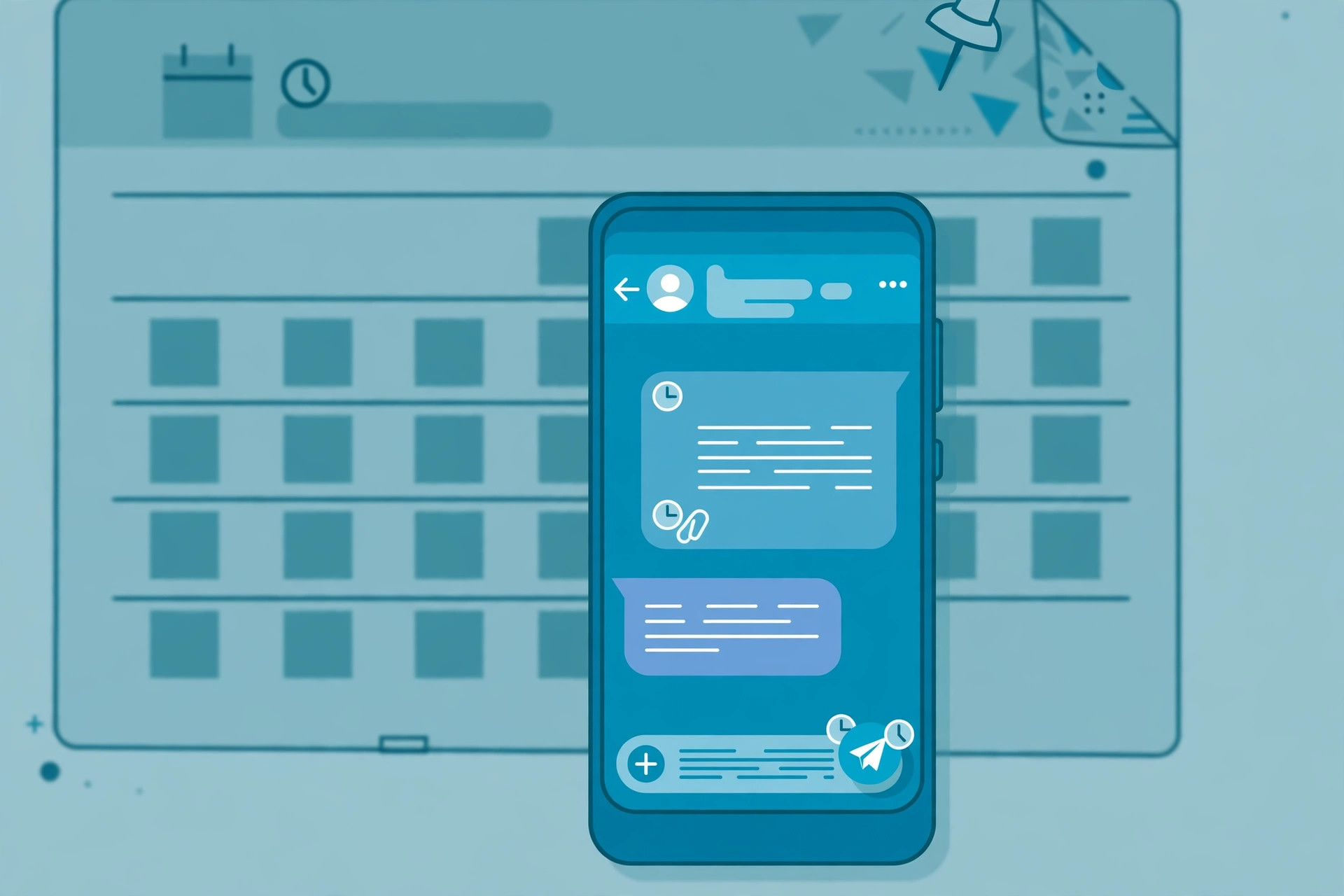
When you schedule a message, your messaging app stores the text and the send time on your phone. At that time, the app sends it like an ordinary SMS through your mobile network — Jazz, Zong, Telenor or Ufone, whichever SIM is set as your default for SMS. It is charged exactly like a normal SMS: free if your bundle includes SMS, otherwise at your package's standard rate. Scheduling itself costs nothing.
Three limits matter. First, the message is sent from your phone, not from a server, so your phone must be switched on and have signal at the scheduled time. Second, scheduling works for SMS (and RCS where available in Google Messages); it does not work inside WhatsApp, Facebook Messenger or other chat apps, which have their own rules. Third, a scheduled message is not a reminder to yourself — it is a message that actually goes out. If you only want to remind yourself to send something later, use a calendar reminder instead, as explained in the WhatsApp section below.
That said, for everyday Pakistani use — birthday wishes at midnight, Eid greetings at Fajr, bill and appointment reminders, a morning message to a client in another city — scheduled SMS is one of the most useful features most people never notice. It also pairs well with good phone hygiene: if your phone is running slowly or apps keep closing in the background, read our performance guide and background-apps guide first, because a messaging app killed by aggressive battery saving is the most common reason scheduled messages fail.
Method 1: Schedule a Message in Google Messages (Pixel, Infinix, Tecno, Motorola and Most Android Phones)
Google Messages is the default messaging app on Pixel phones and many Infinix, Tecno, Motorola and Nokia models, and it can be installed free from the Play Store on almost any other Android phone. If your phone's own app does not offer scheduling, this is the method to use.
- Open Google Messages. If it is not your default messaging app, the app will ask you to set it as default — tap Set as default, because only the default app can send SMS.
- Open the conversation with the person you want to message, or tap Start chat and pick a contact.
- Type your message as normal, but do not tap Send yet.
- Long-press the Send button (the arrow icon). A scheduling menu pops up with quick options — Later today, Tonight, Tomorrow morning — and a Pick date and time option.
- Choose Pick date and time, set the exact date and time you want, and tap Save or Schedule. A small clock icon now appears on the Send button.
- Tap Send. The message appears in the conversation with a clock icon and the scheduled time underneath it, and a note saying it is scheduled — it has not been delivered yet.
That is it. At the chosen time, Google Messages sends the message automatically, and the clock icon is replaced by the normal delivered or read status. One practical tip: double-check the AM/PM setting and the date before you confirm. A birthday message scheduled for 12:00 AM on the wrong day is the classic mistake, and it is entirely avoidable if you read the confirmation line — which shows the full date and time — before tapping Send.
If long-pressing Send does nothing, two things are usually wrong: you are not using Google Messages as your default app, or your Google Messages app is badly out of date. Update it from the Play Store, set it as default in Settings > Apps > Default apps > SMS app, and try again. Our Play Store fix guide helps if the update itself will not download.
Method 2: Schedule a Message in Samsung Messages (Samsung Galaxy Phones)
Samsung's own Messages app has offered scheduling for years, and the steps are slightly different from Google's — Samsung uses a plus menu rather than a long-press.
- Open Samsung Messages and open the conversation, or start a new one.
- Type your message.
- Tap the + (plus) icon next to the message box, or tap the three-dot menu and choose Schedule message — the exact location varies by One UI version, but the option is always in one of those two places.
- Set the date and time and tap Done.
- Tap Send. The message sits in the conversation marked as scheduled, with its send time shown.
Note that newer Samsung phones may ship with Google Messages as the default instead of Samsung Messages. If you open Samsung Messages and it asks to become the default, or if you cannot find the scheduling option, check which app is actually your default: the scheduling steps belong to whichever app is set as default. Either app works fine — do not try to run both as default at once, or messages may split across two inboxes and confuse the schedule. If you use two SIMs, Samsung Messages also lets you pick which SIM sends the message: look for the SIM selector near the Send button and confirm it shows the SIM with balance and the right number, especially for work messages. Our SIM fix guide covers the case where a SIM disappears from that selector entirely.
Method 3: Edit, Reschedule or Cancel a Scheduled Message
Plans change, and scheduled messages are not set in stone — until they are sent. In Google Messages, open the conversation and tap the scheduled message (the one with the clock icon). You will get options to Edit message, which lets you change the text, the date and the time, or Delete message, which cancels it completely. In Samsung Messages, long-press the scheduled message and choose Edit or Delete from the menu.
After editing, always re-check the new date and time shown under the message before leaving the conversation. And remember: once the scheduled time passes and the message is sent, it can no longer be edited or unsent — SMS has no unsend feature. If you sent something by mistake, your only options are a follow-up correction message or, for serious cases, the steps in our spam and unwanted-message guide. For truly sensitive messages, that irreversibility is a reason to schedule with a small buffer — a few minutes after the moment you actually need it, rather than exactly on it, so you have a last chance to cancel.
Method 4: WhatsApp Messages — Why There Is No Schedule Button, and the Safe Workaround
WhatsApp on Android has no built-in message scheduling, and this is deliberate: WhatsApp does not want third-party apps sending messages on your behalf. You will find plenty of apps in the Play Store promising to auto-send WhatsApp messages at a set time. Do not use them. They typically demand accessibility access or ask you to log in through unofficial channels, which can expose your chats, drain your battery, and — because they break WhatsApp's terms — can get your number temporarily or permanently banned from WhatsApp. Losing a WhatsApp account that holds years of family and business chats is not worth a birthday reminder.
The safe workaround is a reminder, not an auto-send:
- Open Google Calendar (or your phone's Clock or reminder app) and create a reminder for the exact time, with the recipient's name and the message text pasted into the reminder notes.
- When the reminder fires, tap it, copy the text, open WhatsApp, and send it yourself. The whole thing takes under thirty seconds.
- For recurring messages — a weekly team reminder, a monthly payment note — set the calendar reminder to repeat, and it will keep working without any risky app.
WhatsApp Business users have one extra legitimate tool: away messages and greeting messages, which reply automatically when someone messages you outside your set hours. That is an auto-reply, not a scheduled outbound message, but for a small business in Pakistan it covers the most common real need — telling customers you will reply in the morning. If you run two WhatsApp accounts, our two-WhatsApp guide explains how to keep business and personal messages separate while you do it.
When the Phone Is Off, Out of Signal, or on Airplane Mode at Send Time
This is the question everyone asks, and the answer depends on timing. If your phone is off or has no signal at the scheduled moment, the messaging app simply cannot send the message — there is no network server holding it for you. In practice, Google Messages and Samsung Messages will retry once the phone reconnects: switch the phone back on, turn off airplane mode, or walk back into coverage, and the message usually goes out within minutes, late rather than lost.
There are limits, though. If the phone stays off for many hours, some apps eventually mark the message as failed — check the conversation for a failed or not-sent status and resend manually if needed. Airplane mode overnight is the most common version of this problem: a midnight birthday message scheduled while the phone is in airplane mode for the night will wait until the morning, which defeats the purpose. The fix is simple: if a message truly must go out at midnight, leave the phone on with signal, or use Do Not Disturb mode instead of airplane mode — Do Not Disturb silences notifications but leaves the radio on, so scheduled messages still send. Our mobile-data fix guide and delayed-notifications guide help if messages go out but delivery reports or replies seem to arrive late.
Good Uses in Pakistan: Birthdays, Eid, Bills, Appointments and Business
Scheduled messages earn their keep in a few everyday situations. Birthdays and anniversaries: write the message when you remember it, schedule it for midnight or for a sensible morning hour, and never rely on remembering again at the right moment. Eid, Ramadan and wedding greetings: prepare greetings in advance during a busy week and schedule them for Eid morning or for Iftar time, when they will actually be read. Bill and payment reminders: if you run a small shop or freelance work, schedule a polite reminder the day before a payment is due — far more effective than remembering to chase it yourself. Appointments and classes: tutors, doctors' clinics and salons can schedule next-day reminders that cut down no-shows dramatically. Office hours: draft a work message in the evening and schedule it for 9:00 AM, so you are not messaging colleagues at midnight — a small courtesy that is noticed.
A word on etiquette and safety: never schedule a message you would not send yourself in that moment, and never use scheduled messages to harass, spam or pressure anyone — repeated unwanted messages can be reported and blocked, as our spam guide explains. Keep scheduled messages short, check the recipient's number before confirming (a wrong digit sends your private message to a stranger), and for anything financial — a payment confirmation, an account number, a JazzCash or Easypaisa reference — double-check every digit. Our Easypaisa guide covers the payment side; the message itself should never contain a full password or PIN.
Troubleshooting: Scheduled Messages That Never Send
- Phone was off or out of signal: turn the phone on, disable airplane mode, and check whether the message sent late or shows as failed. Resend manually if it failed.
- Battery optimisation killed the app: go to Settings > Apps > Messages > Battery and set it to Unrestricted (or turn off battery optimisation for it). Aggressive power-saving modes on Infinix, Tecno and Xiaomi-style skins are notorious for this.
- Wrong default app: only the default SMS app can send. If you scheduled in Google Messages but Samsung Messages is default, or vice versa, the schedule may never fire. Set one app as default and schedule in that app.
- Wrong SIM: on dual-SIM phones, confirm the SIM set for SMS has balance and active service. A message scheduled from a SIM with no balance or an expired package will fail silently.
- App out of date or cache corrupted: update the messaging app, then clear its cache (Settings > Apps > Messages > Storage > Clear cache — not Clear data, which would delete your messages). Our cache guide walks through this safely.
- Date, time or timezone wrong: if the phone's clock is set manually and wrong, scheduled times will be wrong too. Set date and time to automatic in Settings > System > Date & time.
- Message shows as sent but recipient says they never got it: check delivery reports in the conversation, confirm the number, and ask the recipient to check spam or blocked-message folders. Network delays on any Pakistani network occasionally hold an SMS for a while; waiting an hour before resending avoids duplicates.
- Phone restarted and the schedule vanished: rare, but a restart right at send time can interrupt the job. If a critical message is due, avoid restarting the phone in the minutes around its send time.
FAQ
Can I schedule a text message on any Android phone?
Almost any modern Android phone can schedule SMS through Google Messages or Samsung Messages. If your phone's built-in messaging app has no scheduling option, install Google Messages from the Play Store and set it as your default messaging app — scheduling is built in and free.
Does my phone need to be on at the scheduled time?
Yes. A scheduled SMS is sent from your phone, not from your network's servers, so the phone must be switched on and have mobile signal at the scheduled time. If the phone is off, out of signal or in airplane mode, the message waits and is sent once the phone reconnects, or fails if the delay is too long.
Can I schedule a WhatsApp message on Android?
WhatsApp has no built-in scheduling feature on Android. The safe workaround is a reminder: schedule a reminder in Google Calendar or your phone's reminder app, then send the message yourself when it fires. Avoid third-party apps that ask for your WhatsApp login or accessibility access to auto-send messages — they can get your account banned and expose your chats.
Can I edit or cancel a scheduled message?
Yes, in both Google Messages and Samsung Messages. Open the conversation, tap the scheduled message (shown with a clock icon), and choose Edit to change the text or time, or Delete to cancel it. You can only do this before the scheduled send time — once it is sent, it behaves like any normal message.
Does scheduling a message cost extra in Pakistan?
No. A scheduled SMS is charged exactly like a normal SMS on your Jazz, Zong, Telenor or Ufone package when it is sent — scheduling itself is free. If you are on a bundle with free SMS, the scheduled message uses that bundle; otherwise the standard per-SMS rate applies.
Why did my scheduled message not send?
The usual causes are a phone that was off or out of signal at send time, battery optimisation killing the messaging app, dual-SIM settings sending from a SIM with no balance, or the app not being set as the default messaging app. Check the message status in the conversation, keep the messaging app exempt from battery optimisation, and confirm which SIM is set as the default for SMS.