 Auraz Tech
How to Print from Your Android Phone in Pakistan (2026): Wi-Fi, USB, and Print-Shop Options
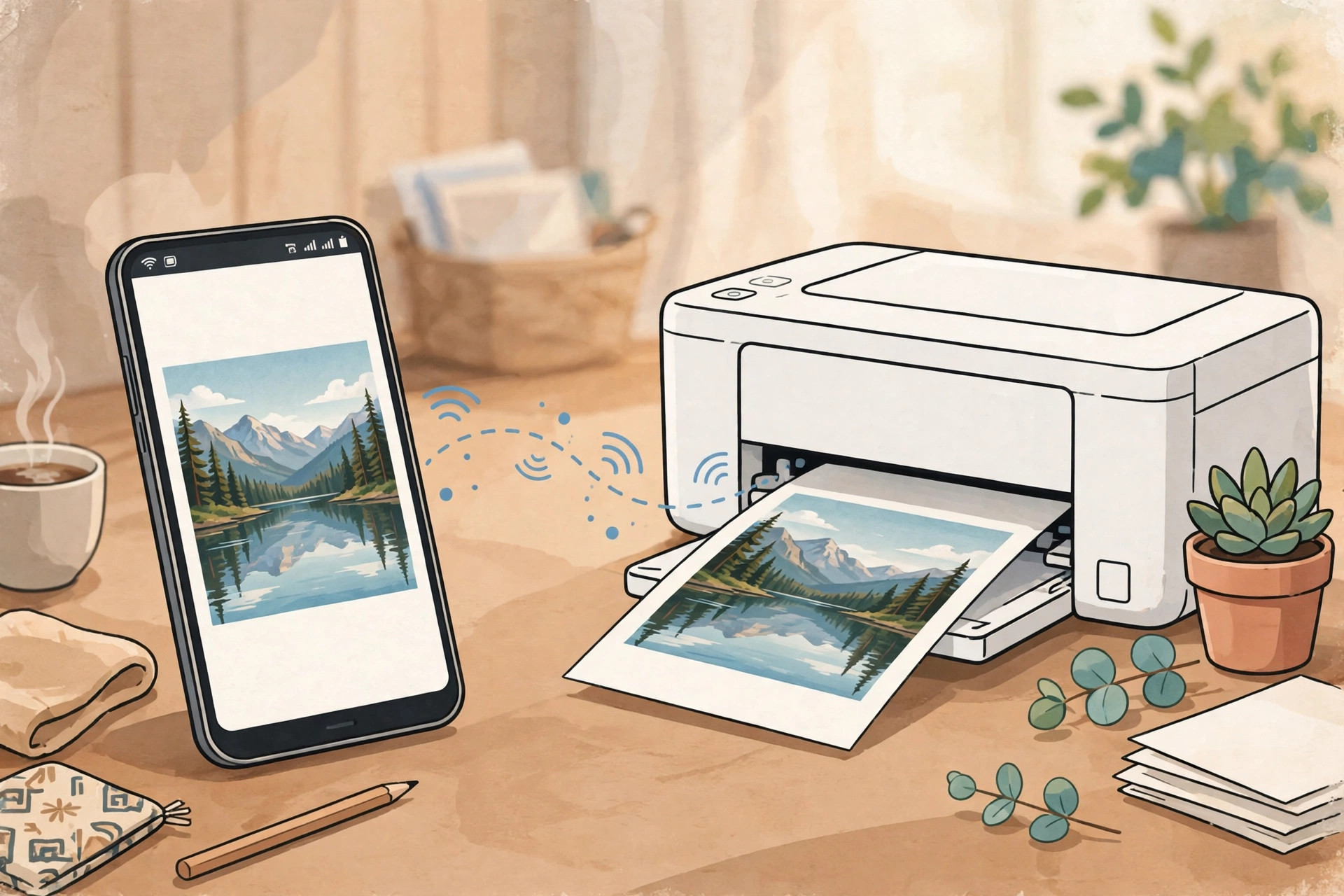
A university form needs a printed copy, a shop needs a price list on paper, a parent needs a child's homework worksheet, or a job application needs a CV — and the file is sitting on your phone while the computer is off, broken, or in another room. The good news is that you do not need a computer to print anymore: almost every Android phone sold in Pakistan can print directly, over Wi-Fi, by USB cable, or through the printer maker's own app. This guide covers exactly how to print from your Android phone — the built-in Wi-Fi method that needs no extra app, the brand apps for HP, Epson, Canon and Brother, the USB cable method for older printers without Wi-Fi, and what to do when you have no printer at home at all, plus the print settings that save ink and paper, and fixes for the problems Pakistani users hit most: a printer the phone cannot find, a blank page, or a printout cut off at the edges.
Before You Print: What You Need
Printing from a phone is simple, but it helps to know which of the three situations you are in, because each one uses a different method. First, if your printer has Wi-Fi — most printers bought in the last ten years do, including the popular HP DeskJet and LaserJet, Epson EcoTank, Canon PIXMA and Brother models sold in Pakistani markets — use the Wi-Fi method below. You need nothing except the printer, your phone, and both connected to the same home or office Wi-Fi network. Second, if your printer is an older model with only a USB port and no Wi-Fi, use the USB method: you need a USB OTG adapter, a small plug that costs a few hundred rupees at any mobile accessories shop, which lets your phone connect to USB devices. Third, if you have no printer at all, skip to the print-shop section: you can get almost anything printed for a few rupees a page without owning a printer.
One thing to ignore in old guides: Google Cloud Print. It was a service that let phones print through Google's servers, but Google shut it down at the end of 2020, so any tutorial that tells you to set it up is out of date. Modern Android prints directly to the printer over your own Wi-Fi, with no Google service in the middle, which is also why it still works during a slow internet day as long as your home Wi-Fi router is on — the file travels from phone to printer across your own network, not over the internet. Also check the basics before you start: the printer must have paper loaded, ink or toner, and power. It sounds obvious, but a printer that has gone to sleep or run out of paper is behind a surprising number of "my phone cannot find the printer" complaints. Wake the printer, check its screen or lights, and print a test page from its own buttons if you are unsure it is working at all.
Method 1: Print Over Wi-Fi with the Built-In Default Print Service
Every modern Android phone has a built-in printing system called the Default Print Service, and for most Wi-Fi printers it is all you need — no app to install, no account to create. First, make sure your phone and printer are on the same Wi-Fi network. This is the single most common mistake: if your phone is on mobile data, or on a different Wi-Fi name than the printer (for example, the router's 5 GHz network while the printer is on the 2.4 GHz network), the phone will never see the printer. Open Settings, then Wi-Fi, and note the network name. Then check the printer's network: on most printers, pressing the Wi-Fi button or checking the information page shows the network it is connected to. If they differ, connect one of them to the other network. If your home Wi-Fi is down entirely, many Wi-Fi printers can create their own direct connection called Wi-Fi Direct, which the phone can join without a router — look for Wi-Fi Direct in the printer's settings and on the phone's Wi-Fi list.
- On your phone, open Settings, then Connected devices, then Connection preferences, then Printing. Make sure Default Print Service is switched on. On Samsung phones the path is similar: Settings, then Connections, then More connection settings, then Printing. If the service is off, your phone will not search for printers at all.
- Open the file you want to print: a PDF in Files or a PDF viewer, a photo in Gallery, a document in Google Docs or WPS Office, or a web page in Chrome.
- Tap the three-dot menu and tap Print. In some apps, Print is under Share instead — tap Share, then look for Print in the list.
- At the top of the print preview, tap Select a printer or All printers. Your phone searches the Wi-Fi network for a few seconds. When your printer's name appears, tap it.
- Set your options: paper size A4 (the standard in Pakistan), orientation portrait or landscape, colour or black and white, and the number of copies. Tap the print button — usually a printer icon or a button labelled Print — and the page comes out.
If your printer does not appear, do not keep tapping refresh. First check the same-network rule above, then wake the printer from sleep, then turn your phone's Wi-Fi off and on again and retry. A router restart also fixes a surprising number of discovery problems, especially after load-shedding, when the router and printer come back up in the wrong order. Our Wi-Fi fix guide covers the deeper network steps if your phone itself struggles to stay connected to Wi-Fi.
Method 2: Use the Printer Brand's Own App
If the built-in service cannot find your printer, or you want extras like checking ink levels, scanning, or printing from the cloud, install the free app made by your printer's brand. These apps are made for phones, they find their own brand's printers more reliably, and they add features the built-in service does not have. Install only the app that matches your printer's brand, from the Google Play Store — not a random "printer app" from an advertisement, several of which charge a subscription for something your phone already does free.
- HP Smart (HP printers): finds HP DeskJet, LaserJet, OfficeJet and Envy printers, shows ink levels, lets you order original cartridges, and can print and scan from the phone. It also supports HP's Wi-Fi Direct mode for printing without a router.
- Epson iPrint (Epson printers): prints photos and documents to Epson EcoTank and WorkForce printers, and is particularly good for photo printing, with borderless and paper-type settings that the built-in service sometimes hides.
- Canon PRINT Inkjet/SELPHY (Canon printers): covers Canon PIXMA and SELPHY photo printers, with photo layout options for printing several photos on one sheet, which is handy for passport-size and family photos.
- Brother iPrint&Scan (Brother printers): prints and scans with Brother laser and inkjet models, and is the most reliable route for older Brother printers that the built-in service sometimes misses.
The setup is the same in each app: open it, let it search your Wi-Fi network, tap your printer's name, and it is saved for next time. After that, you can print from inside the app by choosing a photo or document, or the app registers itself as a print option in other apps. Brand apps are also where you run maintenance: a faded or streaky printout is usually fixed by the cleaning cycle in the app or on the printer's control panel, not by buying new ink. Keep the app updated from the Play Store, because printer makers regularly fix phone compatibility in updates, and an app that worked last year can quietly stop finding a printer after a phone software update.
Method 3: Print to an Old Printer Without Wi-Fi, by USB Cable
Many homes and small shops in Pakistan still use a perfectly good older printer that has no Wi-Fi — just a USB port and a power cable. You can still print to it from your phone, with one cheap adapter. Buy a USB OTG adapter that matches your phone's charging port: USB-C for most phones sold since 2020, micro-USB for older ones. The adapter plugs into your phone on one side and accepts a normal USB plug on the other. Then connect the printer's USB cable — the same square-ended cable that would plug into a computer — into the adapter. Your phone should show a notification that a USB device is connected, or the printer may simply appear in the print menu.
- Connect the printer to your phone with the OTG adapter and the printer's USB cable, and switch the printer on.
- Open the file, tap the three-dot menu, then Print.
- Tap Select a printer. With the cable connected, your printer should appear in the list even though it has no Wi-Fi.
- Choose A4 paper size, colour or black and white, and copies, then tap Print.
Two honest limits here. First, some very old printers have no driver that Android understands, and no app can fix that — the print menu will stay empty or the printout will come out garbled. In that case, the computer or print-shop route below is the answer, not a different adapter. Second, USB printing draws a little power from the phone, so do it with the phone reasonably charged, and unplug the adapter afterwards so it does not drain the battery in your pocket. If you regularly move files between your phone and a computer for printing, our wireless PC connection guide is the cable-free alternative for the transfer side.
Method 4: No Printer at Home? Use a Print Shop
Owning a printer only makes sense if you print often. For a form, a CV, or a few pages a month, a print shop — the photocopy and printing shops found near every university, court, and bazaar in Pakistan — is cheaper and simpler. Take the file on your phone and send it to the shopkeeper by WhatsApp or Bluetooth, or carry it on a USB drive if you have one. Most shops print a black-and-white A4 page for a few rupees and a colour page for a little more; ask the price before sending a long document, and say clearly whether you want single-sided or double-sided, black and white or colour, and A4 size. If the shopkeeper prints from your WhatsApp message, send the original PDF or document file as a document, not as a photo of the screen — a photo of a document prints blurry, while the original PDF prints sharp.
A few practical tips make print-shop visits smoother. Rename the file clearly before sending it, such as "Ahmed-CV.pdf" instead of "document.pdf", so it does not get mixed up with another customer's file. If you need a photo printed, send the original photo from Gallery using Share and then the document option in WhatsApp, not the quick photo send, because WhatsApp compresses photos sent the normal way and the print will look soft. If you scanned a paper document with your phone camera, our document scanning guide explains how to get a clean, straight scan that prints well. And for personal documents, follow the safety rule in the FAQ below: ask the shopkeeper to delete your file from their computer and phone after printing, and never leave a CNIC scan sitting in a shared group chat.
Print Settings That Save Ink, Paper, and Money
Printing costs in Pakistan add up fast, especially with original ink cartridges, so the settings screen is worth thirty seconds of attention. For everyday documents — forms, assignments, bills, CVs — print in black and white, double-sided, with narrow margins if the document allows it. Colour ink is far more expensive per page than black, and a document that looks fine in black and white should never be printed in colour out of habit. For drafts and study notes, use the printer's draft or economy mode if it offers one; it uses less ink and is perfectly readable for anything you are not submitting. For photos, the opposite applies: print from the original file, on photo paper if the printer supports it, and set the quality to high or best, because a photo printed in draft mode on ordinary paper will look washed out and no setting can rescue it afterwards.
Check the preview before every print, especially for web pages and long documents. Chrome's print preview shows exactly which pages will come out, and you can limit it to the pages you need instead of printing a whole article with its advertisements. For a document that is wider than the page — a wide spreadsheet or a landscape certificate — switch orientation to landscape in the preview rather than letting the printer cut off the right edge. Paper size matters too: Pakistan uses A4, and a document formatted for US Letter size can print slightly off-centre or scaled, so set A4 explicitly when the option appears. Finally, keep a small stock of A4 paper at home if you print regularly; running out mid-document and reprinting from the start wastes more paper than the spare pack costs.
Troubleshooting: Printer Not Found, Blank Pages, and Other Common Problems
- Printer not found on Wi-Fi: check both devices are on the same Wi-Fi network name, wake the printer, restart the router, and confirm Default Print Service is on in Settings, under Connected devices, Connection preferences, Printing. Also check the phone is not on a VPN, which can hide local network devices.
- Print job sent but nothing comes out: check the printer's paper tray and ink, clear any paper jam, and look at the printer's own queue or app — a stuck job from an earlier attempt can block everything behind it. Cancel all jobs and send one test page.
- Blank or very faded pages: check ink or toner levels in the brand app, then run the print-head cleaning cycle once or twice. If only one colour is missing, that cartridge is empty or its nozzle is blocked, not the whole printer.
- Page cut off at the edges: set paper size to A4 in the print preview and check the document is not wider than the page. Switch to landscape for wide documents, and reduce the scale to fit if the app offers it.
- Print option missing in an app: not every app has a Print entry in the same place. In Gallery and Files, Print is in the three-dot menu; in Chrome, it is under Share, then Print; in Google Docs, it is under the three-dot menu, then Share and export, then Print. If an app truly has no print option, open the file in Files or a PDF viewer instead.
- Printer worked yesterday but not today: after load-shedding, the printer may have joined a different Wi-Fi network or lost its network settings. Reconnect it to your home Wi-Fi from its control panel, and restart both the printer and the phone.
- Photo prints blurry: you almost certainly printed a compressed copy, such as a photo forwarded through WhatsApp. Print from the original photo in Gallery, or transfer the original to the printing device first — our Quick Share guide moves original files between phones without compression.
- USB printer not detected: try a different OTG adapter, make sure the printer is switched on before connecting, and check whether your phone supports OTG at all — almost all modern Android phones do, but a few ultra-budget models do not. If OTG is unsupported, the print-shop or computer route is the fallback.
FAQ
Can I print from my Android phone without a computer?
Yes. You do not need a computer at all. If your printer has Wi-Fi, your phone can find it with the built-in Default Print Service or the printer brand's own app and print directly. If your printer has no Wi-Fi, you can connect it to your phone with a USB OTG adapter, or send the file to a print shop instead.
Why does my phone not find my Wi-Fi printer?
The phone and printer are usually on different Wi-Fi networks, or the printer has gone to sleep. Make sure both are on the same home Wi-Fi network name, wake the printer and check it shows as connected, turn your phone's Wi-Fi off and on again, and check that the Default Print Service is switched on in Settings, under Connected devices, Connection preferences, Printing.
Can I print from my phone to an old printer without Wi-Fi?
Yes, if the printer has a USB port. You need a USB OTG adapter that fits your phone's charging port and a standard USB printer cable. Plug the printer into the phone, open the file, tap Print, and choose the printer. Some very old printers have no Android driver, in which case printing through a computer or a print shop is the reliable fallback.
How do I print a PDF or a photo from my Android phone?
Open the PDF in your Files app or a PDF viewer, or open the photo in Gallery, tap the three-dot menu or Share, then tap Print. Choose your printer, set the paper size to A4, pick colour or black and white, set the number of copies, and tap the print button. Photos print best from the original file, not from a compressed WhatsApp copy.
Is printing from a phone safe for personal documents like a CNIC copy?
Printing at home over your own Wi-Fi is safe for personal documents. At a print shop, be more careful: send only the file you need printed, ask the shopkeeper to delete it from their computer and phone after printing, and avoid leaving a CNIC scan, bank statement or exam roll-number slip in a shared WhatsApp group or on a shop computer.
Why is my printout blank, faded, or cut off at the edges?
A blank or faded page usually means low ink or a clogged print head, so run the printer's cleaning cycle from its app or control panel and check ink levels. A page cut off at the edges usually means the paper size is wrong: set it to A4 in the print preview, and check that the document itself is not wider than the page before you print again.